EasyManua.ls Logo

Sony STR-AV780 - VIDEO TADS SCITIAG Scssecsscsng vor Ecssetiees Cepaesccavsieecdspuoweucdeolaeaaateogenietoievees; Adding New Sound on a Video Tape During Editing

Sony STR-AV780
32 pages
Print Icon
To Next Page IconTo Next Page
To Previous Page IconTo Previous Page
Loading...
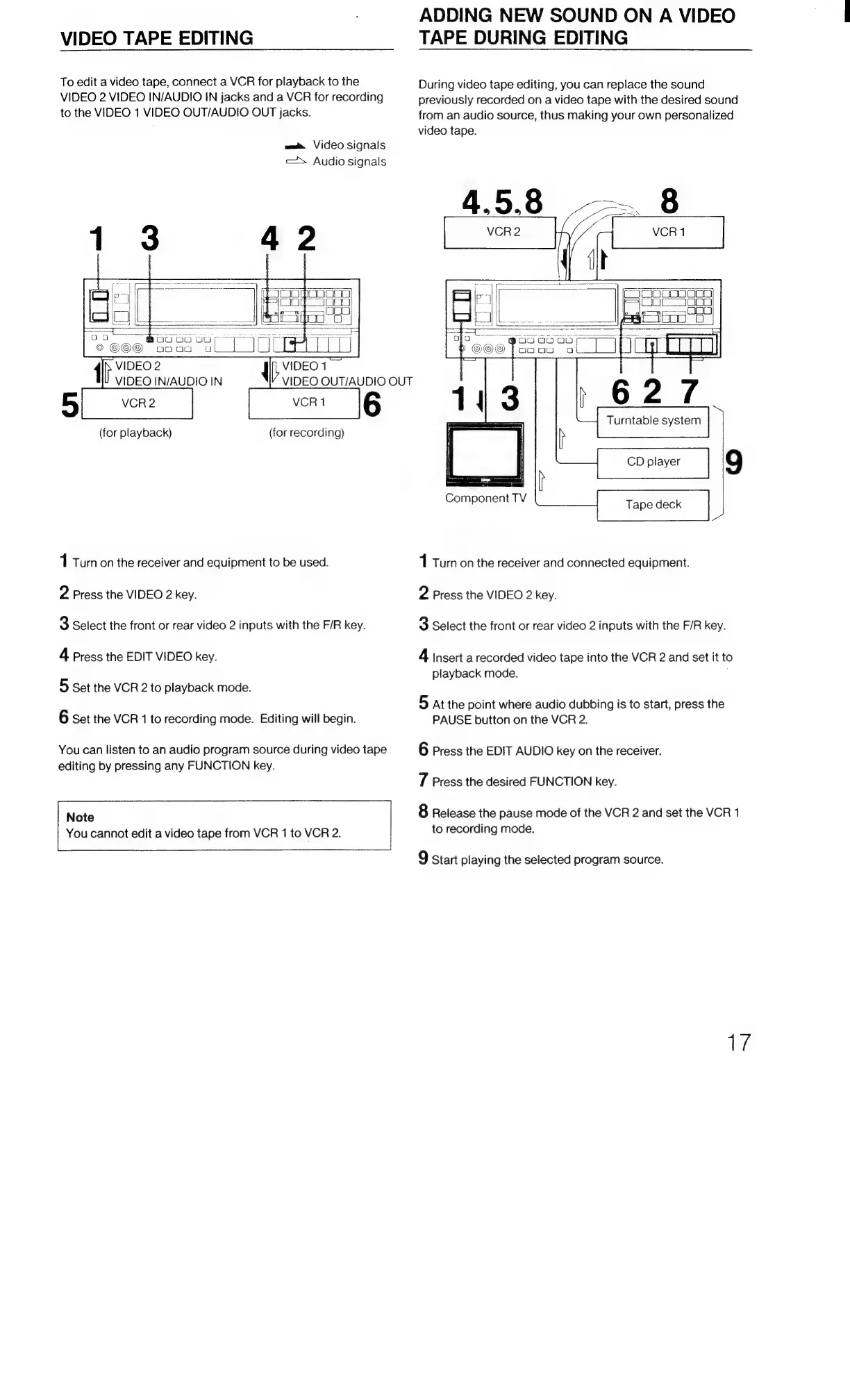
VIDEO
TAPE
EDITING
To
edit
a
video
tape,
connect
a
VCR
for
playback
to
the
VIDEO
2
VIDEO
IN/AUDIO
IN
jacks
and
a
VCR
for
recording
to
the
VIDEO
1
VIDEO
OUT/AUDIO
OUT
jacks.
wae
Video
signals
=>
Audio
signals
(for
playback)
(for
recording)
1
Turn
on
the
receiver
and
equipment
to
be
used.
2
Press
the
VIDEO
2
key.
3
Select
the
front
or
rear
video
2
inputs
with
the
F/R
key.
4
Press
the
EDIT
VIDEO
key.
5
Set
the
VCR
2
to
playback
mode.
6
Set
the
VCR
1
to
recording
mode.
Editing
will
begin.
You
can
listen
to
an
audio
program
source
during
video
tape
editing
by
pressing
any
FUNCTION
key.
Note
You
cannot
edit
a
video
tape
from
VCR
1
to
VCR
2.
ADDING
NEW
SOUND
ON
A
VIDEO
TAPE
DURING
EDITING
During
video
tape
editing,
you
can
replace
the
sound
previously
recorded
on
a
video
tape
with
the
desired
sound
from
an
audio
source,
thus
making
your
own
personalized
video
tape.
Turntable
system
|
CD
player
9
om
cae
ase
i
Tape
deck
1
Turn
on
the
receiver
and
connected
equipment.
Component
TV
2
Press
the
VIDEO
2
key.
3
Select
the
front
or
rear
video
2
inputs
with
the
F/R
key.
4
Insert
a
recorded
video
tape
into
the
VCR
2
and
set
it
to
playback
mode.
5
at
the
point
where
audio
dubbing
is
to
start,
press
the
PAUSE
button
on
the
VCR
2.
6
Press
the
EDIT
AUDIO
key
on
the
receiver.
7
Press
the
desired
FUNCTION
key.
8
Release
the
pause
mode
of
the
VCR
2
and
set
the
VCR
1
to
recording
mode.
9
start
playing
the
selected
program
source.
aie

Related product manuals