EasyManua.ls Logo

Sony STR-AV970X - Video Recording; Video Tape Editing

Sony STR-AV970X
43 pages
Print Icon
To Next Page IconTo Next Page
To Previous Page IconTo Previous Page
Loading...
Mite
(<ToM
si-Yere]
collate
A
ZCol-Tomm
F-\el-m
ori
tate,
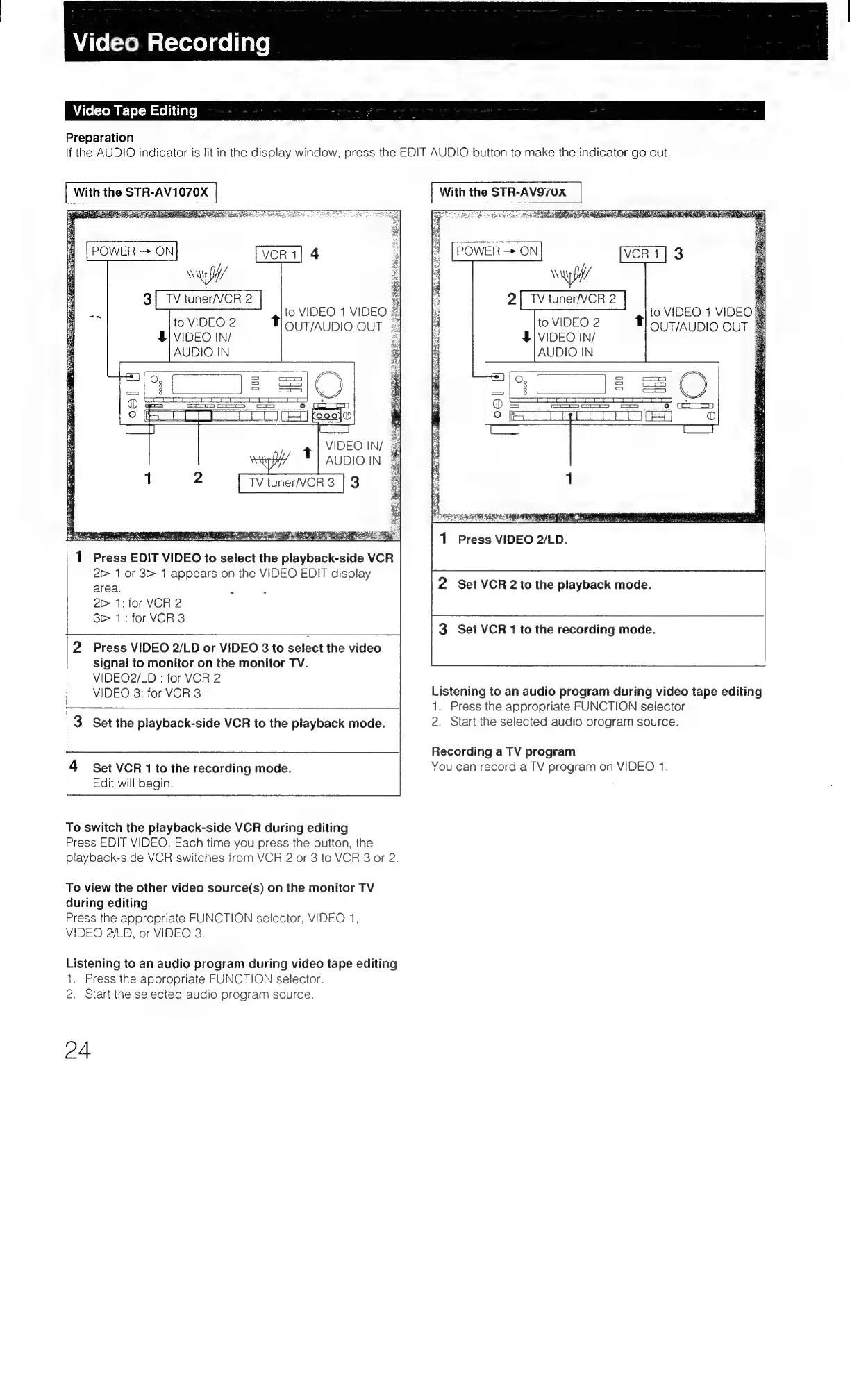
Preparation
lf
the
AUDIO
indicator
is
lit
in
the
display
window,
press
the
EDIT
AUDIO
button
to
make
the
indicator
go
out.
4|'0
VIDEO.1
VIDEO
&
OUT/AUDIO
OUT
*
to
VIDEO
2
$/
VIDEO
IN/
AUDIO
IN
ae
=
cT-
oa
ars
es
|
A
SS
NS
DS
CES
EN
CAS
OY
PO
SN
CAN
CE]
ES
SS
a.
oe
a
9
eee
t
TV
tuner/VCR
3
ROT
NER
eon
eee
in
ot
TG
ORE
REAS
TS
Riese
1
Press
EDIT
VIDEO
to
select
the
playback-side
VCR
2>
1
or
3>
1
appears
on
the
VIDEO
EDIT
display
area.
2>
1:
for
VCR
2
|
3>
1:
for
VCR
3
2
Press
VIDEO
2/LD
or
VIDEO
3
to
select
the
video
signal
to
monitor
on
the
monitor
TV.
VIDEO2/LD
:
for
VCR
2
VIDEO
3:
for
VCR
3
3
Set
the
playback-side
VCR
to
the
playback
mode.
4
Set
VCR
1
to
the
recording
mode.
Edit
will
begin.
To
switch
the
playback-side
VCR
during
editing
Press
EDIT
VIDEO.
Each
time
you
press
the
button,
the
playback-side
VCR
switches
from
VCR
2
or
3
to
VCR
3
or
2.
To
view
the
other
video
source(s)
on
the
monitor
TV
during
editing
Press
the
appropriate
FUNCTION
selector,
VIDEO
1,
VIDEO
2/LD,
or
VIDEO
3.
Listening
to
an
audio
program
during
video
tape
editing
1.
Press
the
appropriate
FUNCTION
selector.
2.
Start
the
selected
audio
program
source.
24
With
the
STR-AV970X
PE
.
SHEE
a
SE
to
VIDEO
1
VIDEO
to
VIDEO
2
!
ouT/AUDIO
OUT
$|
VIDEO
IN/
AUDIO
IN
1
Press
VIDEO
2/LD.
2
Set
VCR
2
to
the
playback
mode.
3
Set
VCR
1
to
the
recording
mode.
Listening
to
an
audio
program
during
video
tape
editing
1.
Press
the
appropriate
FUNCTION
selector.
2.
Start
the
selected
audio
program
source.
Recording
a
TV
program
You
can
record
a
TV
program
on
VIDEO
1.

Table of Contents

Related product manuals