EasyManua.ls Logo

Sony TRINITRON KV-29C3A - Page 13

Sony TRINITRON KV-29C3A
84 pages
Print Icon
To Next Page IconTo Next Page
To Previous Page IconTo Previous Page
Loading...
Advanced
TV
operation
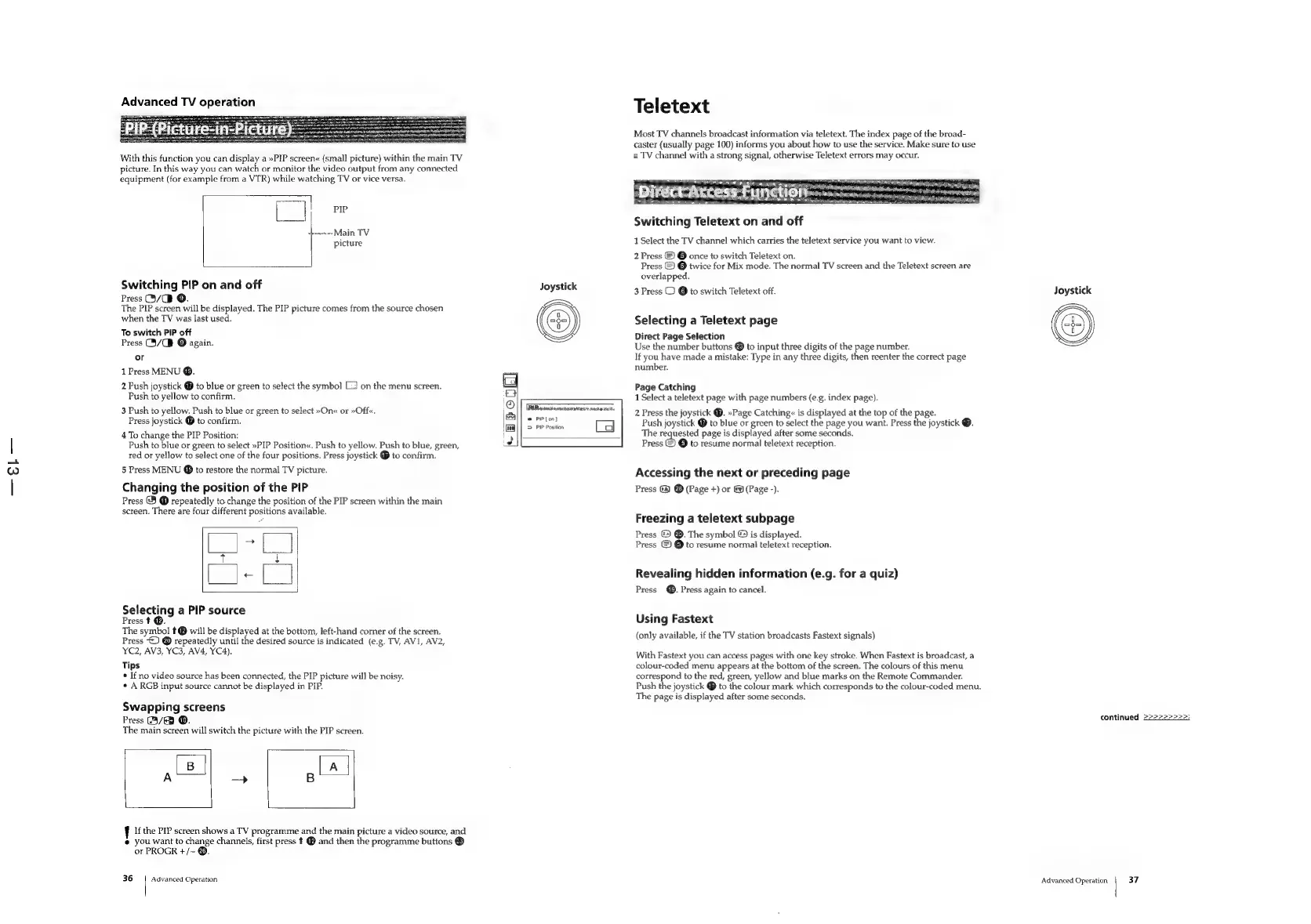
With
this
function
you
can
display
a
»PIP
screen«
(small
picture)
within
the
main
TV
picture.
In
this
way
you
can
watch
or
monitor
the
video
output
from
any
connected
equipment
(for
example
from
a
VTR)
while
watching
TV
or
vice
versa.
PIP
spew
Main
TV
picture
Switching
PIP
on
and
off
Joystick
Press
/Q@
O.
The
PIP
screen
will
be
displayed.
The
PIP
picture
comes
from
the
source
chosen
when
the
TV
was
last
used.
To
switch
PIP
off
Press
(3/CB
©
again.
or
1
Press
MENU
®.
2
Push
joystick
@
to
blue
or
green
to
select
the
symbol
[2]
on
the
menu
screen.
Push
to
yellow
to
confirm.
PUP
wtomsrnecar
winery
saan
ie:
3
Push
to
yellow.
Push
to
blue
or
green
to
select
»On«
or
»Off«,
i
aeranen
Press
joystick
to
confirm.
@
PIPL
on}
|
>
PIP
Position
4
To
change
the
PIP
Position:
Push
to
blue
or
green
to
select
»PIP
Position«.
Push
to
yellow.
Push
to
blue,
green,
red
or
yellow
to
select
one
of
the
four
positions.
Press
joystick
@
to
confirm.
5
Press
MENU
@
to
restore
the
normal
TV
picture.
Changing
the
position
of
the
PIP
Press
@3
®
repeatedly
to
change
the
position
of
the
PIP
screen
within
the
main
screen.
There
are
four
different
positions
available.
Selecting
a
PIP
source
Press
t
@.
The
symbol
t@
will
be
displayed
at
the
bottom,
left-hand
corner
of
the
screen.
Press
2)
@
repeatedly
until
the
desired
source
is
indicated
(e.g.
TV,
AVI, AV2,
YC2,
AV3, YC3, AV4,
YC4).
Tips
*
If
no
video
source
has
been
connected,
the
PIP
picture
will
be
noisy.
*
A
RGB
input
source
cannot
be
displayed
in
PIP.
Swapping
screens
Press
B/E)
@.
The
main
screen
will
switch
the
picture
with
the
PIP
screen.
B
A
If
the
PIP
screen
shows
a
TV
programme
and
the
main
picture
a
video
source,
and
@
you
want
to
change
channels,
first
press
t
@
and
then
the
programme
buttons
@
or
PROGR
+/~-
@.
36
Advanced
Operation
Teletext
Most
TV
channels
broadcast
information
via
teletext.
The
index
page
of
the
broad-
caster
(usually
page
100)
informs
you
about
how
to
use
the
service.
Make
sure
to
use
a
TV
channel
with
a
strong
signal,
otherwise
Teletext
errors
may
occur.
we
reer
SNe
aC
alee
aia
a
ji
es
Me
Mn
nsing
*
Gititetntinac
daar
oa
Switching
Teletext
on
and
off
1
Select
the
TV
channel
which
carries
the
teletext
service
you
want
to
view.
2
Press
©)
@
once
to
switch
Teletext
on.
Press
&
@
twice
for
Mix
mode.
The
normal
TV
screen
and
the
Teletext
screen
are
overlapped.
3
Press
CO)
@
to
switch
Teletext
off.
Selecting
a
Teletext
page
Direct
Page
Selection
Use
the
number
buttons
®
to
input
three
digits
of
the
page
number.
If
you
have
made
a
mistake:
Type
in
any
three
digits,
then
reenter
the
correct
page
number.
Page
Catching
1
Select
a
teletext
page
with
page
numbers
(e.g.
index
page).
2
Press
the
joystick
@.
»Page
Catching«
is
displayed
at
the
top
of
the
page.
Push
joystick
@
to
blue
or
green
to
select
the
page
you
want.
Press
the
joystick
@.
The
requested
page
is
displayed
after
some
seconds.
Press
©
©
to
resume
normal
teletext
reception.
Accessing
the
next
or
preceding
page
Press
@
®
(Page
+)
or
(Page
-).
Freezing
a
teletext
subpage
Press
©)
@.
The
symbol
©
is
displayed.
Press
©
@
to
resume
normal
teletext
reception.
Revealing
hidden
information
(e.g.
for
a
quiz)
Press
@®.
Press
again
to
cancel.
Using
Fastext
(only
available,
if
the
TV
station
broadcasts
Fastext
signals)
With
Fastext
you
can
access
pages
with
one
key
stroke.
When
Fastext
is
broadcast,
a
colour-coded
menu
appears
at
the
bottom
of
the
screen.
The
colours
of
this
menu
correspond
to
the
red,
green,
yellow
and
blue
marks
on
the
Remote
Commander.
Push
the
joystick
@
to
the
colour
mark
which
corresponds
to
the
colour-coded
menu.
The
page
is
displayed
after
some
seconds.
Joystick
continued
>>>>>>>>>:
Advanced
Operation
37

Related product manuals