24
Adjusting Your Setup (MENU)
FAVORITE
PIP PROGR
PIP PROGR
ENTER
MENU
Changing the
“SOUND” setting
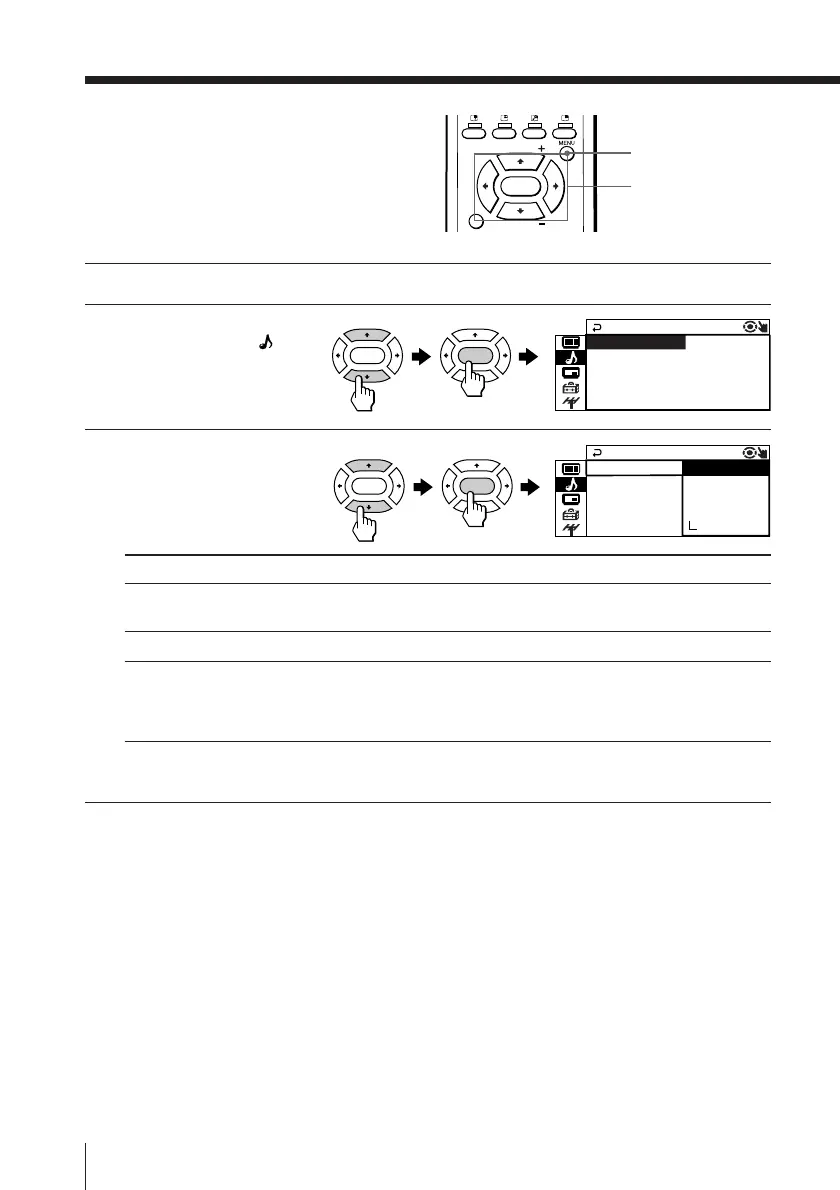
The “SOUND” menu allows you to
change the sound settings.
1
Press MENU.
2
Press V or v to select the
“SOUND” icon (
),
then press ENTER.
3
Press V or v to select the
desired item (e.g.,
“SOUND MODE”),
then press ENTER.
Select To
“SOUND MODE” choose either “DYNAMIC”, “DRAMA”, “SOFT”,
“PERSONAL”*, or “ADJUST”.
“SURROUND” choose either “TruSurround” or “OFF”.
“INTELLIGENT VOL” adjust the volume of all program numbers and video inputs
automatically.
Press V or v to select “ON”, then press ENTER.
To cancel, select “OFF”, then press ENTER.
* When the “PERSONAL” mode is selected, you can received the last
adjusted sound settings from the “ADJUST” option (see page 25).
Tip
• For details on the options under “SOUND MODE” and “SURROUND”,
see pages 12 and 16 respectively.
To return to the normal screen
Press MENU.
V/b/v/B/ENTER
ENTER ENTER
SOUND MODE +
SOUND
INTELLIGENT VOL:OFF
SURROUND : OFF
: DYNAM I C+
PER
SOUND
SONA L
INTELLIGENSOFT
S
S
URROUND : O
OUND MODE
DRAMA
ADJUST
C
DYNAM I
ENTER ENTER



 To Next Page