16 Menu Adjustment
Sony KV-HW21N63 Group A12 (GB)_4-094-461-11 (1)
x Changing the “Video” setting
The “Video” menu allows you to adjust the picture settings.
1
Press MENU.
2
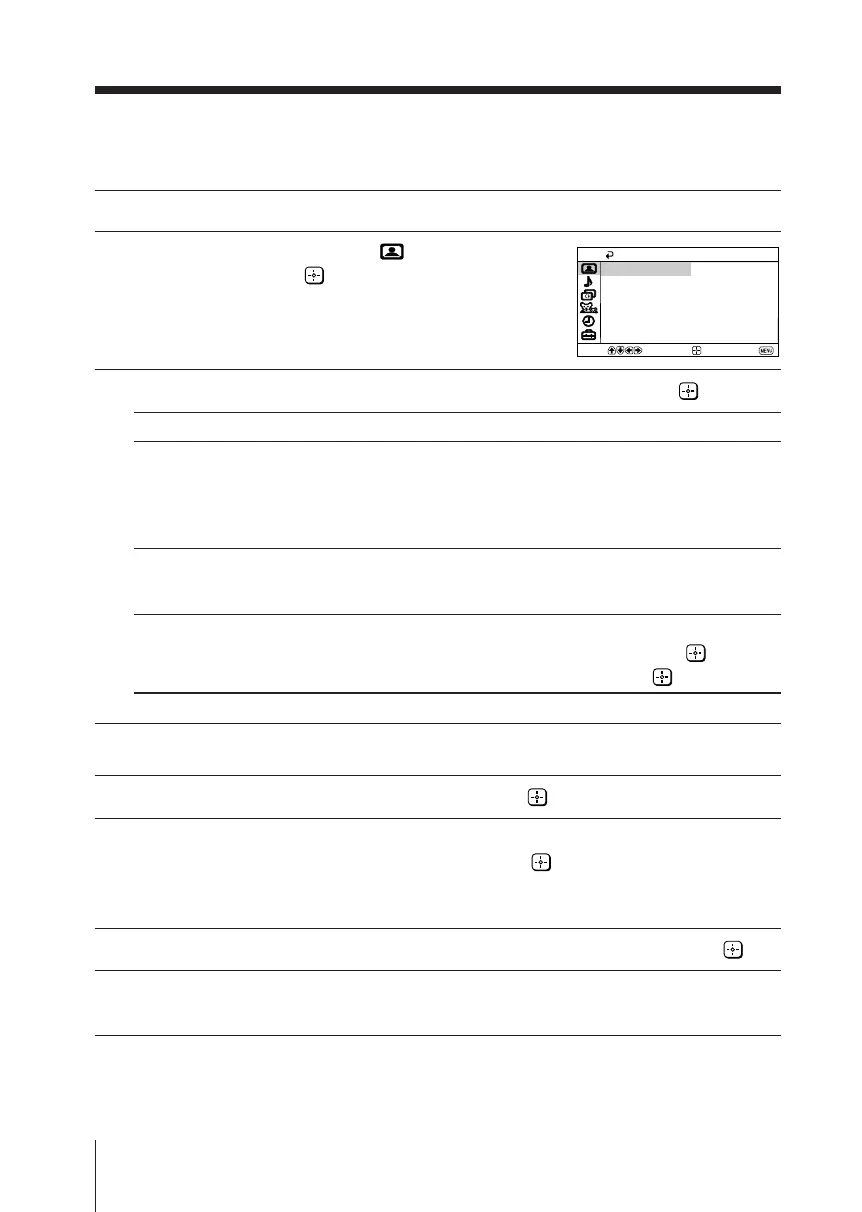
Make sure the “Video” icon ( ) is
selected, then press .
3
Press V or v to select the desired item (e.g., “Mode”), then press .
Select To
“Mode” choose either “Vivid”, “Standard”, “Movie” or
“Sports” (see page 11).
Tip
• You can adjust the setting to your personal
preference in the “Picture Controls” option.
“Color Temp.” adjust white color tint.
(Color Temperature) Choose either “Cool” (blue tint), “Neutral” (neutral
tint) or “Warm” (red tint).
“Intelligent Picture” optimize picture quality.
Press V or v to select “On”, then press .
To cancel, select “Off”, then press .
Adjusting the “Picture Controls” items
1
Press v to select “Picture Controls”, then press .
2
Press V or v to select either “Picture” (contrast), “Brightness”, “Color”,
“Hue” (color tones) or “Sharpness”, then press .
Pressing RESET button on the remote control will set your TV to the factory
setting.
3
Press V,v,B or b to adjust the setting of your selected item, then press .
4
Repeat the above steps to adjust other items.
The adjusted settings will be memorized.
Note
• Reducing “Sharpness” can also reduce picture noise.
Color Temp.:
Intelligent Picture: On
Cool
Picture Controls
Vivid
Mode:
Video
Select
End
Move
01GB05AVD-PHI.p65 29/08/03, 3:33 PM16



 To Next Page