17
Menu Adjustment
Sony KV-HW21N63 Group A12 (GB)_4-094-461-11 (1)
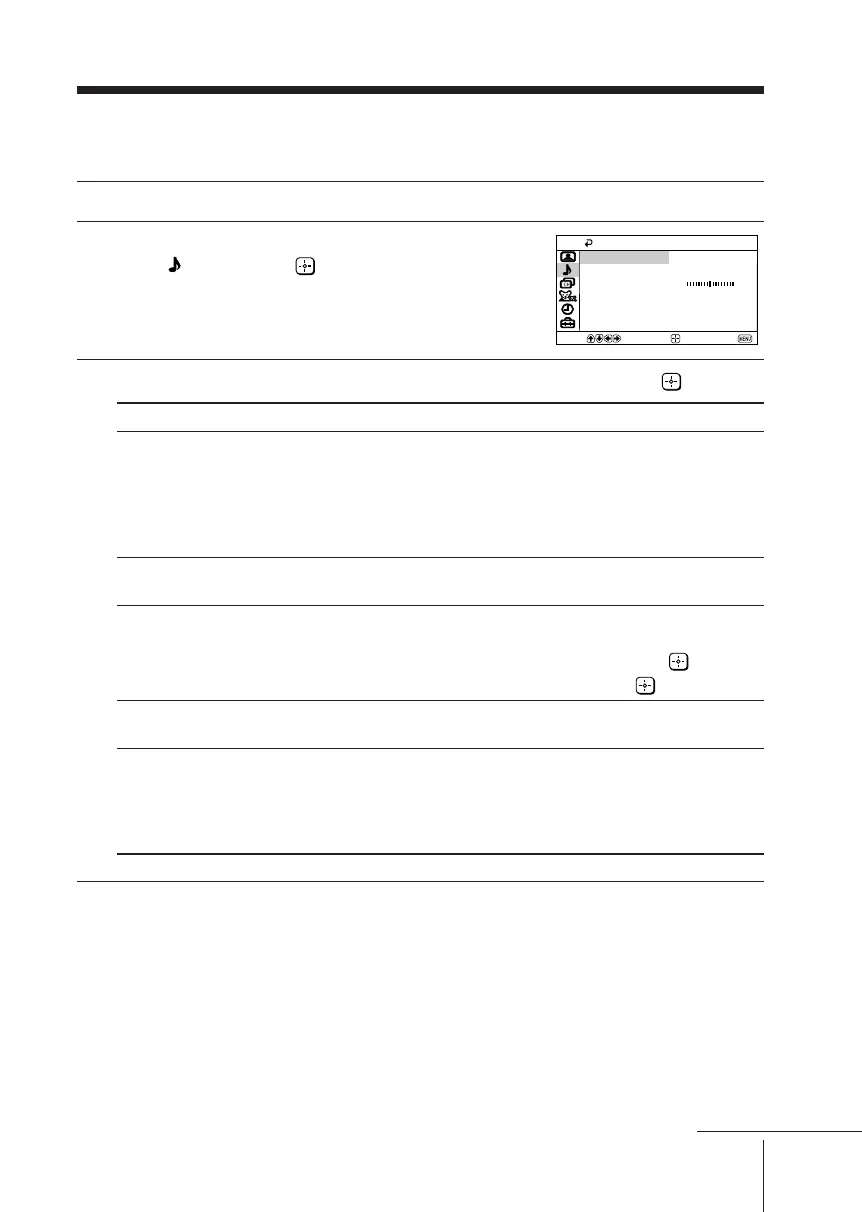
x Changing the “Audio” setting
The “Audio” menu allows you to adjust the sound settings.
1
Press MENU.
2
Press V or v to select the “Audio”
icon ( ), then press .
3
Press V or v to select the desired item (e.g., “Mode”), then press .
Select To
“Mode” choose either “Movie”, “News”, “Soft” or
“Standard” (see page 11).
Tip
• You can adjust the setting to your personal
preference in the “Sound Controls” option
(see page 18).
“Balance” Press v or B to emphasize the left speaker.
Press V or b to emphasize the right speaker.
“Steady Sound” adjust the volume of all channel numbers and
video inputs automatically.
Press V or v to select “On”, then press .
To cancel, select “Off”, then press .
“Effect” choose either “Off”, “Simulated” or “Surround”
(see page 10).
“MTS” choose either “Stereo”, “Auto SAP” or “Mono”.
(Multi-Channel TV Sound) Tip
• You can also access the setting by pressing the
MTS/SAP button on the remote control
(see page 12).
Balance
Steady Sound:
Effect: Off
Off
MTS: Stereo
Sound Controls
Movie
Mode:
Audio
Select
End
Move
continue
01GB06ADJ-PHI.p65 29/08/03, 3:34 PM17






 To Next Page