34
Making Printouts with a Caption
Operation
2
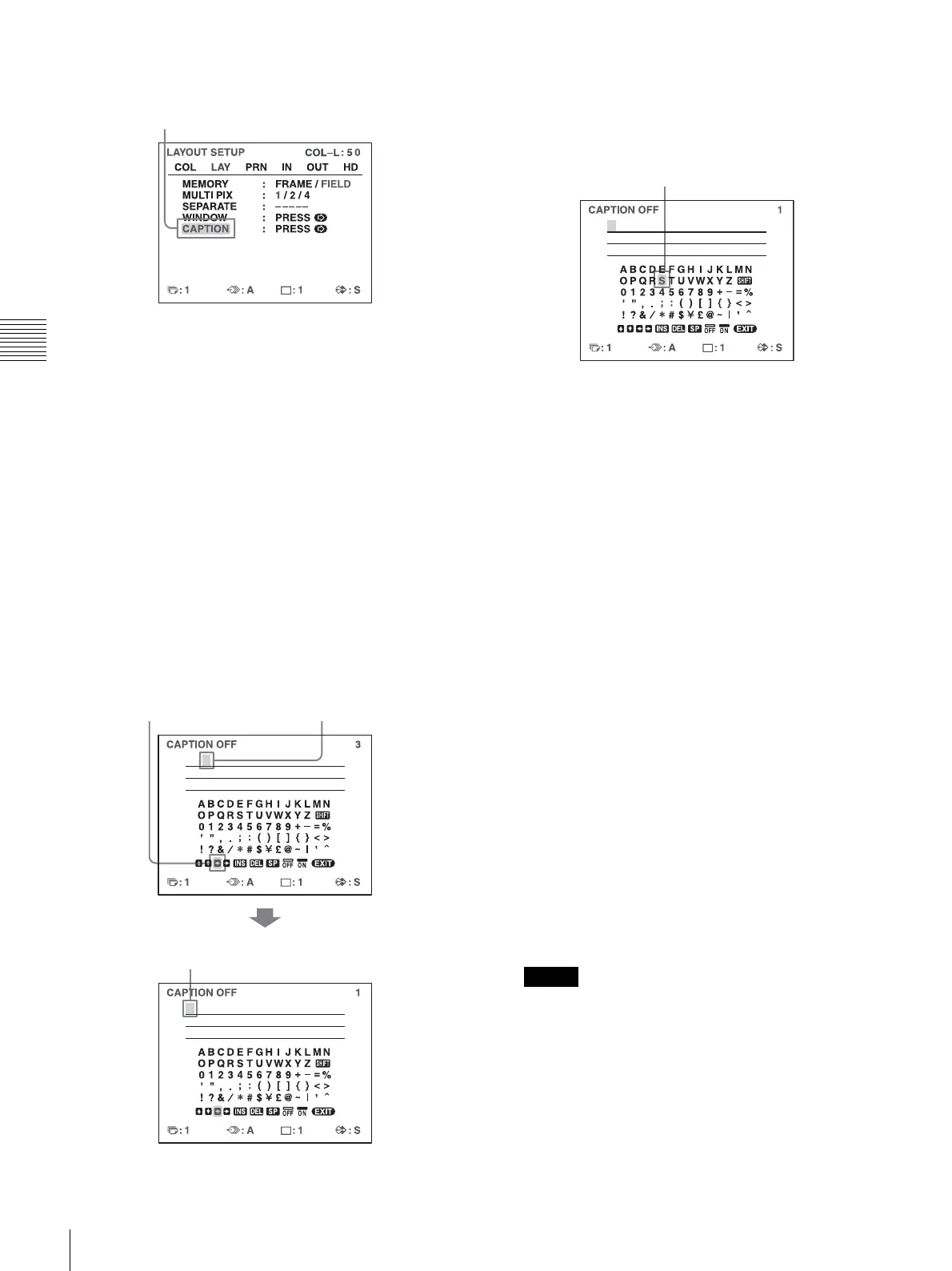
Select CAPTION by pressing the M or m button.
3
Press the , button.
The CAPTION menu appears.
4
Position the cursor (the line lit in green) at the point
where you want to enter the character in the character
display area.
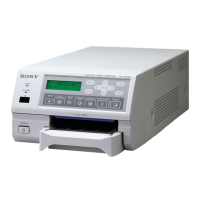
To move the cursor
1 Select the arrow corresponding to the direction in
which you want to move the green cursor in the
character display area, by pressing the M, m, <
or , button.
2 Press the EXEC button.
Each time you press the EXEC button, the cursor
moves one position in the designated direction.
Example: Move the cursor to the left by two.
5
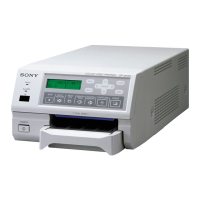
Select the character you want to enter by pressing the
M, m, < or , button.
Example: Enter S.
When you enter characters on the printer
window display:
It is recommended that you display the characters to
be entered on the printer window display by pressing
either < or , button.
When the cursor is positioned at the right
end:
The cursor moves to the left end on the next line when
you press the , button.
For example, when the cursor is positioned at N,
pressing the , button results in the cursor moving to
O at the left end on the next line.
To select either capital letters or small letters
You can change the characters in the character entry
area from capital letters to small letters or vice versa.
1 Highlight SHIFT in green by pressing the M, m,
< or , button on the video monitor. Or display
SHIFT or shift on the printer window display.
When characters are displayed in capital letters in
the character entry area, shift is displayed in the
printer window display. When displayed in small
letters, SHIFT is displayed.
2 Press the EXEC button.
Capital letters are changed to small letters, or
small letters are changed to capital letters in the
character entry area.
Note
Characters already entered (displayed in the character
display area) are not changed even if letters are
changed in the character entry area.
Highlight CAPTION in green by pressing the
M or m button.
The cursor is currently
positioned here (lit in green).
1 Highlight the <
button in green.
2 Press the EXEC
button twice.
The blinking cursor moves
to this position.
Highlight S in green by pressing the M, m, < or ,
button. S blinks in green.


 To Next Page