36
Deleting Images Stored in Memory
Operation
8
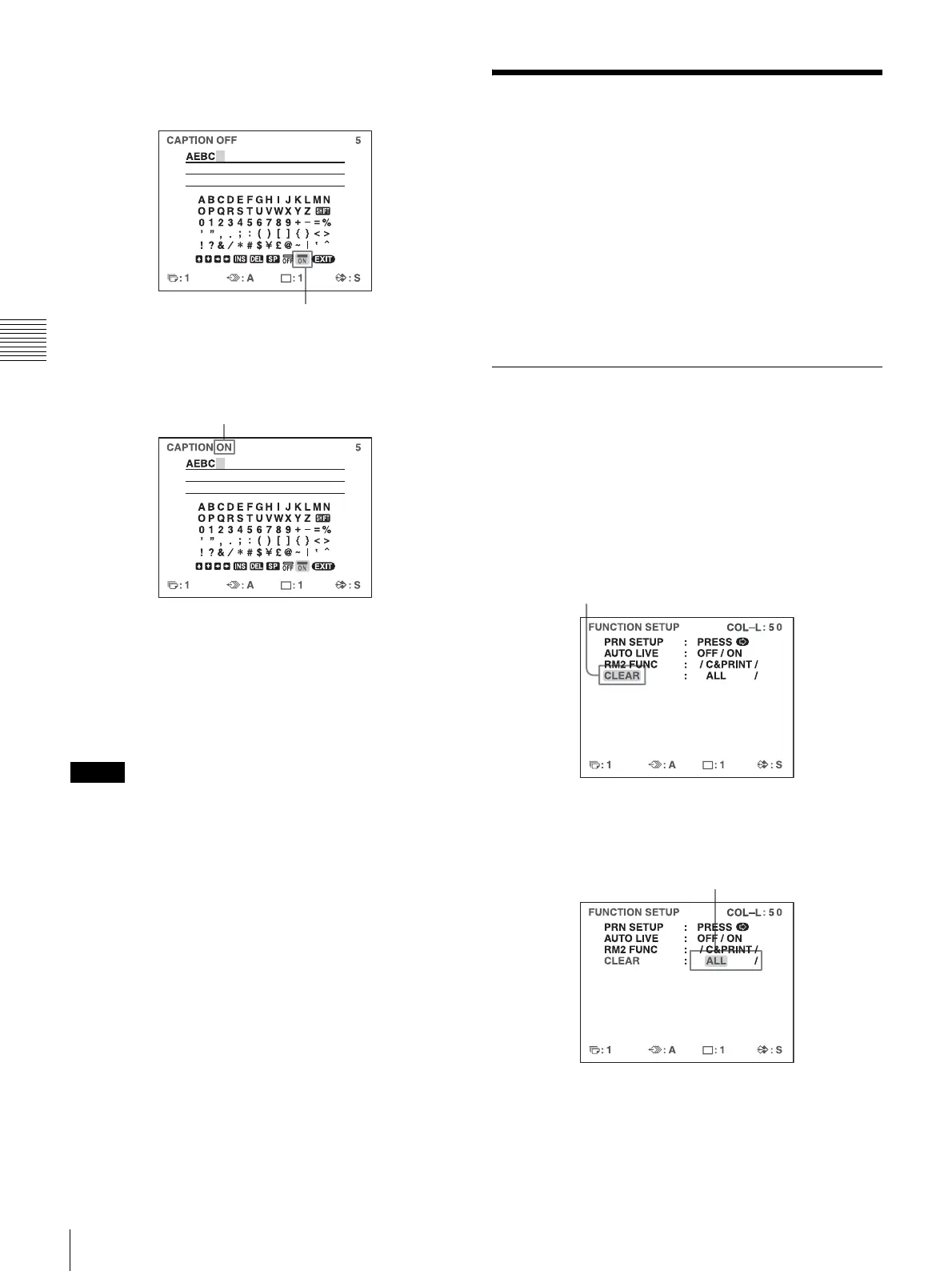
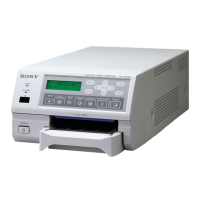
Set the CAPTION ON/OFF function to ON.
1 Select ON by pressing the M, m, < or , button.
Select OFF to make printouts without a caption.
2 Press the EXEC button.
9
After entering the caption, highlight EXIT by
pressing the M, m, < or , button, then press the
EXEC button.
The LAYOUT SETUP menu appears.
10
Press the MENU button.
Note
Characters entered in steps 4 to 7 are stored after
completing the operation of step 7. These characters
remain even after you turn off the printer.
Deleting Images Stored in
Memory
You can use the STOP/CLEAR button to delete individual
reduced images captured to a memory page, or to delete all
of the images from one or all of the memory pages.
Whether the images of all memory pages or only a single
memory page are deleted depends on the setting of
CLEAR in the FUNCTION SETUP menu.
As the STOP/CLEAR button functions as the STOP button
when printing is in progress, images cannot be deleted
while printing is in progress.
Setting the Function of the STOP/
CLEAR Button
1
Display the FUNCTION SETUP menu according to
the operations of steps 1 to 3 described in “Deciding
which image is displayed on the video monitor after
capturing an image” on page 30.
2
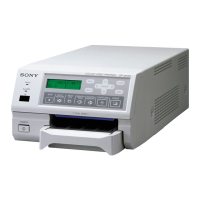
Select CLEAR by pressing the M or m button.
3
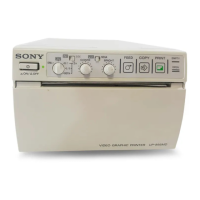
Select the function of the STOP/CLEAR button by
pressing the < or , button.
Highlight ON by pressing the M, m, < or , button.
ON blinks in green.
The display changes from OFF to ON.
Highlight CLEAR in green by pressing the M or m
button.
Highlight the desired function in green
by pressing the < or , button.


 To Next Page