58
Configuring HDTV-Signal Inputs and Outputs
Adjustment
2
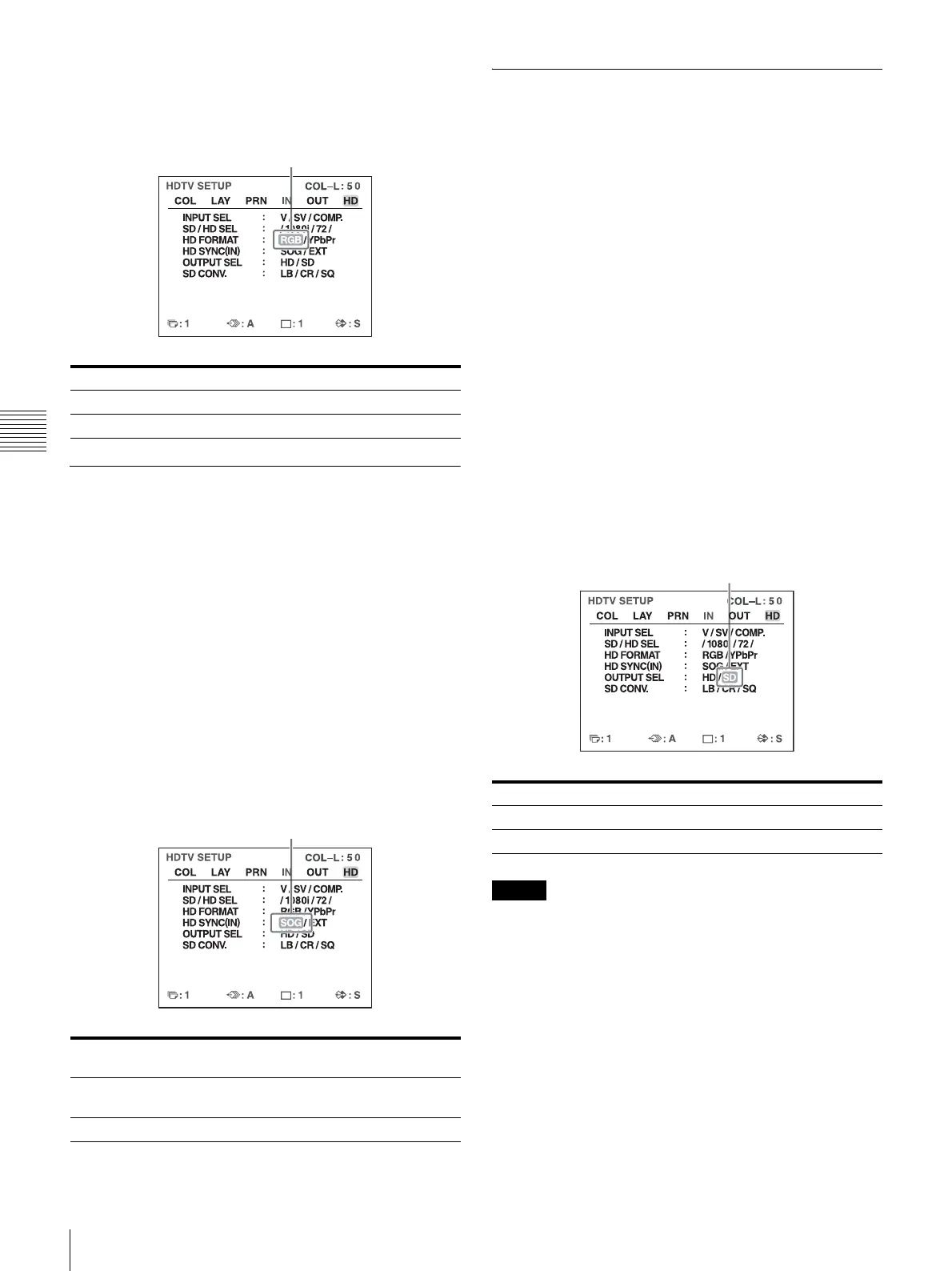
Select HD FORMAT by pressing the M or m button,
and select the HDTV signal format by pressing the <
or , button.
Selecting the Synchronization
Method for Input Signals
Select the synchronization method for HDTV signals.
Under normal circumstances, select the SOG setting.
When HD FORMAT is set to YPbPr, the HD SYNC setting
is fixed to SOG and cannot be configured. When SD/HD
SEL is set to AUTO, the HD SYNC setting is
automatically determined and set to SOG or EXT. In either
case, “-----” appears for the HD SYNC setting.
1
Display the HDTV SETUP menu.
2
Select HD SYNC by pressing the M or m button, and
select the method for signal synchronization by
pressing the < or , button.
Selecting the Output Signal Type
With HDTV signal input, you can select whether the
printer outputs signals to a video monitor unchanged or
converts them to SDTV signals.
If you want the printer to output SDTV signals, be sure to
select the downconvert method using the SD CONV. menu
item that follows.
Even if you choose to downconvert to SDTV signals with
this setting, images will still be printed in a 16:9 aspect
ratio.
Note on output formats
When HD is selected here, signals are output in the format
selected under HD FORMAT.
When SD is selected here, signals are output in the format
you select under the INPUT FORM. setting of the INPUT
SETUP menu.
1
Display the HDTV SETUP menu.
2
Select OUTPUT SEL by pressing the M or m button,
and select the output method by pressing the < or
, button.
Note
When HD is selected, no signal is output from the
composite video output connector or the S-video output
connector on the rear panel of the printer.
Signal to be input Setting
RGB signals RGB
YPbPr signals YPbPr
Synchronization
method
Setting
Sync on Green method SOG (SYNC ON G in the printer
window display)
Separate sync method EXT
Highlight the desired format in green by
pressing the < or , button.
Highlight the desired method for signal
synchronization in green by pressing the < or ,
button.
Signal to be output Setting
Unconverted HDTV signals HD
Downconverted SDTV signals SD
Highlight the desired output method in
green by pressing the < or , button.


 To Next Page