30
Making a Printout of Multiple Different Reduced Images
Operation
3
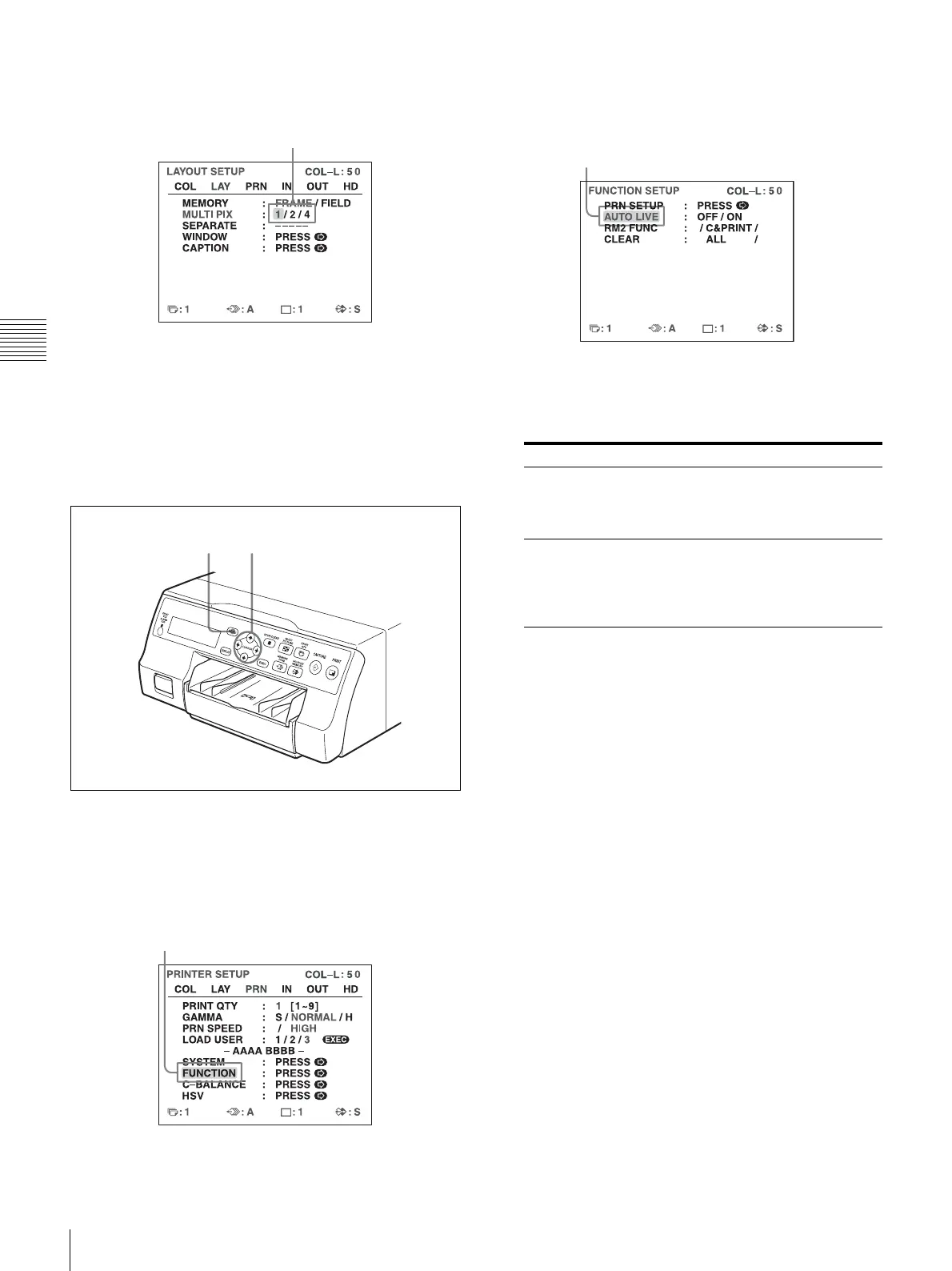
Select the type of reduced images to be captured in
memory by pressing the < or , button.
4
Press the MENU button.
The normal screen appears.
Deciding which image is displayed on the
video monitor after capturing an image
You can switch image displayed on the video monitor after
capturing an image, a memory image or a source image.
1
Display the PRINTER SETUP menu according to the
operations of step 1 described in “Making Printouts
with the Desired User Set Number” on page 23.
2
Select FUNCTION by pressing the M or m button.
3
Press the , button.
The FUNCTION SETUP menu appears.
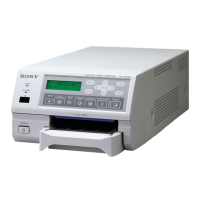
4
Select AUTO LIVE by pressing the M or m button.
5
Select which image appears on the video monitor after
the image is captured, by pressing the < or ,
button.
6
Press the MENU button.
The normal screen appears.
To return to the PRINTER SETUP menu
In step 6, position the cursor at PRN SETUP and press the
, button.
The PRINTER SETUP menu appears again.
Making a printout with multiple reduced
images
This subsection explains how to make printouts of multiple
reduced images taking, as an example, the making of a
printout of four reduced images.
Before making the printout of four reduced
images
• Confirm the printout color quality (using, for example,
the LOAD COLOR number). (See page 46.)
• Set the layout to four reduced images. (See page 29.)
• Select the appropriate memory page. (See page 28.)
• Select which image will appear after the image has been
captured into memory, the memory image or the source
image. (See page 30.)
Highlight the type of reduced images to be captured
in memory in green by pressing the < or , button.
6 2, 3, 4, 5
Highlight FUNCTION in green by pressing the M or m
button.
When Setting
The image captured in memory appears
just after the printer captures the image,
and the memory image remains on the
video monitor.
OFF
The image captured in memory appears
just after the printer captures the image,
then after a few seconds, the source
memory appears, whenever you press the
CAPTURE button.
ON
Highlight AUTO LIVE in green by pressing the M or m
button.


 To Next Page