63
Making Various Settings
Adjustment
2
Select the USER NAME item, then press the ,
button.
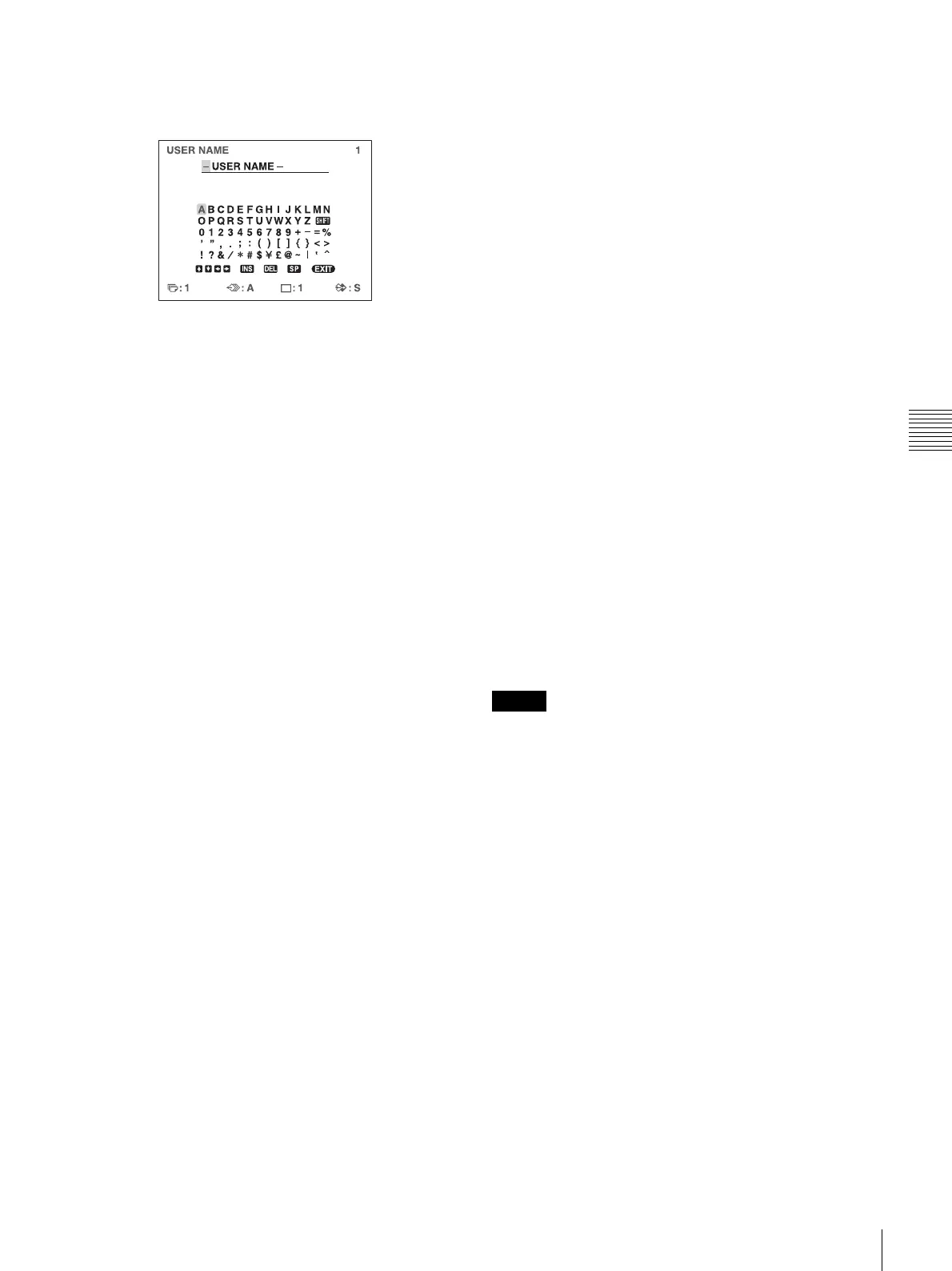
The USER NAME menu appears.
For detailed information on how to enter characters,
see “Entering a Caption” on page 33.
You can use up to 16 characters.
3
Select EXIT by pressing the M, m, < or , button
on the USER NAME menu, then press the EXEC
button.
The SYSTEM SETUP menu appears again.
4
Select the SAVE USER item, then select the desired
user set number.
5
Press the EXEC button.
All data currently set and adjusted are registered in the
user set number selected in step 4.
When you name a user set in step 2, the user name is
also registered at the same time.
The printer operates according to this registered data
unless you recall another user set. Also, if you modify the
settings, the modified data remains effective until another
user set is recalled, even if you turn off the power.
To make another user set
Perform all required settings and adjustments using the
menus, then register them with another user set number.
To recall the user set and print
Select the desired user set by using the LOAD USER item
on the PRINTER SETUP menu, then press the EXEC
button to execute the selected user set.
The printer operates according to the recalled user set.
To retain the originally set values
Example: Modify the settings made for user set 1. Retain
the original settings of user set 1 and register the modified
set values as user set 2.
1
Select user set 1 from the LOAD USER item on the
PRINTER SETUP menu.
2
Press the EXEC button to execute the selected user set
1.
3
Modify the recalled set values.
4
Select 2 from the SAVE USER item on the SYSTEM
SETUP menu.
5
Press the EXEC button.
The set values, modified in step 3, are registered as
user set 2.
To copy the existing user set
You can copy an existing user set to another user set
number.
1
Select the source user set number from the LOAD
USER item on the PRINTER SETUP menu.
2
Press the EXEC button to execute the selected user
set.
3
Select the target user set number with SAVE USER on
the SYSTEM SETUP menu.
4
Press the EXEC button.
The set values of the source user set, selected in step
1, are copied to the target user set number selected in
step 3.
Returning All Configurations to Default
Settings
The default settings are registered for a user number that
has no user settings registered. Selecting a user number
that has no user settings registered returns all menu
configurations to the default settings.
Notes
• If you return all menu configurations to the default
settings, comments that were created in the CAPTION
menu will also be deleted.
• If user settings are registered for all user numbers, the
configurations cannot be returned to default settings.
1
Select a user number that has no user settings
registered in LOAD USER of the PRINTER SETUP
menu.
2
Press the EXEC button.
All menu configurations are returned to the default
settings.


 To Next Page