67
Operation
2 When the image you want to print appears on the video monitor, press the
CAPTURE button.
The image is captured at the position where the cursor was placed in step 1.
The cursor then moves to the next position.
3 Repeat step 2 until you have captured all the desired images.
To replace a captured image
To change the image stored at the third position in an example:
1 Move the cursor to the third image position by using the SKIP button.
2 Press the CAPTURE button when the new image you want to print appears.
The previously stored image is replaced with the newly captured image.
4 Press the COPY button.
All images captured in memory are printed on one page.
Notes
• In the multi picture mode, the PRINT button is not activated.
• In the auto cut mode, remove the paper immediately after printing is completed.
If the cut paper covers the paper outlet, jamming may occur.
To automatically start printing after all images are captured in memory
You can make a printout without pressing the COPY button. To do this, set AUTO
PRINT to ON on the AUTO PRINT sub menu of the PRINTER main menu. (See
page 87.)
To make multiple copies of identical printouts
You can make up to 10 identical printouts.
Set the desired number of copies on the PRINT QTY sub menu of the PRINTER
main menu. (See page 83.)
To copy the last printout again
You can make printouts of these reduced-images as many times as you like by
pressing the COPY button.
The printer makes the number (chosen on the PRINT QTY menu) of identical
printouts when the COPY button is pressed.
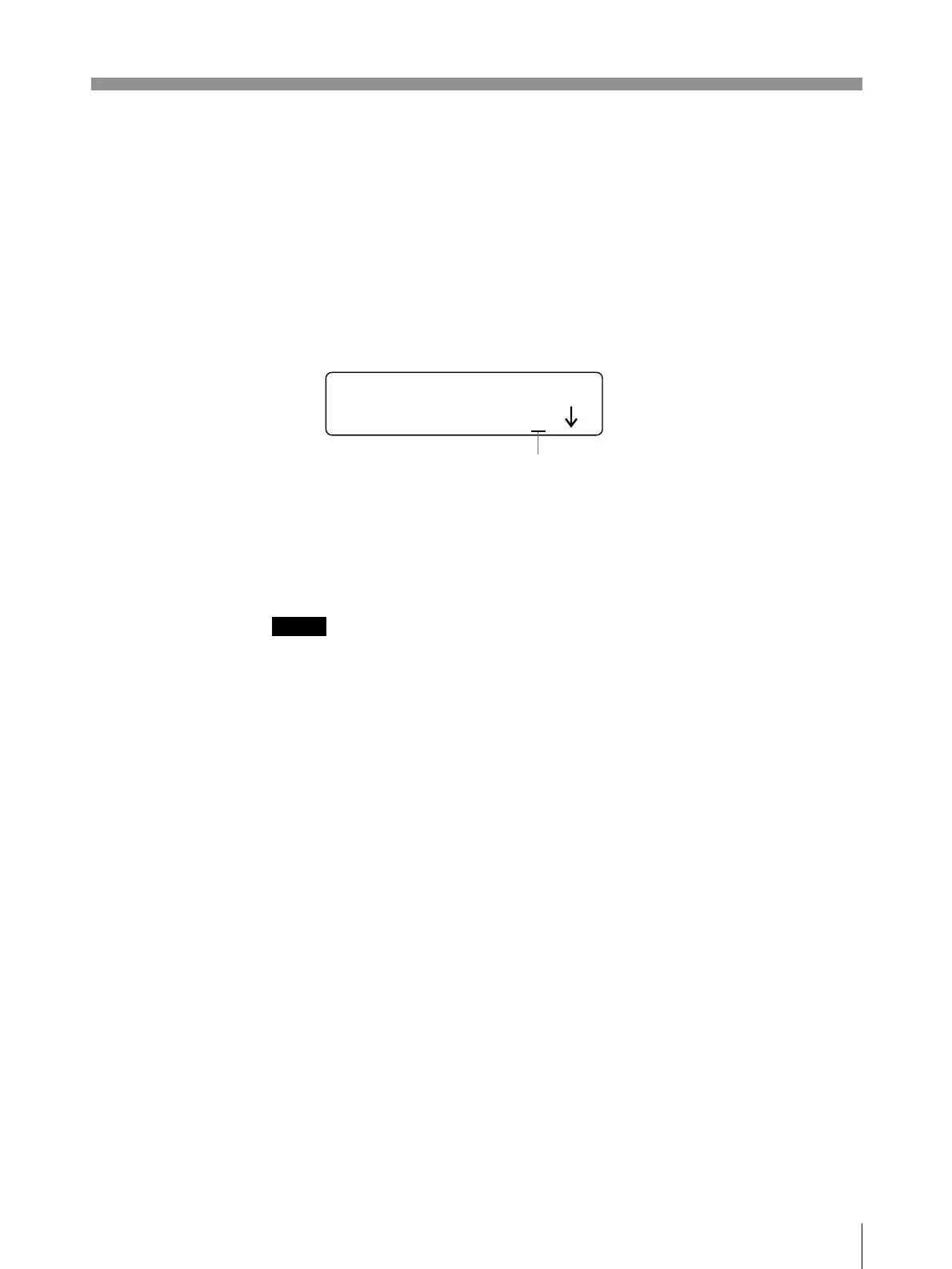
Move the cursor to this position.
TYPE2 12
Q1 STD6 34



 To Next Page