40
By connecting a camera to this unit via
USB cable, or inserting a memory card into
the memory card slot, HD (High Definition)
video or SD (Standard Definition) video
can be recorded as is.
b Note
• See “Supported/unsupported devices, images
and discs” on page 23 previously.
1 Prepare for recording.
Initially, turn on this unit (page 28),
insert a disc and connect cables (page
30) or insert memory card (page 35).
b Note
• To select the image and input type manually,
perform the recording procedure manually by
selecting options from the menu (
page 38).
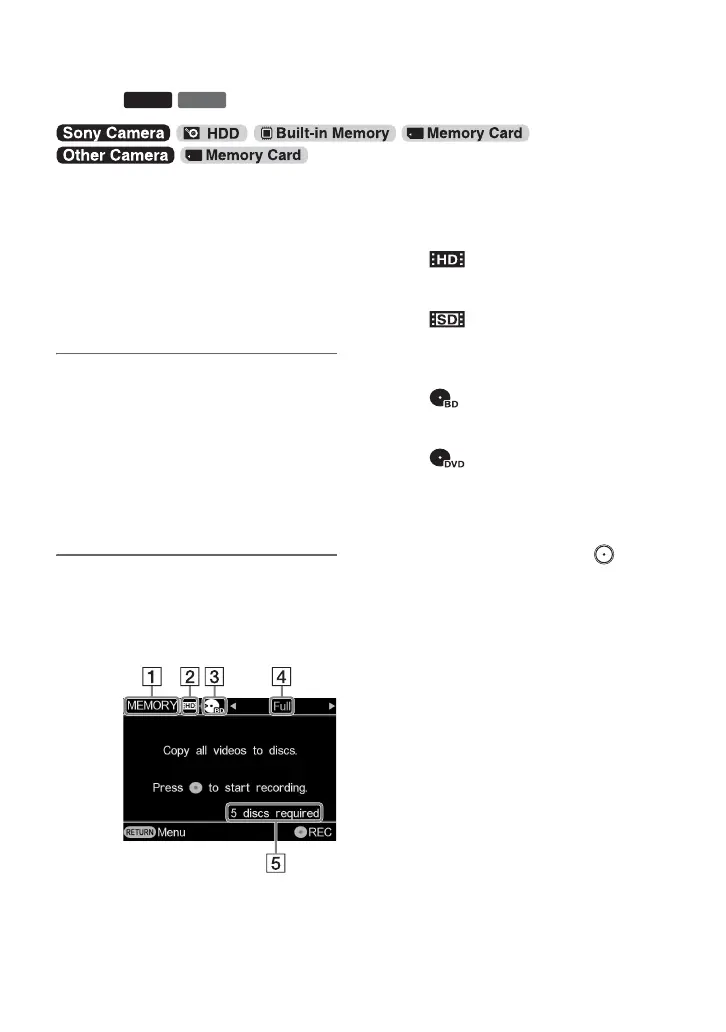
2 Confirm the message in the
display window, and press B or b
to display the copy mode you
want to use.
A Type of input
[USB]
Displays when connecting a camera
to this unit via USB cable.
[MEMORY]
Displays when a memory card is
inserted in the memory card slot.
B Type of image
[]
Displays when recording HD (High
Definition) videos.
[]
Displays when recording SD
(Standard Definition) videos.
C Type of disc
[]
Displays when recording to
a Blu-ray Disc.
[]
Displays when recording to a DVD
disc.
D Copy mode
[Full]
With a single touch of the
(record) button, you can copy all
videos in the camera or memory
card.
[Incremental]*
You can copy only newly-recorded
contents where previous contents
have already been recorded onto a
disc.
[Playlist]*
You can copy videos within a
playlist created on your camera.
[Select Videos]
[Thumbnail]*/[Shooting Date]
You can copy videos selected by
viewing thumbnail images or
shooting date.
If you select copy mode [Select
Videos], press V or v to select
[Thumbnail] or [Shooting Date]
(page 42).
Copying Videos
Copying Videos with a USB Cable or Memory
Card
BD
DVD



 To Next Page