49
Copying Videos
By connecting a camera or video device to
this unit via an audio/video cable, you can
copy videos from practically any camera or
video device to a disc.
You can copy videos of HD (High
Definition) quality to a disc by down-
converting to SD (Standard Definition).
The created disc will be playable on most
DVD players.
1 Prepare for recording.
Initially, turn on this unit (page 28),
insert a disc (page 29) and connect an
audio/video cable (AV cable) for
recording (page 33).
z Hint
• If all the preparations are complete for copying,
this unit detects a signal from a camcorder
connecting to the VIDEO IN connector, and the
display window in step 5 appears automatically.
You can skip steps 2 to 4.
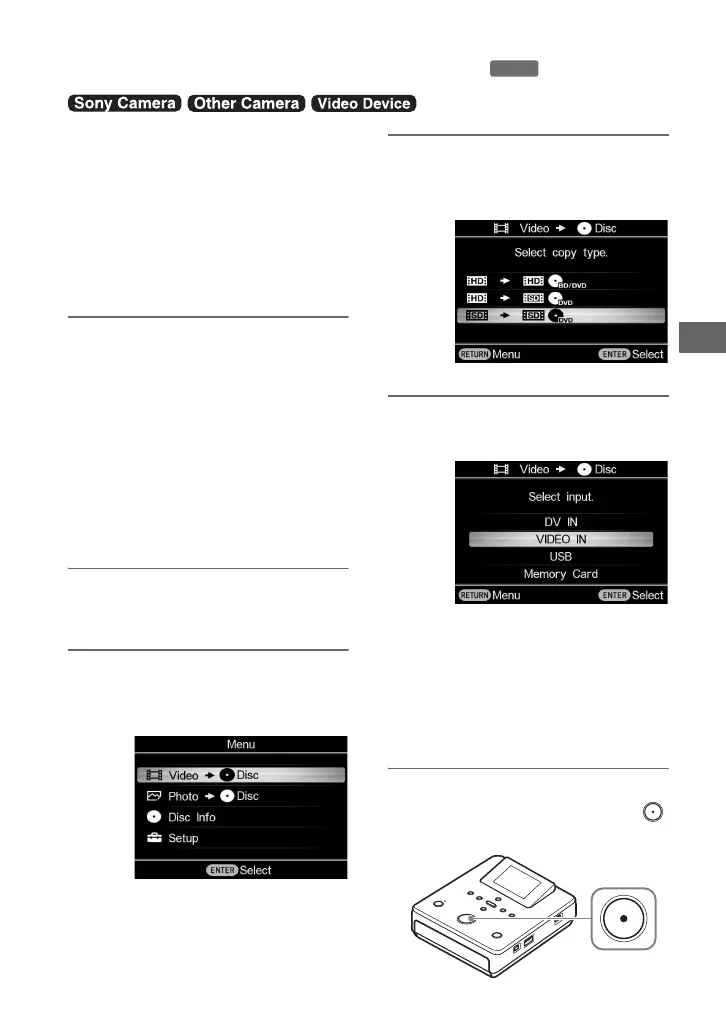
2 Press the RETURN button.
The [Menu] display appears.
3 Make sure that [Video b Disc] is
selected, and press the ENTER
button.
4 Press V or v to select [SD b SD]
(or [HD b SD]) and press the
ENTER button.
5 Press V or v to select [VIDEO IN]
and press the ENTER button.
z Hints
• If [HD b SD] is selected in step 4, only [VIDEO
IN] of the input options will appear.
• When the prompt message [A new disc found.
Initialize the disc for recording.] appears after
inserting a blank disc, press the ENTER button
to proceed.
6 Operate your video device to start
video playback, and press the
(record) button to start recording.
Copying Videos with an AV Cable
DVD



 To Next Page