45
4-9-1. Firmware Upgrade
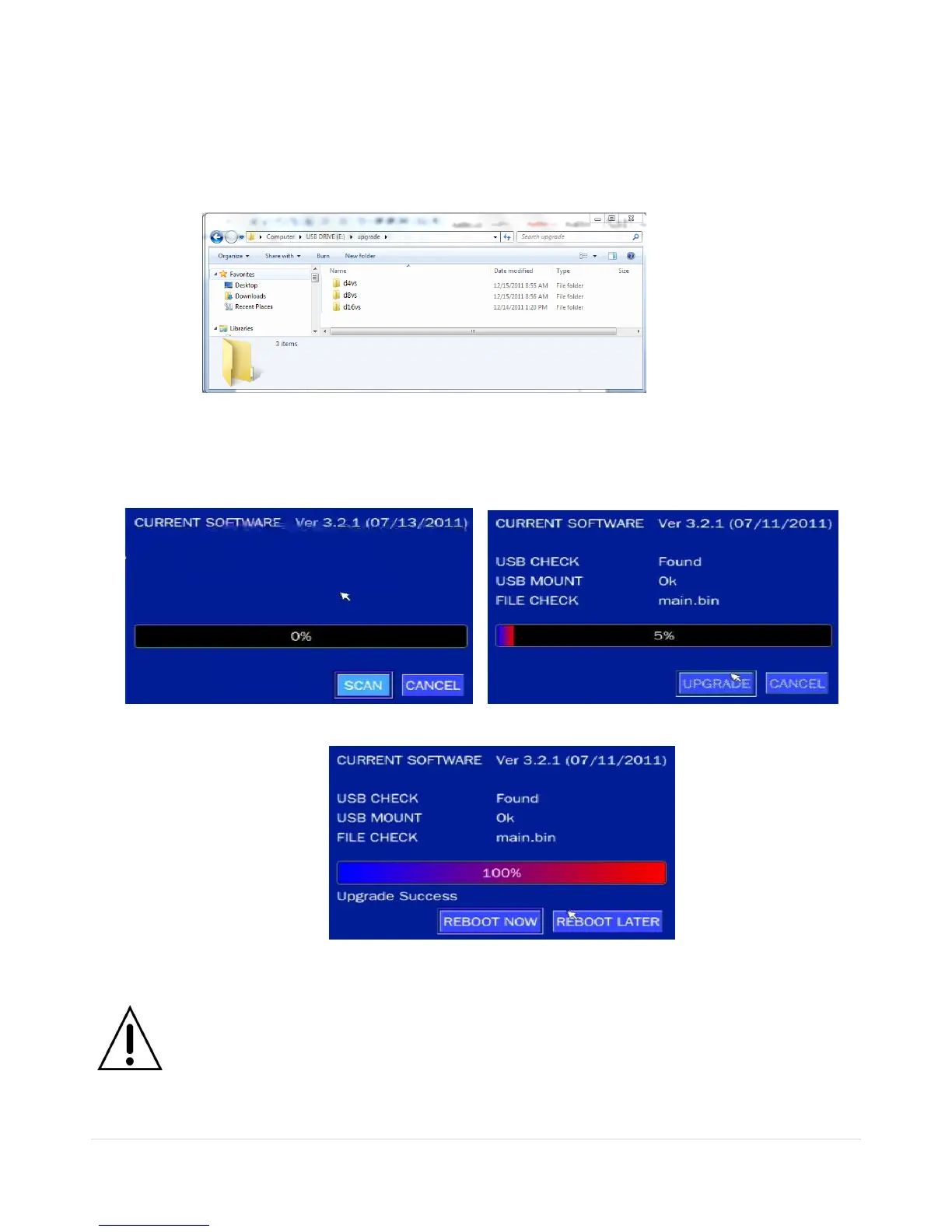
1. In the USB flash drive root directory, create a new folder named “upgrade”
2. Create sub-folder for each model under “upgrade” folder and copy each firmware file to their folder.
“d4VT” for D4VT: “main_D4VT_speco_*.*.*_201****”
“d8VT” for D8VT: “main_D8VT_speco_*.*.*_201****”
“d16VT” for D16VT: “main_D16VT_speco_*.*.*_201****”
3. Plug in the USB flash drive.
4. Navigate to CONFIG menu of SETUP.
5. Select SOFTWARE UPGRADE.
6. Follow the procedure from Figure 4.9.2 to Figure 4.9.4.
Figure 4.9.2 Figure 4.9.3
Figure 4.9.4
NOTICE
1. If selecting REBOOT LATER, the upgraded software will not be applied until the system
reboots.
2. If selecting REBOOT NOW when the USB flash drive is plugged, the following message
will pop up. Remove the USB flash drive and select OK.



 To Next Page