11
E-DOC-CTC-20050705-0001 v1.0
Chapter 2
Installing your SpeedTouch™
To install the
SpeedTouch™
hardware
Proceed as follows:
1 Make sure you have installed the SpeedTouch™ software and restarted your
computer.
2 Use the ADSL cable provided to connect the SpeedTouch™ ADSL port to your
telephone wall outlet or distributed filter.
3 Plug the SpeedTouch™'s USB connector into the computer's USB port.
You can easily recognize a USB port by its typical USB symbol: .
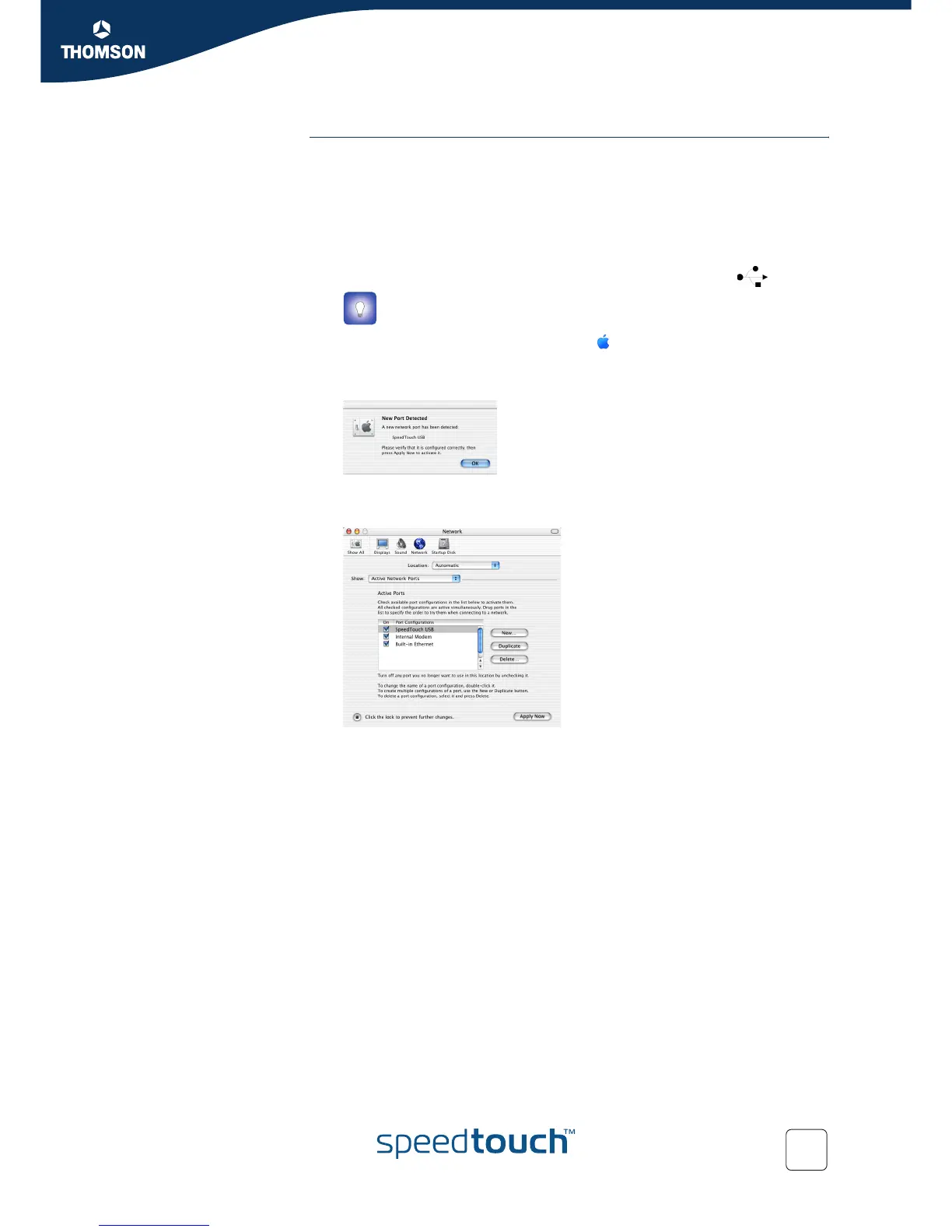
4 Click System Preferences on the Apple ( ) menu.
5 Click the Network icon in the System Preferences window.
The following window informs you that a new port has been detected:
6 Click OK.
The Network window appears:
7 In the Show list, click Active Network Ports (or Network Port
Configuration(s)), and, if necessary, drag:
SpeedTouch™ USB to the top of the list if you have a PPP connection.
Ethernet Adaptor (enx) to the top of the list if you have an RFC1483
connection.
If you do not intend to use the other interfaces, clear the corresponding check
boxes.
8 Click Apply Now to confirm the modifications to the network settings.
If you want to connect to the Internet via:
A PPP connection, some additional configuration is required (see “PPP
configuration”).
An RFC1483 connection, your connection is installed and ready for use. The
SpeedTouch™ is now prepared for connecting you to the Internet.
You can also connect your SpeedTouch™ to the computer via a USB
hub.



 To Next Page