12
E-DOC-CTC-20050705-0001 v1.0
Chapter 2
Installing your SpeedTouch™
PPP configuration If you are installing a PPP connection, some additional configuration is required.
Proceed as follows:
1 On the Apple ( )menu, click System Preferences.
The System Preferences window appears.
2 Click the Network icon.
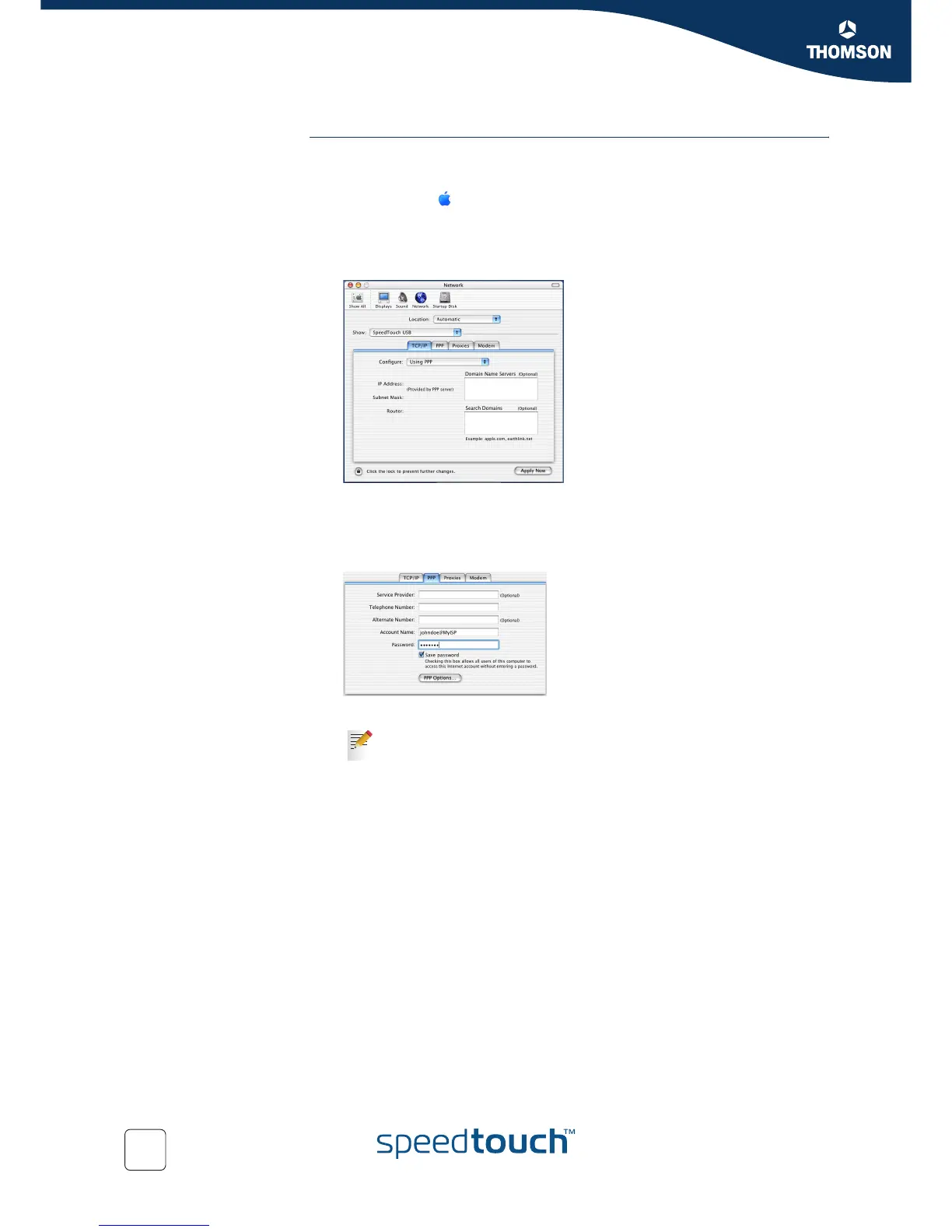
The Network window appears:
3 Make sure SpeedTouch™ USB is selected in the Show list and click the TCP/IP
tab to view the TCP/IP settings for the SpeedTouch™ network connection.
4 Make sure Using PPP is selected in the Configure list.
5 Click the PPP tab to view the PPP configuration:
6 Enter your Account Name and Password in the corresponding boxes.
7 If your computer runs:
Mac OS X v10.1 or v10.2:
You must enter a digit, e.g. 0, into the Telephone Number box.
Mac OS X v10.3 or v10.4:
You must leave the Telephone Number box empty.
8 Click the Proxies tab to view the proxy settings.
By default all boxes are empty, meaning that no proxies are used. As this suits
the required SpeedTouch™ configuration, no changes are needed in this tab.
Select Save password if you want the computer to remember the
password for this account name.
Optionally, you can enter a name for this connection in the Service
Provider box. You can leave all other boxes empty.



 To Next Page