28
EN
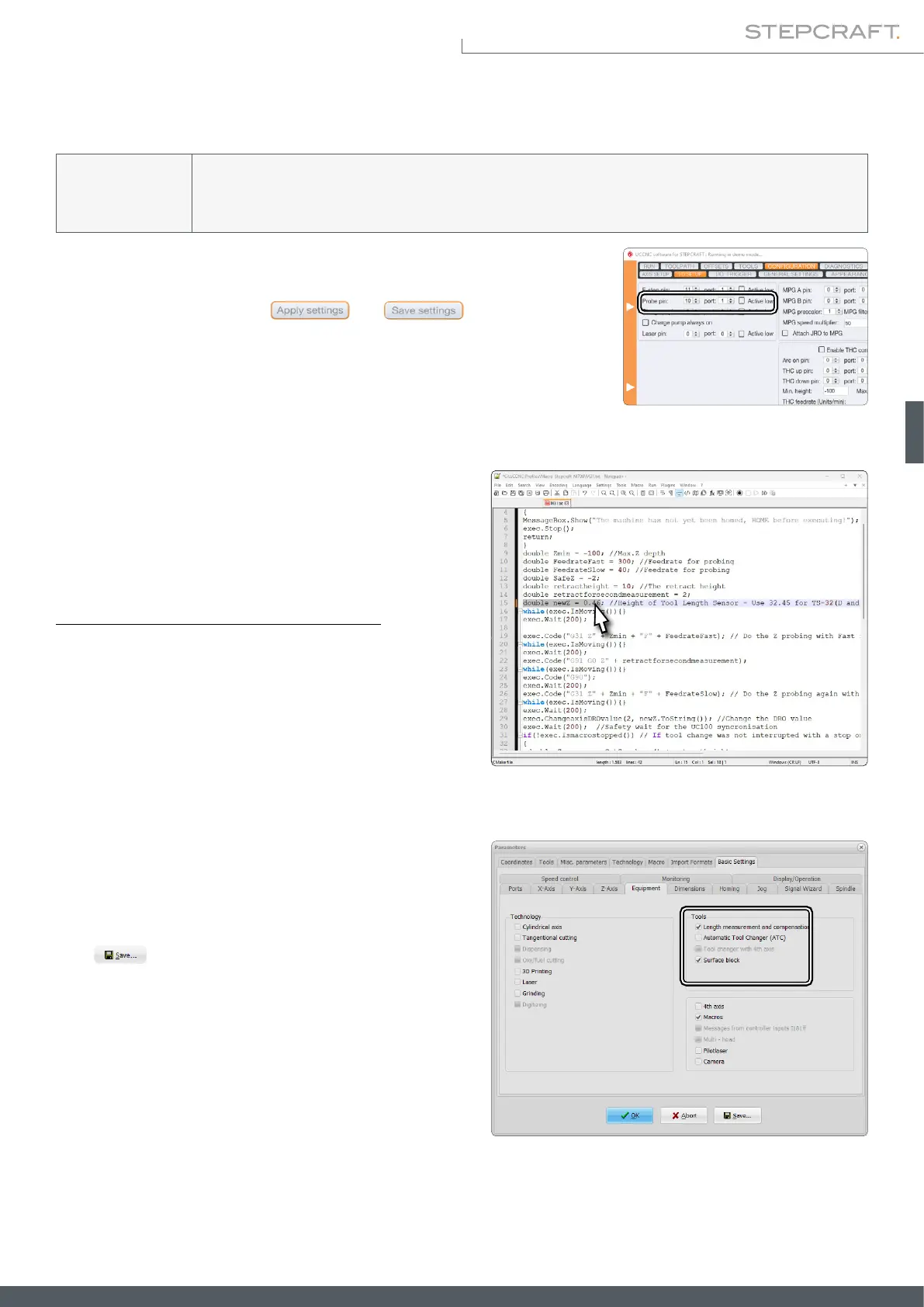
The setup of the probe in UCCNC requires you to open UCCNC, navigate to the
menu Conguration – I/O Setup and check if Probe pin: 10 and port: 1 is properly
set. If you make changes, click and . Close UCCNC.
Open the installation path of UCCNC and navigate to the prole folder:
C:\UCCNC\Proles\Macro_<Your Stepcraft Model>. Open the le called M31.
txt and enter your previously measured value of the probes
thickness: double newZ = .... Remember to use a dot instead
of a comma.
In case you are using a UCCNC version earlier than 3.x, it is
necessary to replace the M31.txt macro. Create a backup of
the original M31.txt le. Download the modied version here:
https://stepcraft-systems.com/download/M31.txt.
Open the installation path of UCCNC and navigate to the pro-
le folder: C:\UCCNC\Proles\Macro_<Your Stepcraft Model>
Paste the downloaded M31 le into that folder and follow the
instructions previously given.
NOTICE
Should you want to switch between different sensors (e. g. touch probe, tool length sensor) regularly, it is
advisable to save two different macro les for each setup and select them according to your use. Otherwise
the chance of wrong length compensation is given.
4�2 Setup in UCCNC
To setup the probe in WinPC-NC, go to Parameters – Basic
Settings – Equipment. Tick the two options Length measure-
ment and compensation and Surface block.
Click .
4�3 Setup in WinPC-NC



 To Next Page