entered.
2. Input the new passkey (a 4 - 8 digit
number) by operating the “TUNE” dial.
3. Select the “CONFIRM” menu.
– The new passkey is displayed, the
passkey is changed and the mode
changes to the Bluetooth
®
audio
setting mode.
! Deleting device
1. Select the “DELETE AUDIO” menu.
– If no devices are registered,
“EMPTY” is displayed and the mode
changes to the Bluetooth
®
audio
setting mode.
2. Select the “CONFIRM” menu.
–“DELETED” is displayed and the
mode changes to the Bluetooth
®
audio setting mode.
& Setting Bluetooth
®
audio
(type B audio)
1. Press the button to select the
“BT Audio” mode.
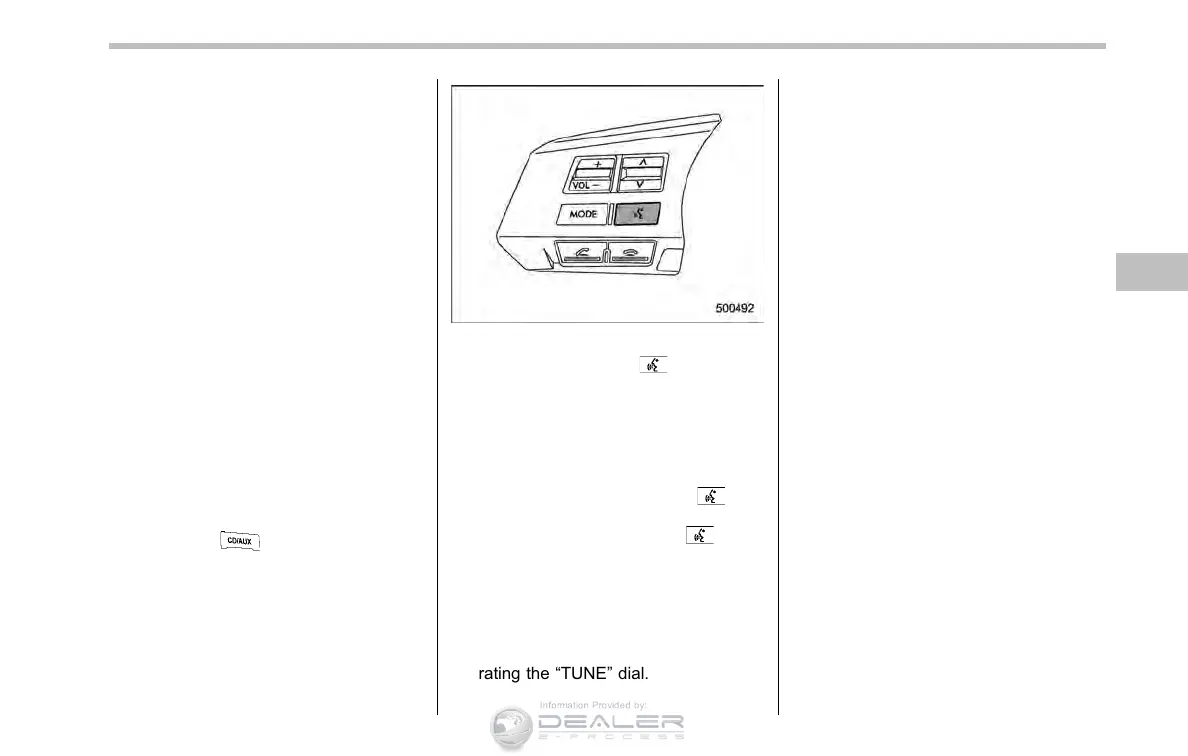
Talk switch
2. Press the talk switch .
NOTE
If a device and a cell phone are already
registered, “BT” menu will be dis-
played. Then perform the following
procedure.
(1) Press the talk switch
and
say “Setup”.
(2) Press the talk switch
again
and say “Bluetooth audio setup”.
The “BT Audio Setup ” will then be
displayed.
3. After the “BT Audio Setup” menu is
displayed, select the following menus by
using the voice command system or by
operating the “TUNE” dial.
NOTE
. You cannot set Bluetooth
®
audio
while driving.
. After the ignition switch is turned to
the “LOCK”/“OFF” position, the regis-
tered device/cell phone may be auto-
matically connected to the system if
the ignition switch is turned to the
“Acc” or “ON” position.
. When a cell phone is already con-
nected, the system will disconnect the
phone to setup a new device. You may
need to reconnect the phone after
setup is complete.
. Up to 2 devices (excluding cell
phones for Hands-free system) can be
registered.
. Up to 6 devices (including cell
phones for Hands-free system) can be
registered.
! By using voice command system
NOTE
If no devices are registered, you can
only select from the following menu.
. “Pair audio player” (refer to “Regis-
tering (pairing) device” F5-42)
. “Set passkey” (refer to “Selecting
device” F5-42)
Audio 5-41
– CONTINUED –







 To Next Page