User’s Manual - 12
Copyright(c) 2005, Sun Microsystems, Inc. All rights reserved.
On-Screen Display
OSD How to adjust
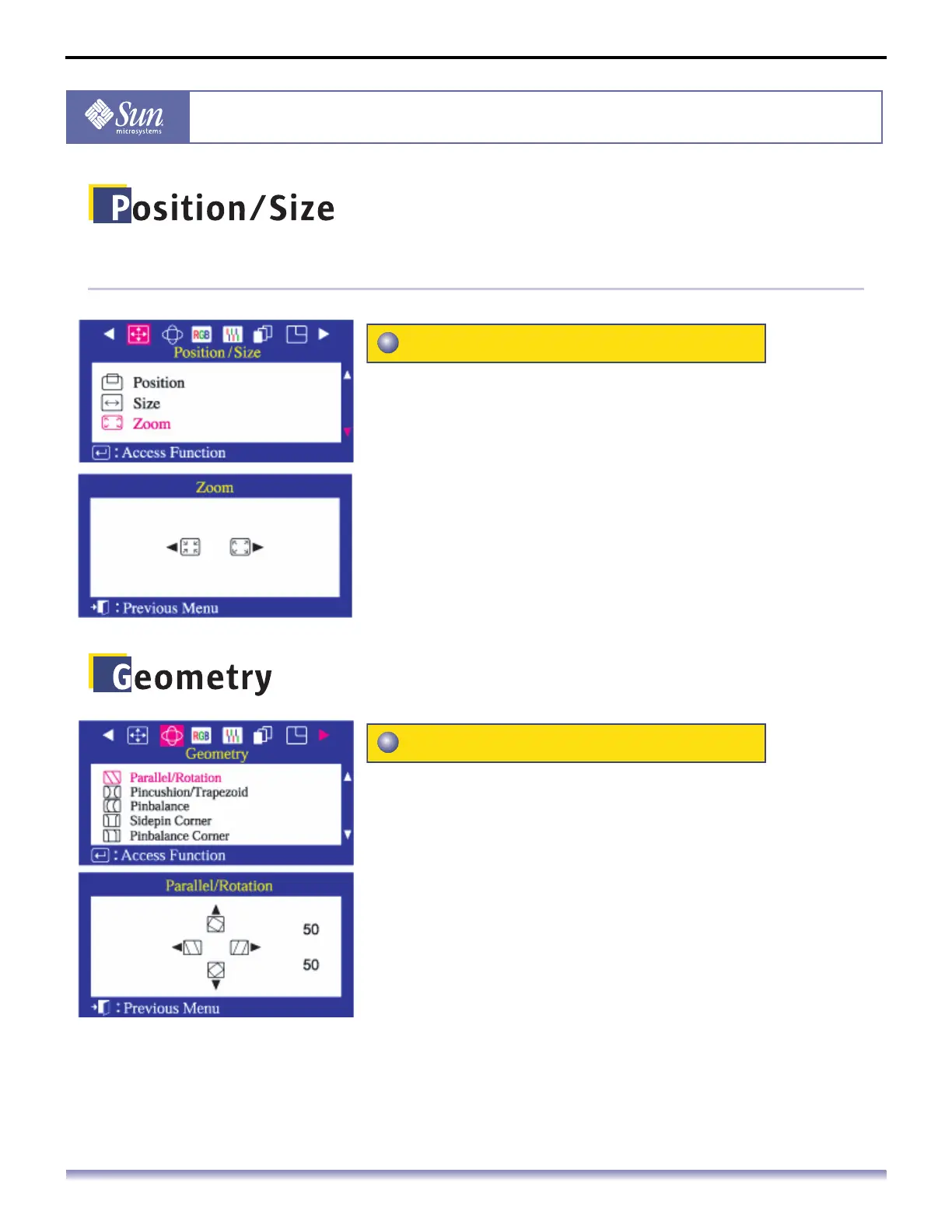
Follow these instructions to get a close-up or a longshot
view of the monitor's viewing area.
1. Push the Menu button.
2. Push the button or button until the Position/Size
screen is displayed.
3. Push the button or button to select Zoom.
4. Push the Menu button to open the Zoom adjustment screen.
5. Use the button to decrease the screen viewing area. Use
the button to enlarge the screen viewing area.
Adjust the parallelogram setting when the display is
leaning left or right; adjust the rotation setting when the
entire display is tilted left or right.
1. Push the Menu button.
2. Push the button or button until the Geometry screen is
displayed.
3. Push the button or button to select Parallel/Rotation.
4. Push the Menu button to open the Parallel/Rotation
adjustment screen.
5. Use the button or button to adjust the parallel setting;
use the button or button to adjust the rotation setting.
Zoom
Parallel/Rotation


 To Next Page