88
- - End
10.9 History Data
10.9.1 Operation Log
step 1 Click “[History Data]→[Operation log]” to enter the corresponding interface.
step 2 On this interface, users can view history information.
- - End
10.9.2 Historical Status
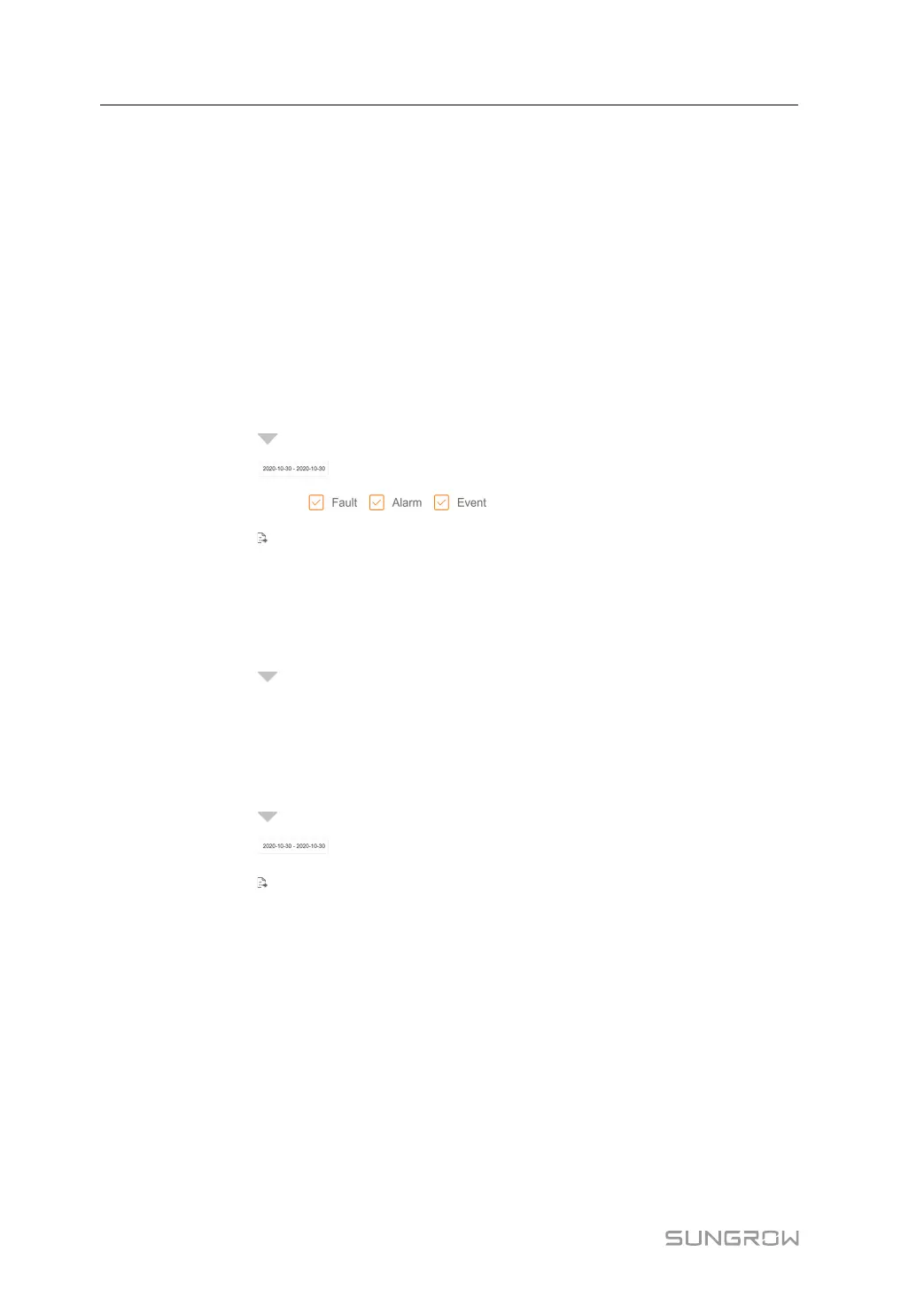
step 1 Click [History Data]→[Fault History] to enter the corresponding interface.
step 2 Click the icon [
] in the upper left corner, to select devices to be viewed.
step 3 Click the icon [
] on the top, to select time segment.
step 4 Tick options such as [
], to select the fault types.
step 5 Click the icon [
], to export fault records.
- - End
10.9.3 Parameter Log
step 1 Click [History Data]→[Parameter log] to enter the corresponding interface.
step 2 Click the icon [
] in the upper left corner, to select devices to be viewed.
- - End
10.9.4 Measuring Point Log
step 1 Click “[History Data]→[Measuring point log]” to enter the corresponding interface.
step 2 Click the icon [
] in the upper left corner, to select devices to be viewed.
step 3 Click the icon [
] on the top, to select time segment.
step 4 Click the icon [
], to export measuring point records.
- - End
10.10 System
10.10.1 System Maintenance
10.10.1.1 System Update
Users can upgrade the SCU on the Web interface.
step 1 Click “[System]→[System Maintenance]” to enter the corresponding interface.
step 2 Click “[System Update]”, select the upgrade file, and click “[Open]”, to import the file to the
system.
10 Web Operation User Manual



 To Next Page