6. POINTS AND POLYLINES
6-3
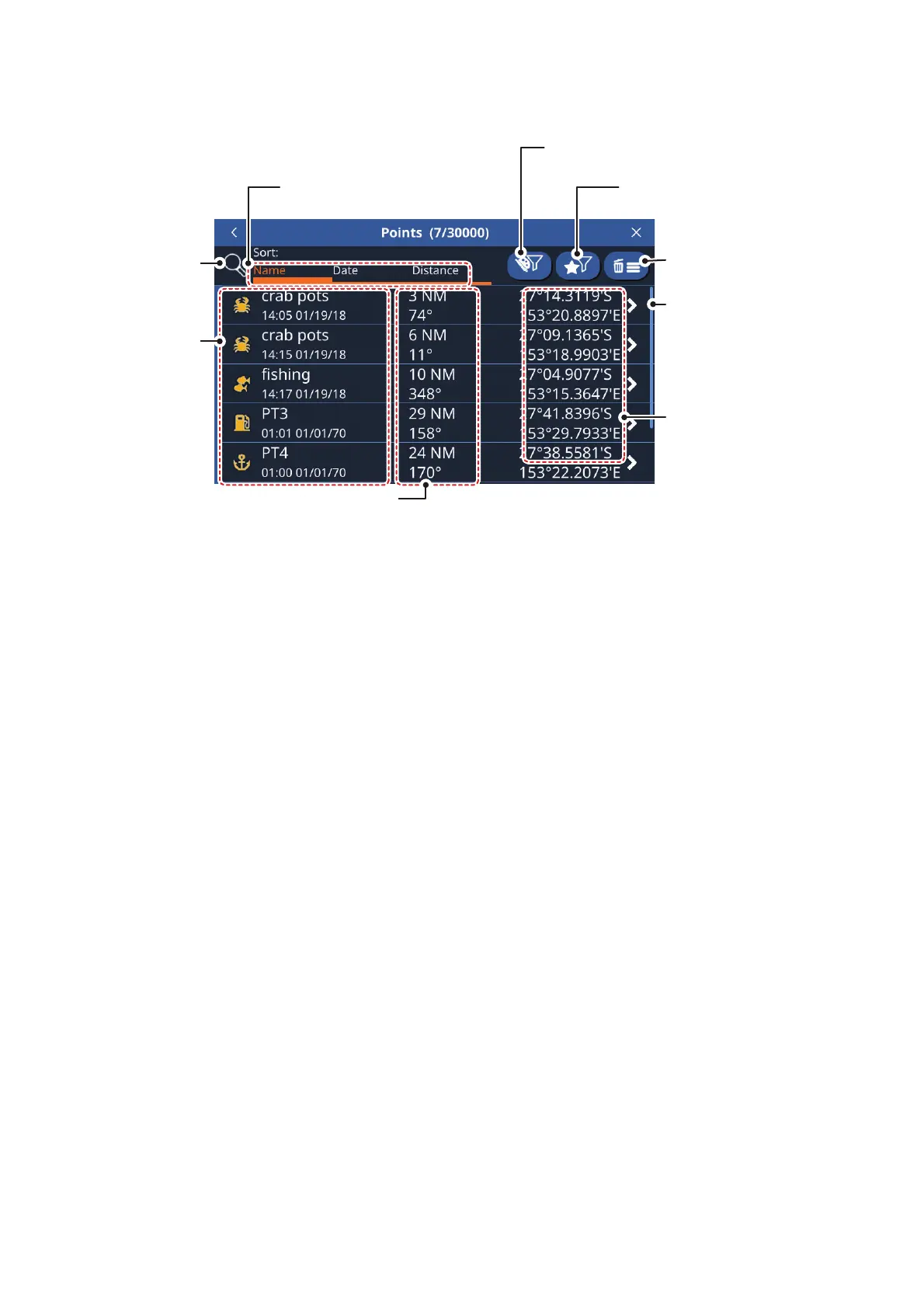
6.4 Points List Overview
6.4.1 How to view the points list
From the [Home] screen, tap [List] => [Points].
6.4.2 How to search the points list
1. Tap the search button at the top-left of the [Points] list. The software keyboard ap-
pears.
2. Enter the name, or part of the name, for the point(s) you want to search for, then
tap [OK].
The list now shows only the points that match your search.
6.4.3 How to sort the points list
You can sort the list by point name, date that the point was created, or by distance
from own ship. Tap the [Name], [Date] or [Distance] indication above the list.
6.4.4 How to filter the points list
You can filter the list by color, symbol or a combination of both color and symbol.
Points which do not meet the filter criteria are hidden.
1. Tap the appropriate filter button at the top-right of the points list to show the filter
options.
2. Tap the filter you want to apply. The listed points change accordingly. To show all
points for either filter, tap [All].
6.5 How to Move a Point
You can move a point two ways: on-screen or edit the point location from the [Points
List].
Tap to sort the list by
[
Name
]
,
[
Date
]
or
[
Distance
]
Point icon,
name, date
& time point
was created
Search
button
Distance/bearing to point
Point location
(latitude/longitude)
Scrollbar appears
when there are points
which are not
displayed on-screen
Tap to filter the
list by color
Tap to filter the
list by icon type
Tap to delete the
displayed points



 To Next Page