6. POINTS AND POLYLINES
6-7
6.12 Polyline Color Setup
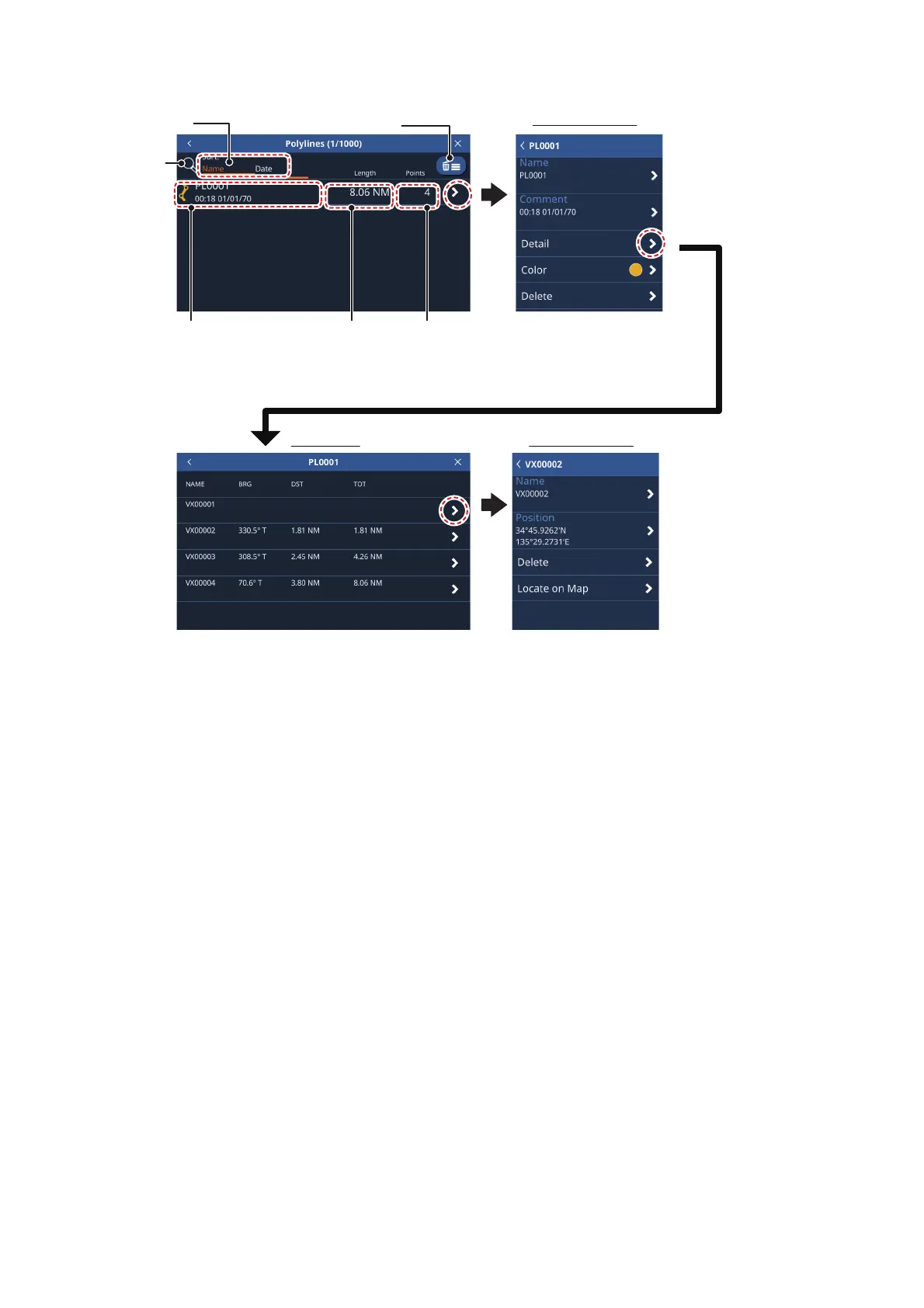
To change the color of a polyline, follow the procedure below.
1. From the [Home] screen, tap [List] => [Polylines].
2. Tap the line whose color you want to change. The polyline information window ap-
pears.
3. Tap [Color], then select the default color from the selection window.
4. Tap the [<] at top-left of the window to close the window.
5. Tap the [x] at the top-right corner of the menu to close the menu.
6.13 Finding Polylines on the Map
1. From the [Home] screen, tap [List] => [Polylines].
2. Tap the line you want to find. The polyline information window appears.
3. Tap [Detail] to show the polyline’s vertex list.
4. Tap any vertex to show the vertex information.
Tap to
sort list
Search
button
Polyline
length
Number
of vertices
in polyline
Polyline name, color,
created date and time
Tap to delete listed
(
filtered
)
items.
Editing window
Editing windowVertex list
[
Detail
]
: Show each
vertex of the selected
line and vertex details.
[
Color
]
: Change
polyline color.
[
Delete
]
: Delete the
selected polyline.
[
Name
]
: Change the
selected vertex’s name.
[
Position
]
: Change the
location of the selected
vertex.
[
Delete
]
: Delete the
selected vertex.
[
Locate on Map
]
:
Locate the selected
vertex and move the
screen to show the
vertex at the center.
[
NAME
]
: Shows the selected vertex’s name.
[
BRG
]
: Show the bearing to the next vertex.
[
DST
]
: Shows the distance to the next vertex.
[
TOT
]
: Shows the total distance from the start
point to each vertex.



 To Next Page