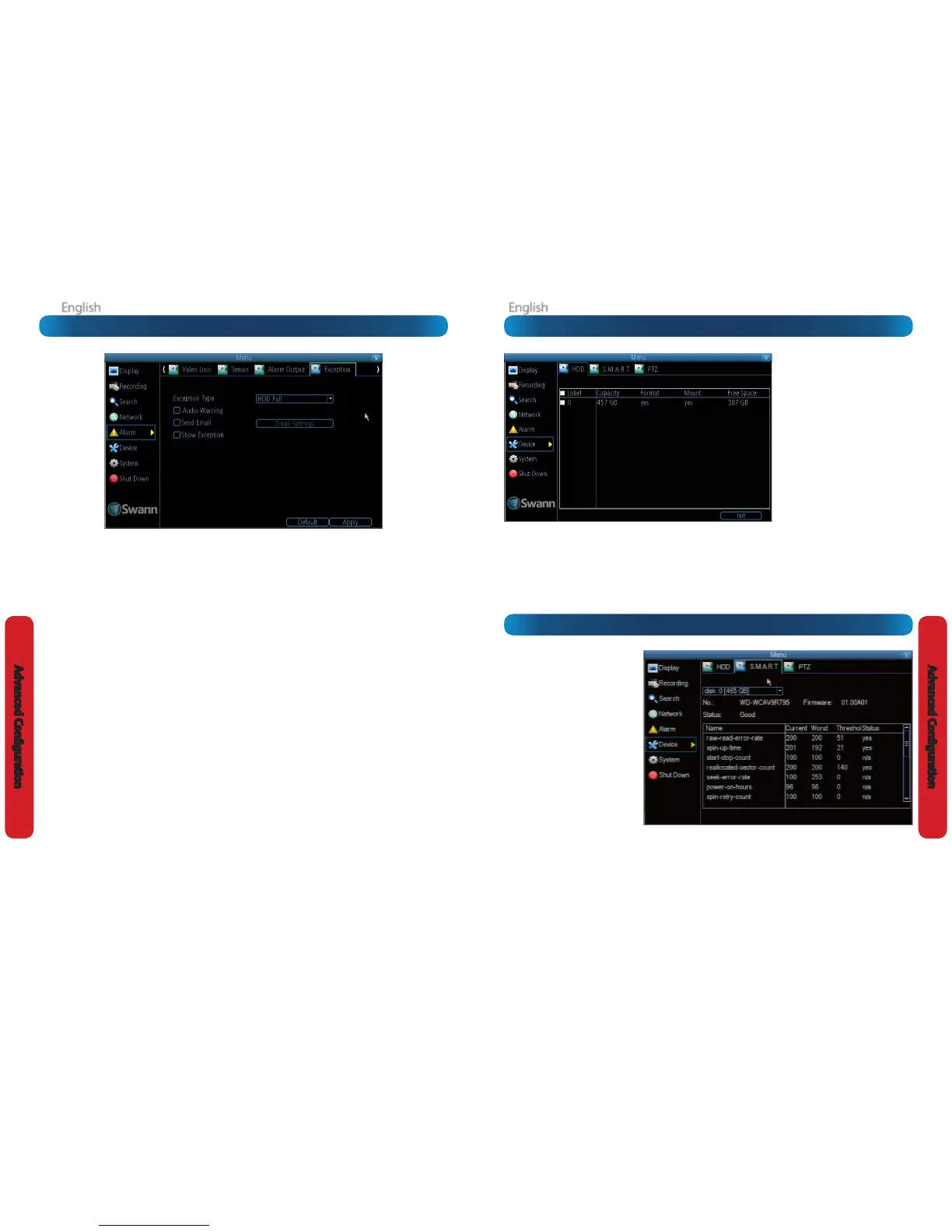
Typically, there will be one entry here,
and it will be the hard drive that came
with the DVR (if one was included) - you’ll
get many years of usage out of the
included hard drive.
The drive connected to the internal
SATA port will be listed here. A drive
connected via eSATA will appear on this
list, and be useable in the same manner
as an internal HDD.
External drives connected via USB will
not appear on this list, and can’t be
used to record footage - USB lacks the
bandwidth to write multiple streams
simultaneously. External USB drives can
only be used for backing up footage.
S.M.A.R.T. (Self-Monitoring, Analysis
and Reporting Technology - gotta love
a good acronym) is your hard drive’s
way of telling the DVR how it’s going.
Status: The current condition of the
hard drive. It should say “Good”. If it
says anything else, this indicates there’s
a problem with your hard drive.
If there’s no problem, there’s little else
to do here, unless reading the output
of the dozens of self-tests the hard
drive performs on itself is of interest to
you.
If you have been confronted with a HDD
Error, or the Status entry doesn’t read
“Good” then you can use the S.M.A.R.T.
information to attempt to diagnose the
problem. The information presented
in the S.M.A.R.T. report is practically
identical to what you’d see on a
desktop PC while using Administrator
Tools, or a similar service.
Device: HDD
Device: S.M.A.R.T.
An Exception is any deviation from the DVR’s normal
behaviour - phrased another way, it’s like saying the DVR’s
been working ne except for these events
Exception Type: What event type you’d like the DVR to react
to. By conguring the Action for these events, you can create
any combination of audio alerts (see below) or auto-emails to
be sent for dierent event types.
HDD Full: As the name suggests, this event occurs when the
DVR runs out of space on the hard drive to save new footage.
This event is redundant if you’ve got overwrite enabled, as
the DVR will automatically delete old footage to ensure it can
continue to record.
HDD Error: Occurs when the DVR has trouble accessing its
hard drive, or when it cannot detect one at all. This error could
be generated by either an internal hard drive, or an external
one connected to the eSATA port.
Net Disconnected: Will occur if the DVR has problems
connecting to the Internet. This may indicate a problem
with the DVR’s conguration, a fault with your network or a
problem with your Internet Service Provider (ISP).
IP Conict: This event will occur if the DVR detects another
device on the same network with a conicting IP address. It’s a
little like two houses with the same number being on the same
street - one house might get the other’s mail, or get woken up
at all hours of the night being asked if someone named “Big
Bob” lives there.
Basically, it indicates that two devices are trying to use the
same IP address. This shouldn’t occur if you’re using DHCP
addressing, unless one or more devices is set to use a STATIC
IP (the static addressing method overrides the automatic
assignment process).
Audio Warning: The DVR will use its internal buzzer to emit an
alarm tone. It sounds like an old computer indicating an error,
or a large truck backing up.
Send Email: The DVR will send an auto-email alert when the
event type you’ve selected occurs.
Alarm: Exception









 To Next Page