To maintain the operational integrity
of the DVR, it is suggested that it
be rebooted periodically. In much
the same way that a computer can
become unstable if left on for an
extremely long time, the DVR can
become unstable. It is strongly
suggested that the DVR be rebooted
at least once per week.
However, as this can be a hassle
(particularly if the DVR is stashed
away somewhere inconvenient) you
can set the DVR up to reboot itself.
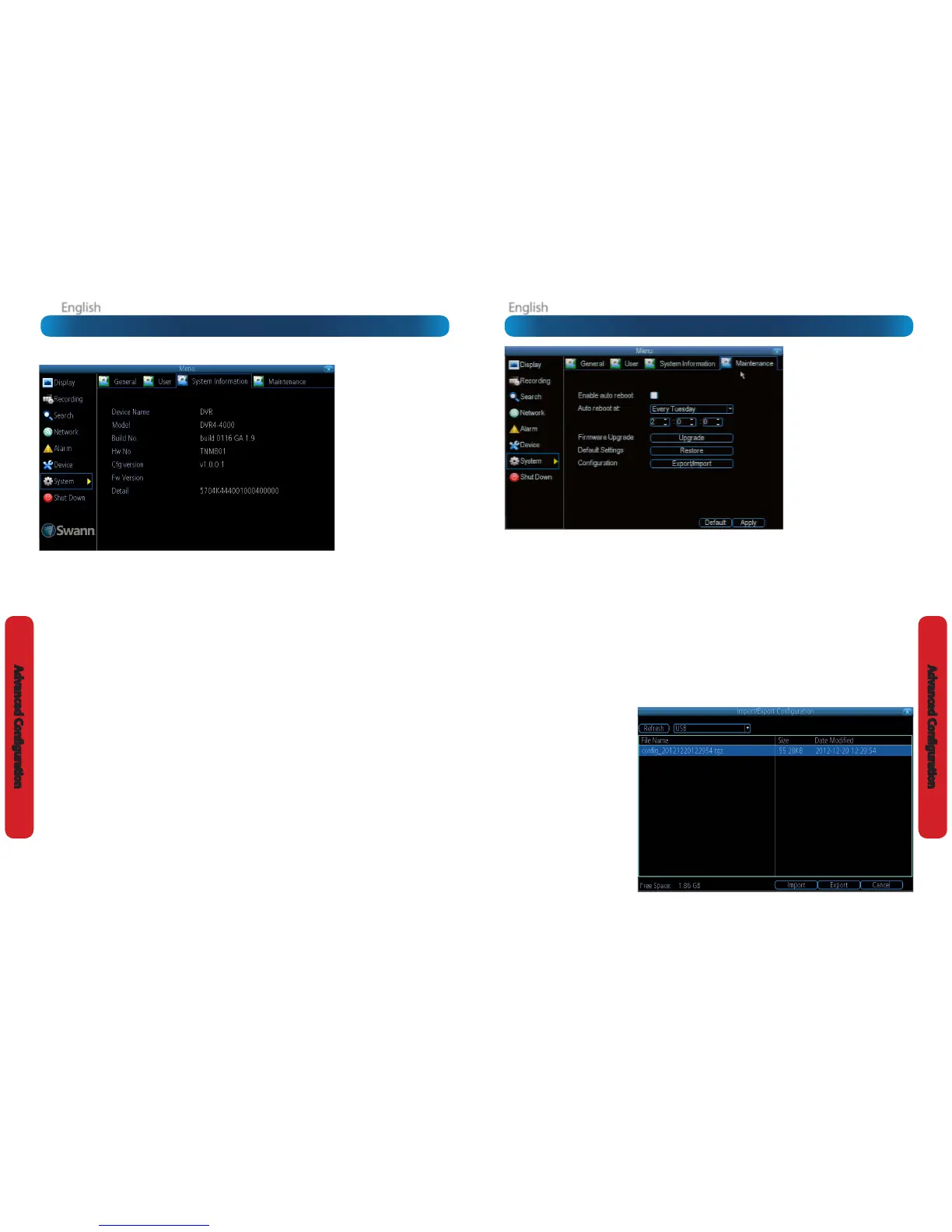
Enable auto reboot: Will
automatically shut the DVR down
and restart it at a certain time of the
day or week.
Auto reboot at: Choose when you’d
like the DVR to reboot. Typically,
this will be a time when it’s unlikely
there’ll be any activity for the DVR to
record.
Firmware Upgrade (Upgrade): Instructs the DVR to update its rmware. You’ll only need to use this option if instructed to do
so by Swann Technical Support. (Remember to Export your conguration rst so you don’t have to re-set everything!)
Default Settings (Restore): Loads the factory default settings.
This must be done after a rmware upgrade to ensure proper operation of the DVR. You can retain your settings, recording
schedule and so on by using the Import/Export Conguration function before upgrading the rmware.
Conguration (Export): Creates a le containing all the settings you’ve customized, including your recording preferences,
schedule, user-list and so on.
To export your settings:
• Insert a USB ash drive into the USB port on the front of the DVR. Ensure it has enough free space (a few MB is sucient - the
le is less than 50KB) and that it is not write-protected.
• Choose Conguration: Import/Export.
• You’ll see a le browser, showing
the contents of the storage
device.
• Click Export to save your settings.
• Exporting your settings
will overwrite any previous
settings you’ve saved to that
ash drive. If you want to do
sequential conguration exports,
you’ll need multiple USB drives
- or, rename the le using a PC
(advanced users only).
Conguration (Import): Operates in
the same way as the Export function,
but is used to load a previously saved
conguration le.
Locate the le you want on your
ash drive - it will be called cong_
datetime.tgz. Loading the le will
cause the DVR to automatically
reboot.
System: Maintenance
If you’re looking at the System
Information screen, you’ve
probably been directed to do so
by Swann Technical Support.
If we haven’t told you to come
here, you might be wondering
what all the information means.
On a day-to-day level, the
answer is “very little”. However,
if you’re still curious:
Device Name: The name that
the DVR considers to be its own
and what it will use to register
an IP address with your DHCP
host.
The remaining information is
for use by Swann’s Technical
Support, in the event that you
require assistance. The various
model and build numbers help
us track down any known issues,
or catalogue new issues as they
come to light. It also helps us
gure out if you’re running the
most recent rmware on the
DVR, and whether you’d benet
from an upgrade.
System: System Information









 To Next Page