©2022 SwellPro All Rights Reserved 53
15. Thumbnail map: Tap to quickly switch to the map interface.
16. Tap to return: Tap to start auto return to home (RTH).
17. Tap to take off: Tap to auto take off and hover at a height of 3 meters.
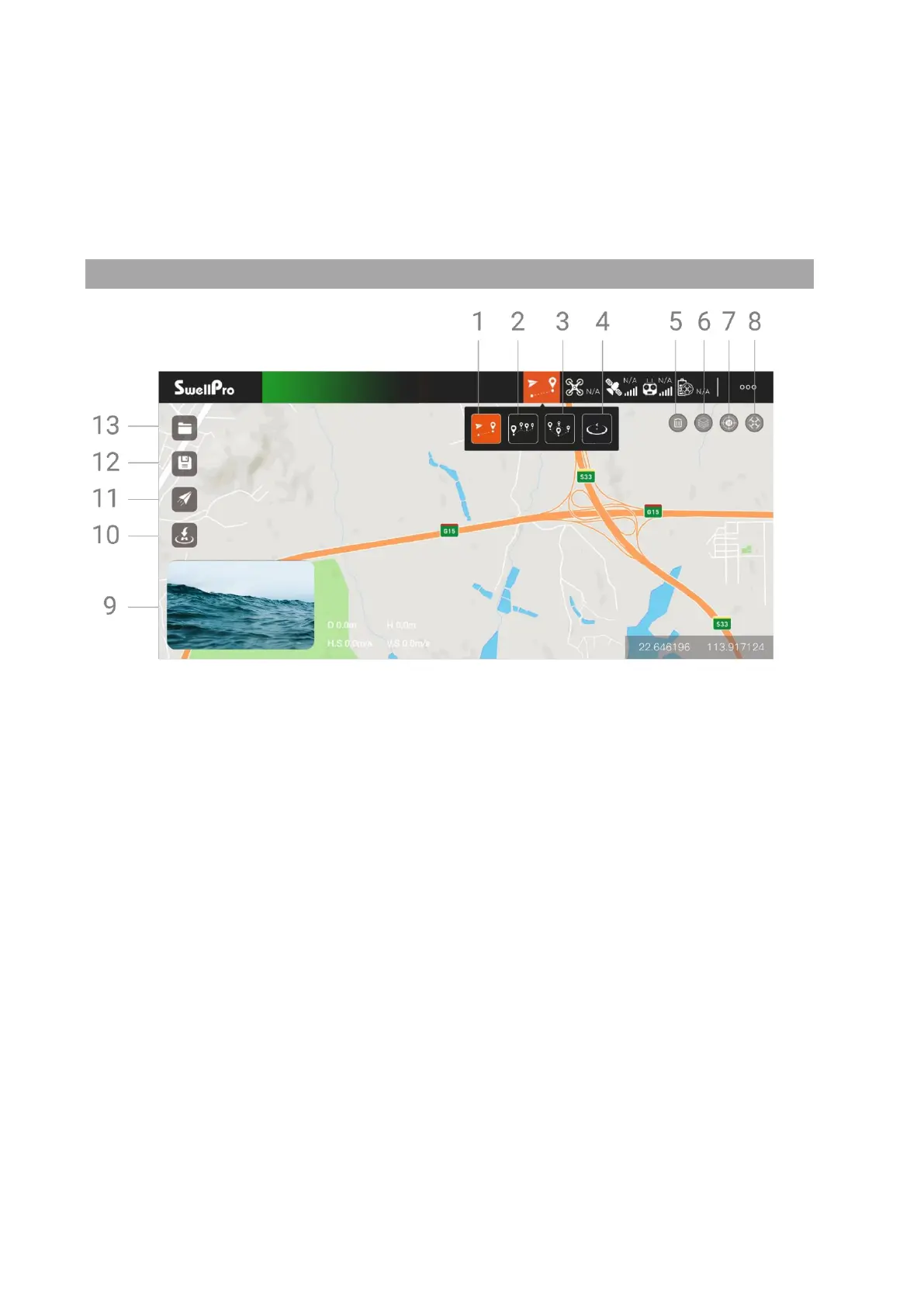
Map Interface
1. Tap to Fly
In GPS mode, tap where you want to fly to on the map and the SplashDrone 4 will
automatically fly to the location and hover. You can also manually enter longitude
and latitude as well as set altitude and speed.
2. Waypoints
Select several waypoints on the map, the SplashDrone 4 will fly in a route through
the series of waypoints. The height, speed, hover time can also be set for each
waypoint.
3. Mapping
Set an area boundary on the map, Mapping function will create a series of waypoints
forming grid-pattern routes on the map. The drone will then follow the route and
proceed with grid flight over the selected area. The spacing between routes, speed,
height can be set on the App. The number of waypoints that can be created for
Mapping is between 3 and 256. Mapping is useful for search and rescue, survey, and
inspection missions.
4. Orbit


 To Next Page