29
Display settings (cont’d)
Changing the SETUP menu
Changing the SETUP menu
Playing discs VCR functions
Before you start
Connections Getting started
Recording Editing Others
Español
Setup > Display
OSD Background Transparency
OSD Background Color
OSD Language
1
English
35%
Screen Saver
10 minutes
DVD
Setup > Display
OSD Background Transparency
OSD Background Color
OSD Language
1
English
35%
Screen Saver
10 minutes
DVD
Setup > Display
OSD Background Transparency
OSD Background Color
OSD Language
1
English
35%
VCR DVD
Screen Saver
10 minutes
Setup > Display
OSD Background Transparency
OSD Background Color
OSD Language
Screen Saver
1
English
10 minutes
35%
DVD
100%
85%
70%
50%
35%
25%
10%
0%
Setup > Display
OSD Background Transparency
OSD Background Color
OSD Language
Screen Saver
1
English
10 minutes
35%
DVD
1
2
3
Setup > Display
OSD Background Transparency
OSD Background Color
OSD Language
1
English
35%
VCR DVD
Screen Saver
10 minutes
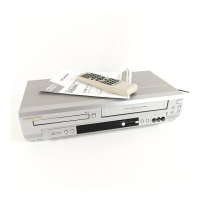
English
Français
Español
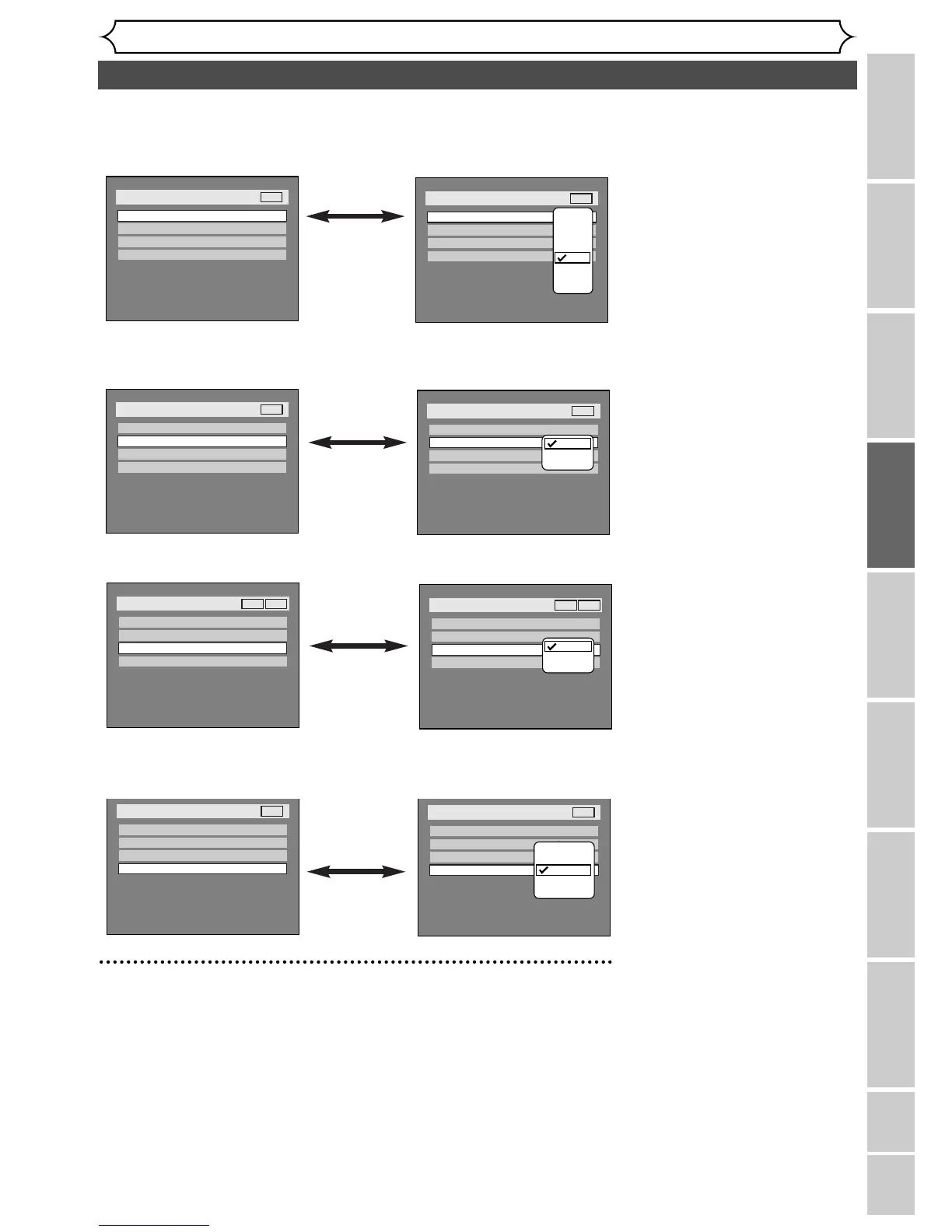
OSD Background Transparency (Default : 35%)
Set the background transparency of OSD screen.
You can choose one among 0% through 100%.
•
Select a setting using K / L
buttons, then press ENTER
button.
Your setting will be activated.
•
Select a setting using K / L
buttons, then press ENTER
button.
Your setting will be activated.
•
Select a setting using K / L
buttons, then press ENTER
button.
Your setting will be activated.
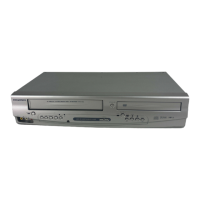
OSD Background Color (Default : 1 Green)
Set the OSD screen color.
You can choose among the following options 1(Green), 2(Blue), and 3(Red).
OSD Language (Default : English)
Set the OSD language.
•
Select a setting using K / L
buttons, then press ENTER
button.
Your setting will be activated.
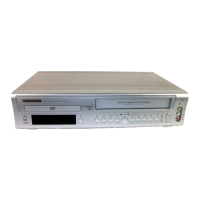
Screen Saver (Default : 10 minutes)
Set the time at which point the screen saver function appears on the TV
screen.
5
Press SETUP button to exit SETUP menu.


 To Next Page