Changing the SETUP menu
Playing discs VCR functions
Before you start
Connections Getting started
Recording Editing Others
Español
47
Selecting audio and video formats
Playing discs
Note : Dual Audio Sound
Tracks
•
Some discs will only allow
you to change the sound-
track from the disc’s menu.
Press TOP MENU button or
MENU/LIST button to display
the disc’s menu.
•
On DVD-RW discs recorded
in VR mode that may have
both a main and a sub audio
channel, you can switch to
main (L), sub audio (R) or a
mix of both (L/R).
You can select an audio or video format as you prefer depending on
the contents of the disc you are playing.
Switching audio soundtrack
When playing a DVD-Video disc
recorded with two or more
soundtracks (these are often in
different languages), you can
switch between them anytime
during playback.
On DVD-RW discs recorded in
VR mode, you can switch to main
(L), sub audio (R) or a mix of
both (L/R).
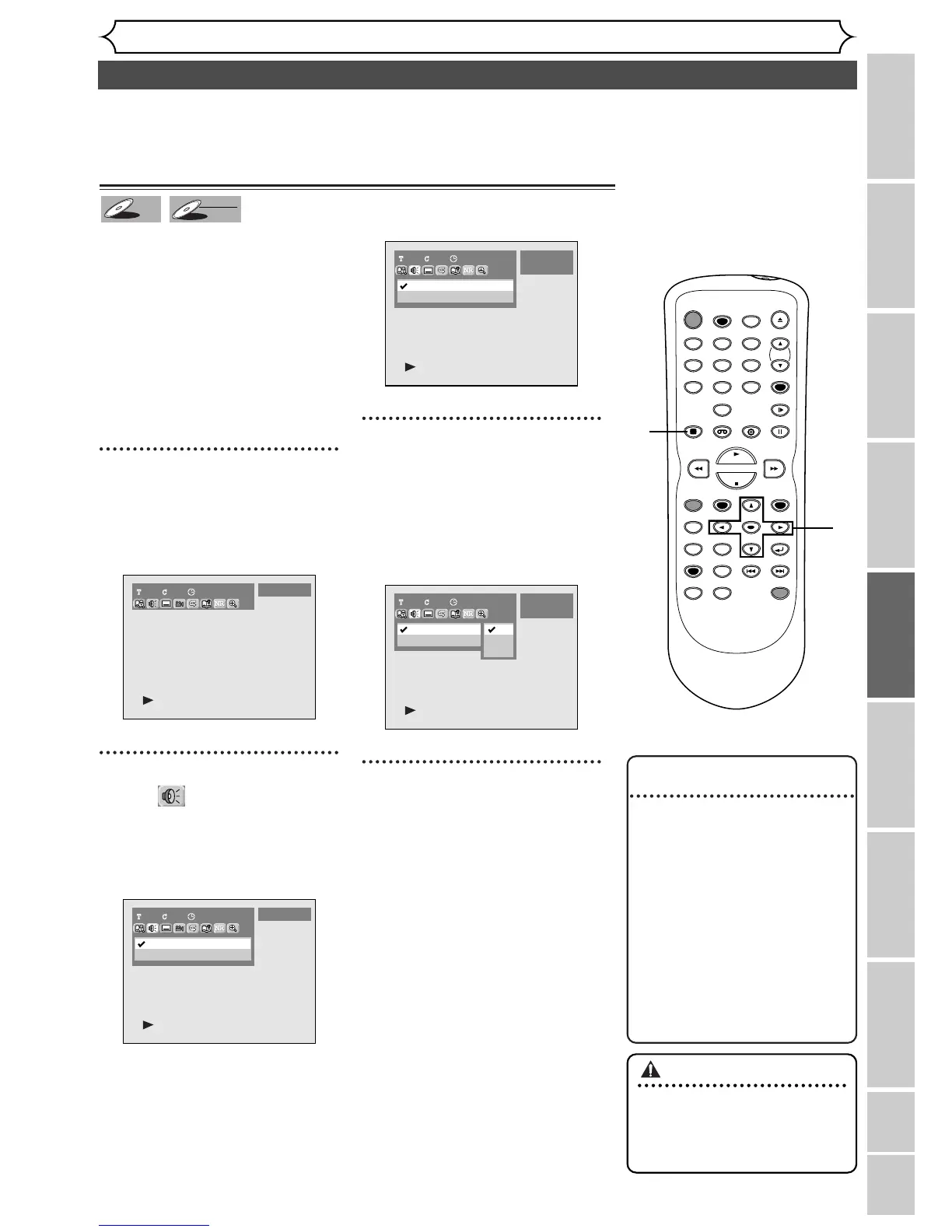
1
During playback, press DIS-
PLAY button.
The display menu will appear.
Screen:
2
Select icon using { / B
buttons, then press ENTER
button.
Audio menu will appear.
<DVD-Video>
<DVD-RW VR mode>
3
Select a desired audio sound-
track using
K / L buttons,
then press ENTER button.
<DVD-Video>
Audio soundtrack will switch.
<DVD-RW VR mode>
4
Select a desired audio chan-
nel using
K / L buttons, then
press ENTER button.
Audio channel will switch.



 To Next Page