72
Setting a disc to protect
Recording
Important
To prevent accidental recording,
editing or erasing of titles, you can
protect them by going to the
DISC menu and following the
steps bellow.
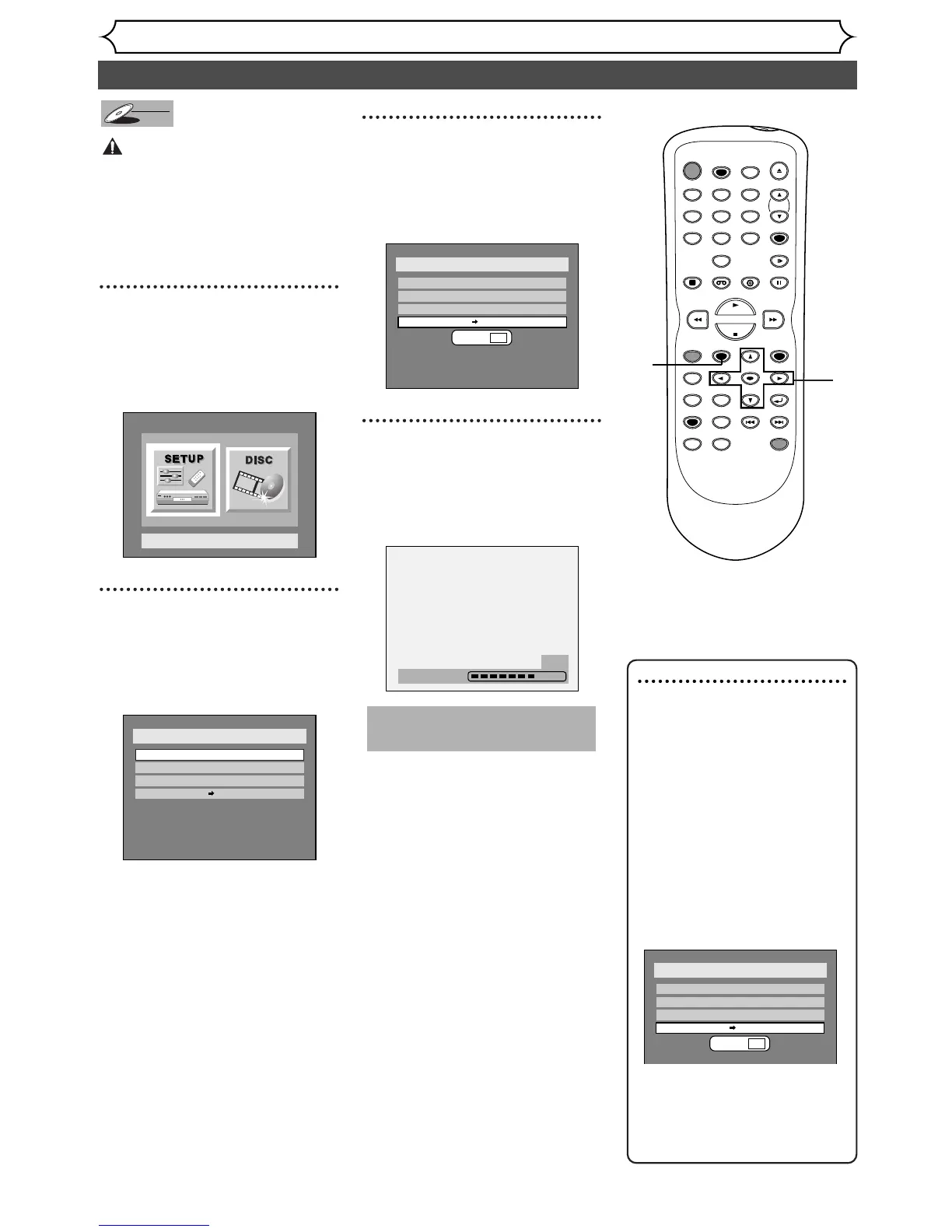
1
Press SETUP button to dis-
play SETUP/DISC menu.
SETUP/DISC menu will appear.
Screen:
2
Select “DISC” using { / B
buttons, then press ENTER
button.
DISC menu will appear.
3
Select “Disc Protect OFF ➔
ON” using K / L buttons,
then press ENTER button.
Option window will appear.
4
Select “Yes” using { / B but-
tons, then press ENTER but-
ton.
A disc will be protected.
This operation may take a
few minutes to complete.
1
2
3
4
Note : Disc Protect
• The Disc Protect setting is
available only when a disc
with VR mode is inserted.
•You can select only Disc
Protect Menu when a pro-
tected disc is inserted.
To cancel the disc protect:
• When you insert a disc pro-
tected with this unit,“Disc
Protect ON → OFF” will
appear instead of “OFF →
ON”.
To r elease the protect for the
disc, select “Disc Protect ON
→ OFF” at step 3, then select
“Yes”.



 To Next Page