Synology DiskStation User's Guide
Based on DSM 3.0
134 Chapter 13: Download Files with Download Station
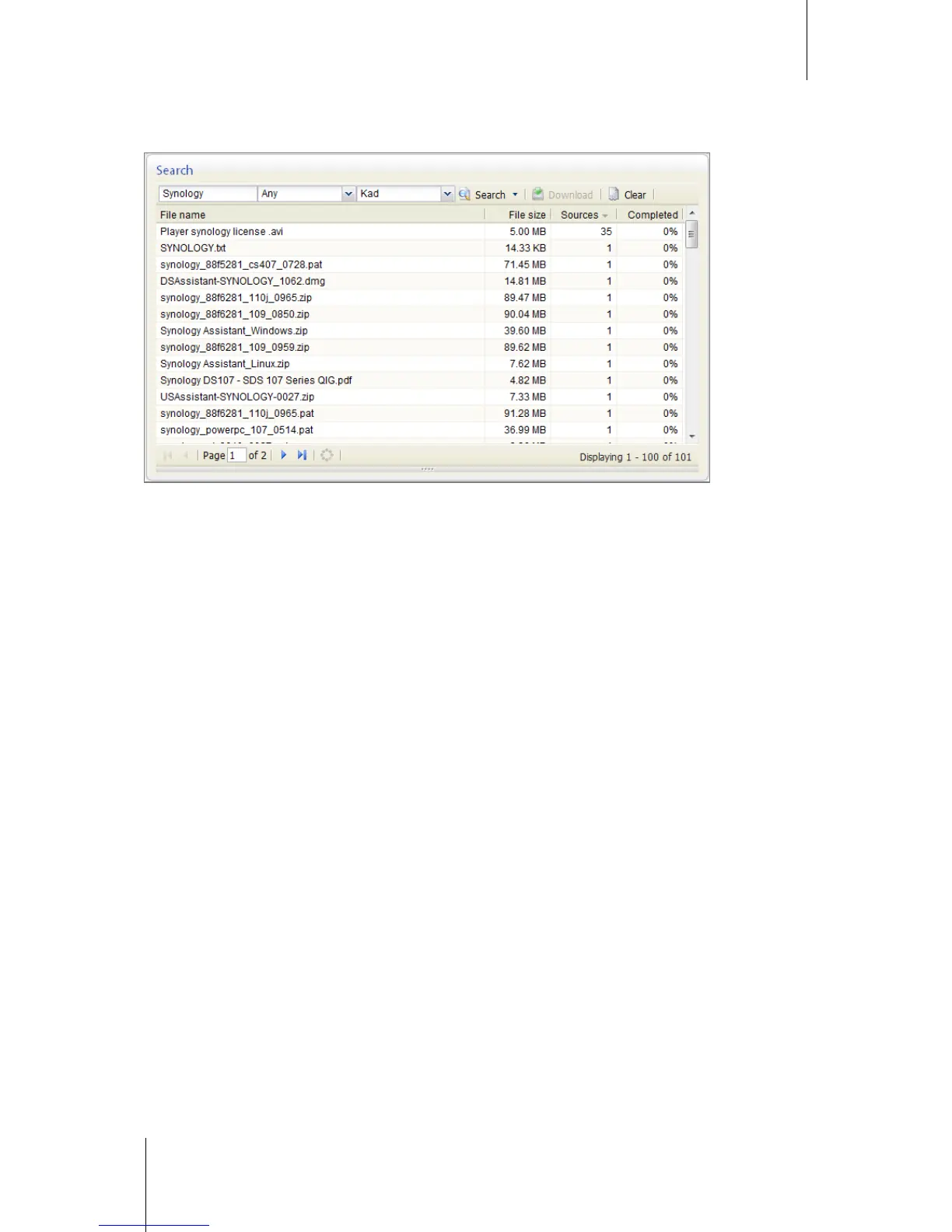
Search with eMule
Go to Search to search the files you want to download.
To perform general search:
1 Enter a keyword and select a file type.
2 Select any of the following search method:
Local
Global Server
Kad
3 Click Search to start the file search.
The search result might be shown in the following colors:
Blue: There are sufficient sources available on the network for those files.
Red: The file is already in the download queue or in the download destination.
To perform advanced search:
1 Click the down arrow to the right of the Search button.
2 Enter a keyword and select a file type.
3 Select any of the following search method.
Local
Global Server
Kad
4 Enter the minimum and maximum file size for the desired files. (optional)
5 Enter the minimum number of sources. (optional)
6 Enter the file extension. (optional)
7 Click on the Search button to start the file search.
To stop searching or clear the search result:
Click Stop or Clear to stop searching or clear the search result.
To add searched files to eMule download queue:
1 Double-click the file or select one or more files in the list.
2 Click Download.
The selected tasks will be added to the download queue to begin downloading.





 To Next Page