Synology DiskStation User's Guide
Based on DSM 3.0
99 Chapter 9: Back Up Data
Use USBCopy to Back Up Data on USB Device
You can copy data from a USB device to a shared folder on your Synology DiskStation using the Copy button.
1
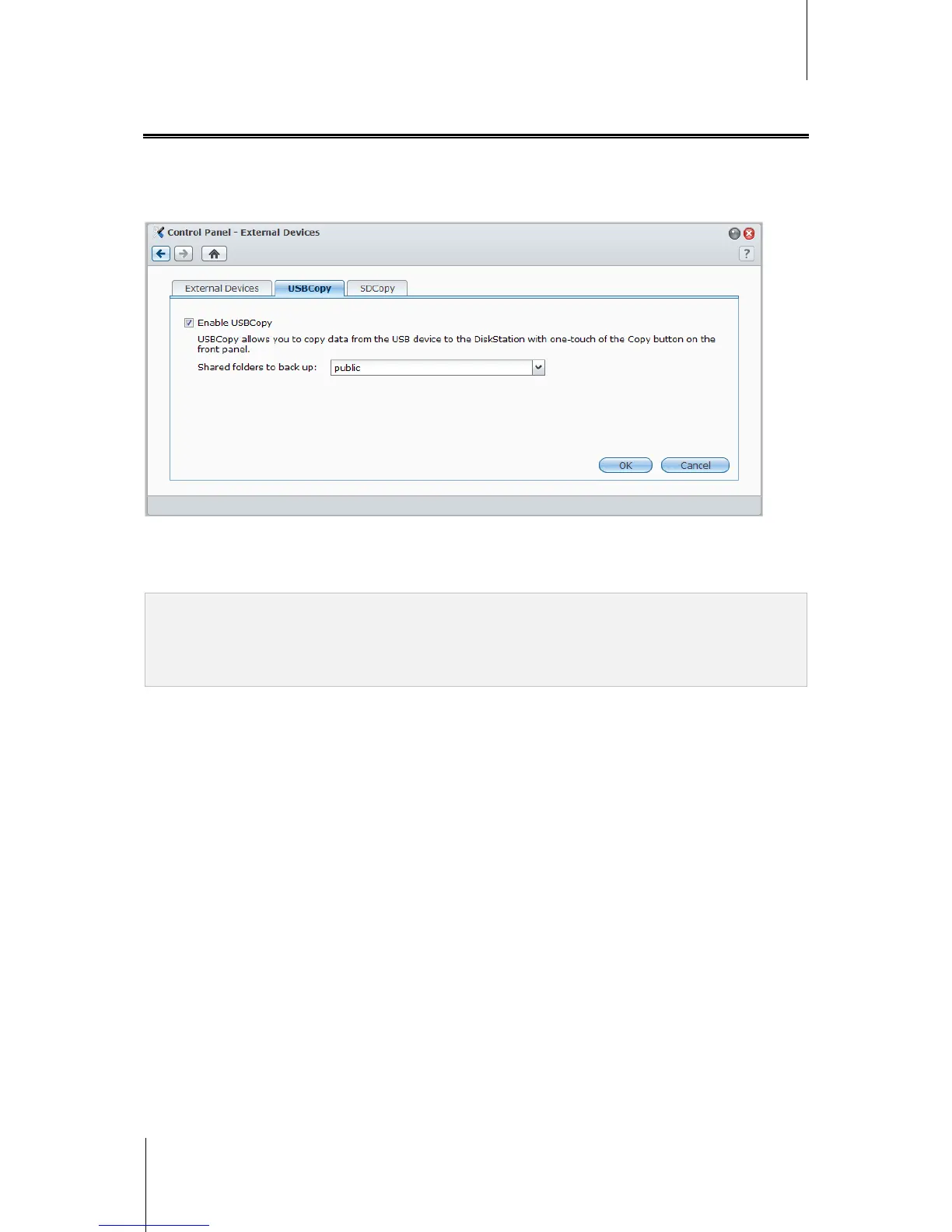
Go to Main Menu > Control Panel > External Devices > USBCopy and specify a shared folder from the drop-
down menu. All data on your USB device will be copied to the specified shared folder when you perform
USBCopy.
To perform USBCopy:
1 Connect the USB device to the USB port of your Synology DiskStation.
2 Press the Copy button (with the letter C) on the front panel of your Synology DiskStation.
Note:
Only USB devices in FAT or NTFS format are supported.
USB devices must be plugged into the USB port on the front panel of Synology DiskStation.
The available space of the destination shared folder must be larger than the used space of the USB device.
---------
1
USBCopy is supported on specific models only. See "Appendix A: Synology DiskStation Specifications" on Page 176 for more
information.





 To Next Page