Synology DiskStation User's Guide
Based on DSM 3.0
162 Chapter 15: Manage Media Server and iTunes Service
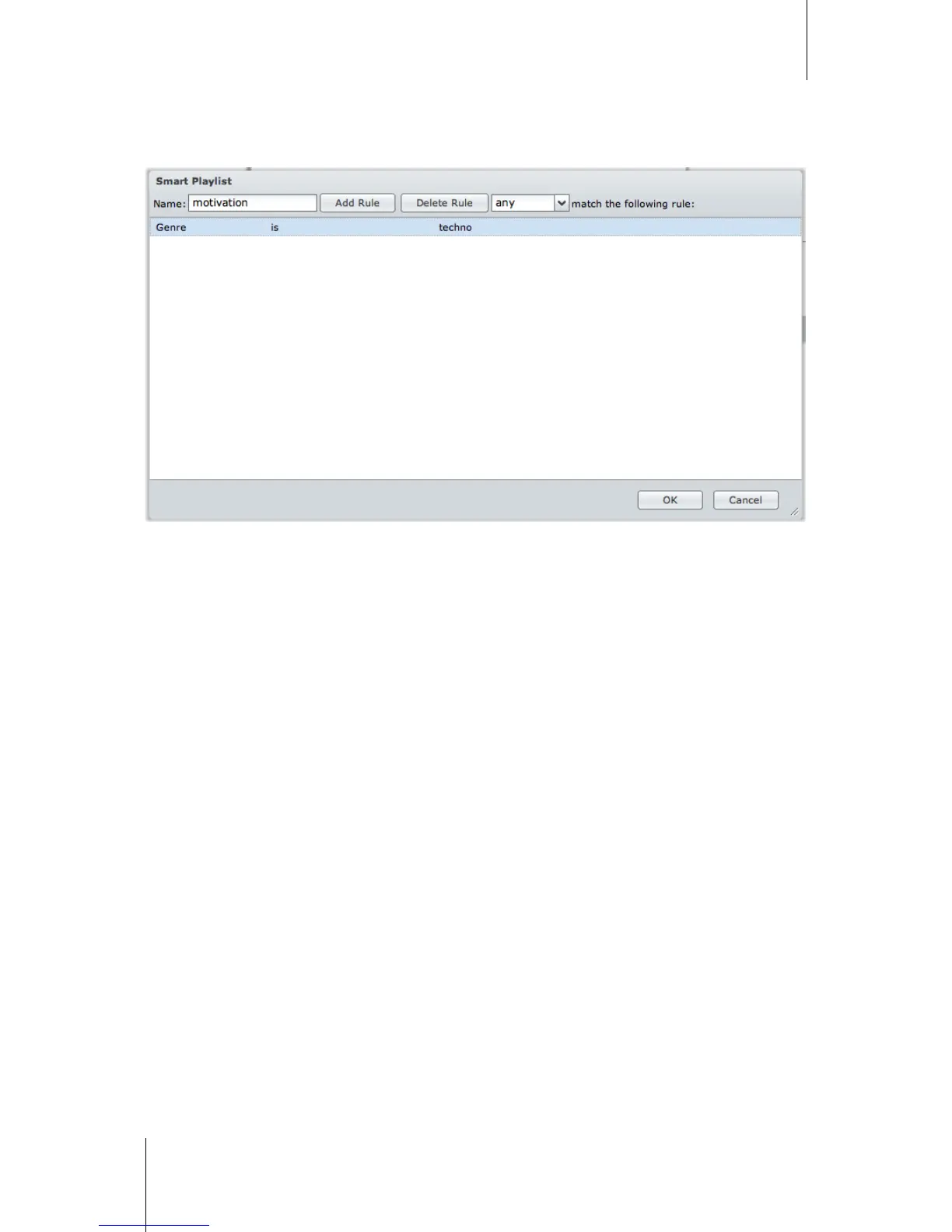
Use Smart Playlist
Click Smart Playlist to open the Smart Playlist window, where you can create and edit smart playlists on your
Synology DiskStation.
A smart playlist can automatically include certain types of songs that match specific rules. iTunes clients will be
able to play the smart playlist you created.
To create a smart playlist:
1 Click Create, name the playlist, and click OK.
2 Click Add Rule to set the rules.
3 Click OK.
To edit a Smart playlist:
1 Do one of the following to start editing:
Double-click the item you want to edit.
Select the item and click Edit.
2 Do any of the following to modify the rules:
Modify the rules by choosing items from the drop-down menus.
Click Add Rule if you want to add a rule.
Select a rule and click Delete Rule if you want to delete the rule.
3 Click OK.
To delete a smart playlist:
1 Select the smart playlist you want to delete.
2 Click Delete and then click Yes.
Re-index Audio Files
Click Re-index to reconstruct the index structure of the audio files if you find missing files while browsing through
Synology DiskStation with iTunes. The process will be executed in the background.





 To Next Page