Synology DiskStation User's Guide
Based on DSM 3.0
33 Chapter 3: Modify System Settings
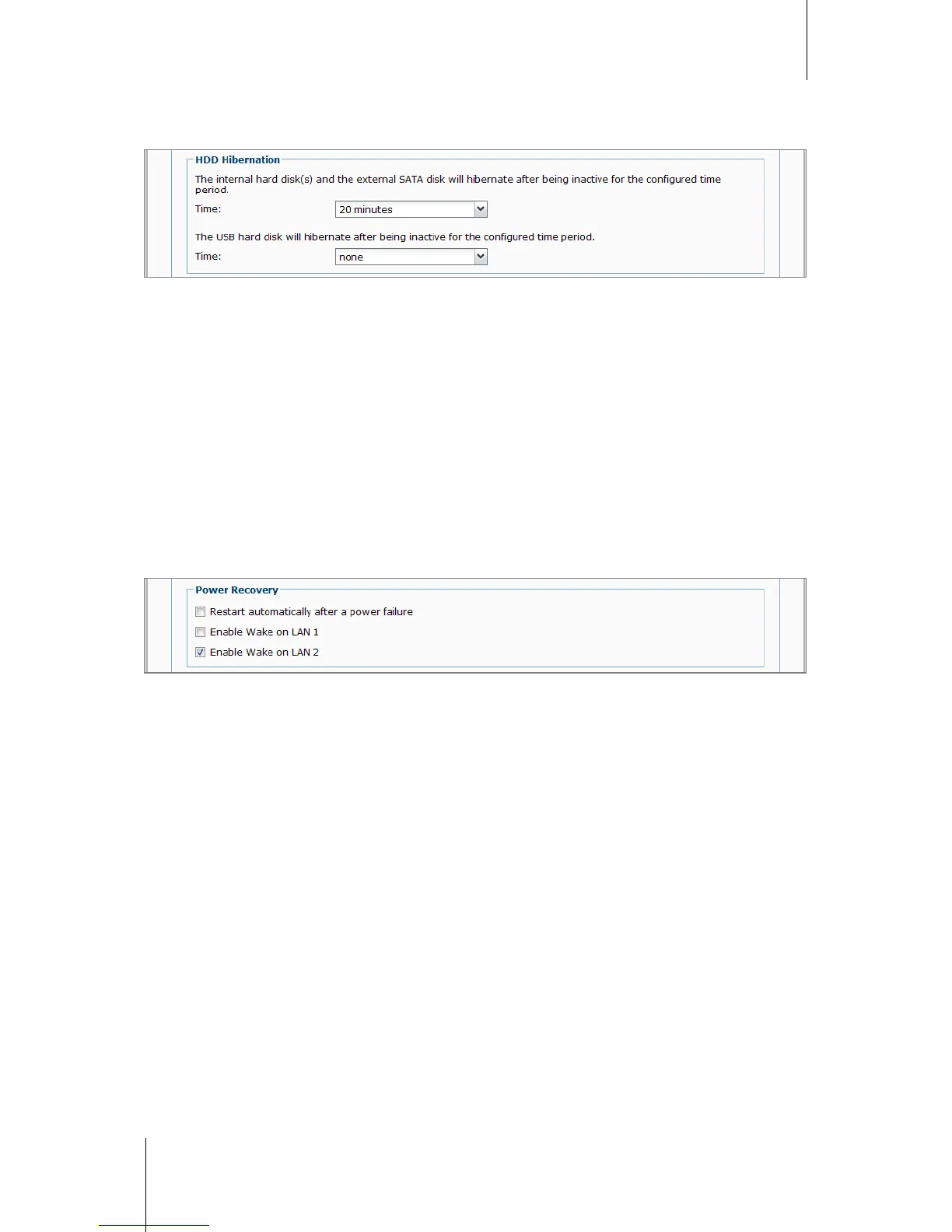
HDD Hibernation
You can manage HDD hibernation for all internal or external disks on your DiskStation.
When a disk enters HDD hibernation mode, it will stop spinning and become inactive, which not only saves
energy but also extends the disk's lifespan.
To manage HDD hibernation:
1 Choose any of the following from the Time drop-down menus:
A time period: Set the internal hard drive, external eSATA or USB disk to HDD hibernation mode after the
specified period of inactivity.
None: Disable HDD hibernation.
2 Click OK.
Power Recovery
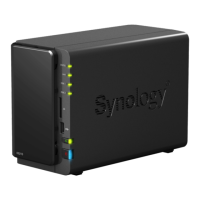
You can set the following power recovery functions:
Boot up DiskStation automatically after power has been restored if the DiskStation was shut down abnormally
due to a power failure.
Enable Wake on LAN to allow remote startup.
1
To enable the power recovery function:
1 Tick Restart automatically after a power failure.
2 Click OK.
To enable Wake on LAN:
1 Tick Enable Wake on LAN (or Enable Wake on LAN 1 or Enable Wake on LAN 2 for dual LAN models).
2 Click OK.
---------
1
Wake on LAN is supported on specific models only. See "Appendix A: Synology DiskStation Specifications" on Page 176 for
more information.





 To Next Page