Synology DiskStation User's Guide
Based on DSM 3.0
74 Chapter 7: Set Up File Sharing
To allow Linux clients to access a shared folder:
1 Select the shared folder you want to edit from the shared folder list, and click NFS Privileges.
2 Click Create to open the settings window.
3 Enter a Hostname or IP. You may specify a host in three ways:
Single Host: The fully qualified domain name, or an IP address.
Wildcards: *,* .synology.com
IP networks: 203.74.205.32/255.255.252.0, /24
4 Assign Privilege, assign Root Squash, or tick Enable asynchronous, and click OK.
5 Click OK.
Asynchronous: NFS servers will reply to requests before the changes on the file are completed.
Allow Domain Users or Groups to Access Shared Folders
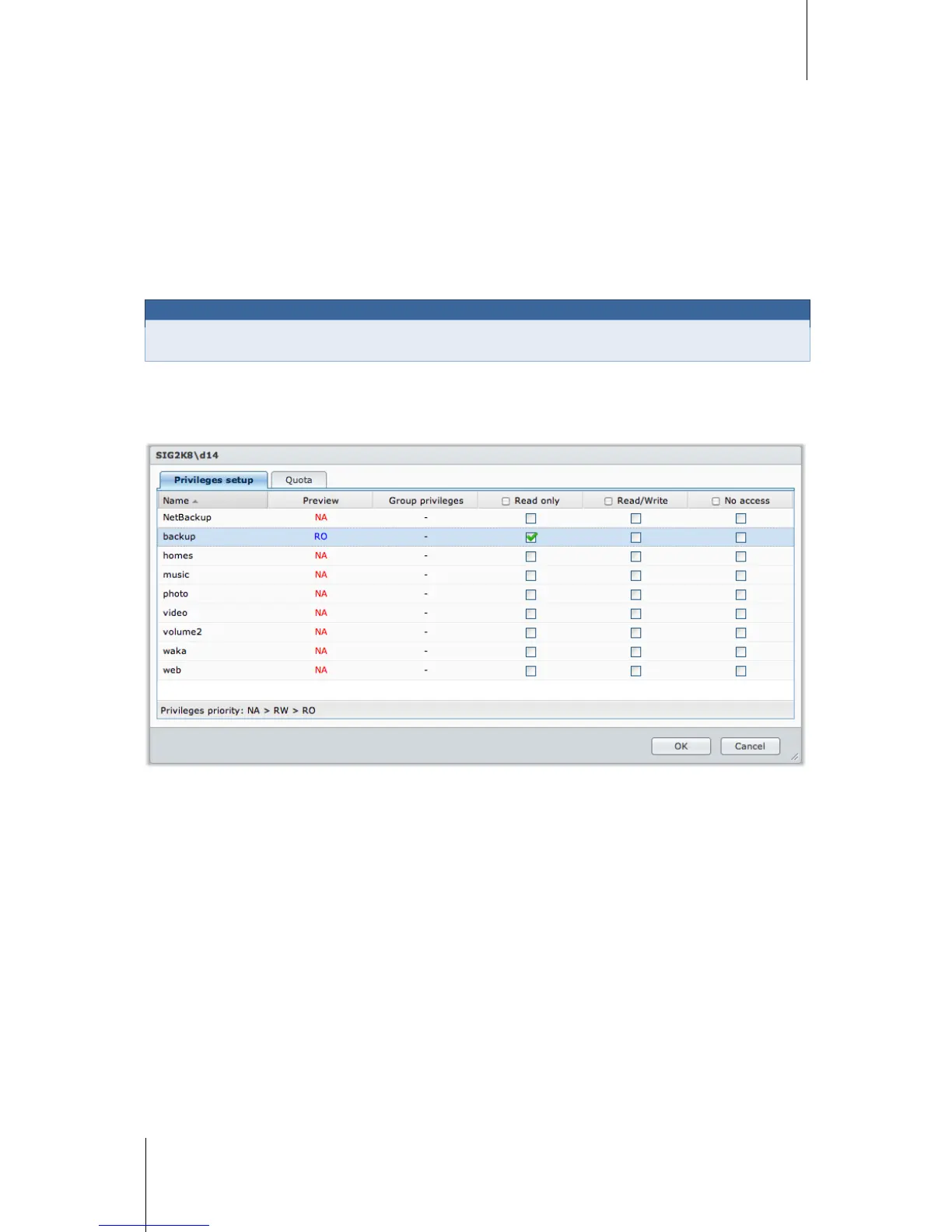
Go to Main Menu > Control Panel > Domain Privileges to set up and modify the access permission of a
domain user or group, and enable the home service for all domain users.
To Manage Domain Users’ Access Privileges:
admin can setup the share folder permission and the quota of disk capacity of each domain user. The rule of
settings are:
Privileges priority: NA > RW > RO.
Privilege preview: User’s privilege would be shown here, and that is decided based on the privileges setting
of the user and the groups joined by the user.
Group privileges: Assign privileges to groups access to access shared folders.
To Manage Domain Group’s Access Privileges:
For each domain group, you can also configure the permission of all share folders. The priority of privileges is:
NA > RW > RO.





 To Next Page