Synology DiskStation User's Guide
Based on DSM 3.0
81 Chapter 8: Access Files from Anywhere
Access Shared Folders from Mac
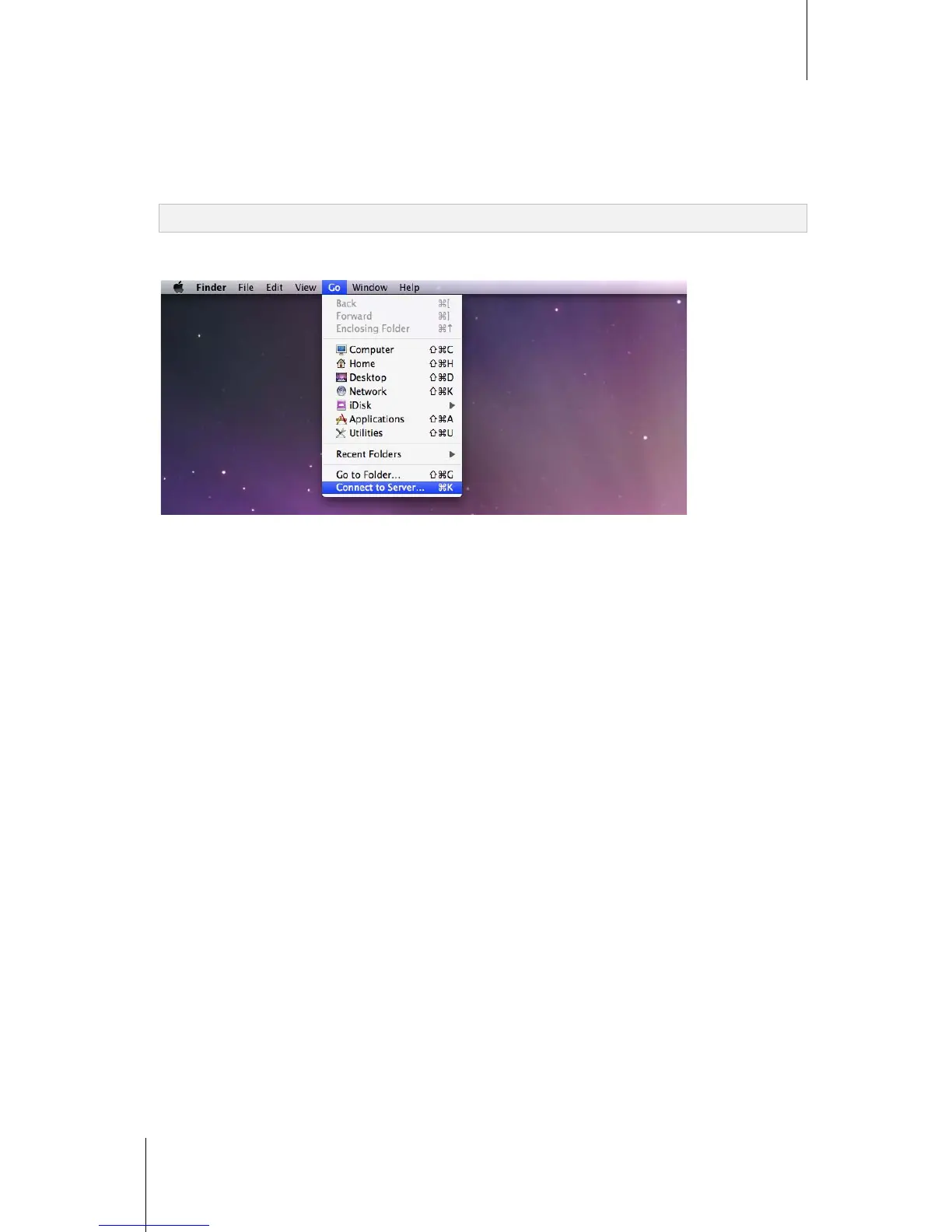
1 Choose Go > Connect to Server from the menu bar.
2 Type Synology DiskStation's IP address or server name (appended with .local) preceded by smb:// or afp:// in
the Server Address field and click Connect. (e.g. smb://EricaWang.local or afp://192.168.0.2)
Note: For better performance, it is recommended that you connect to the shared folders via SMB.
3 Select the shared folder you want to access. Upon completion, you can access the shared folder in the Finder
window.
Access Shared Folders from Linux
1 In Synology DiskStation Manager, Go to Main Menu > Control Panel > Shared Folder.
2 Select the shared folder you want to access, click NFS Privileges, and find the mount path at the bottom of
the window that appears.
3 On a Linux computer, enter the mount path to mount the shared folders.





 To Next Page