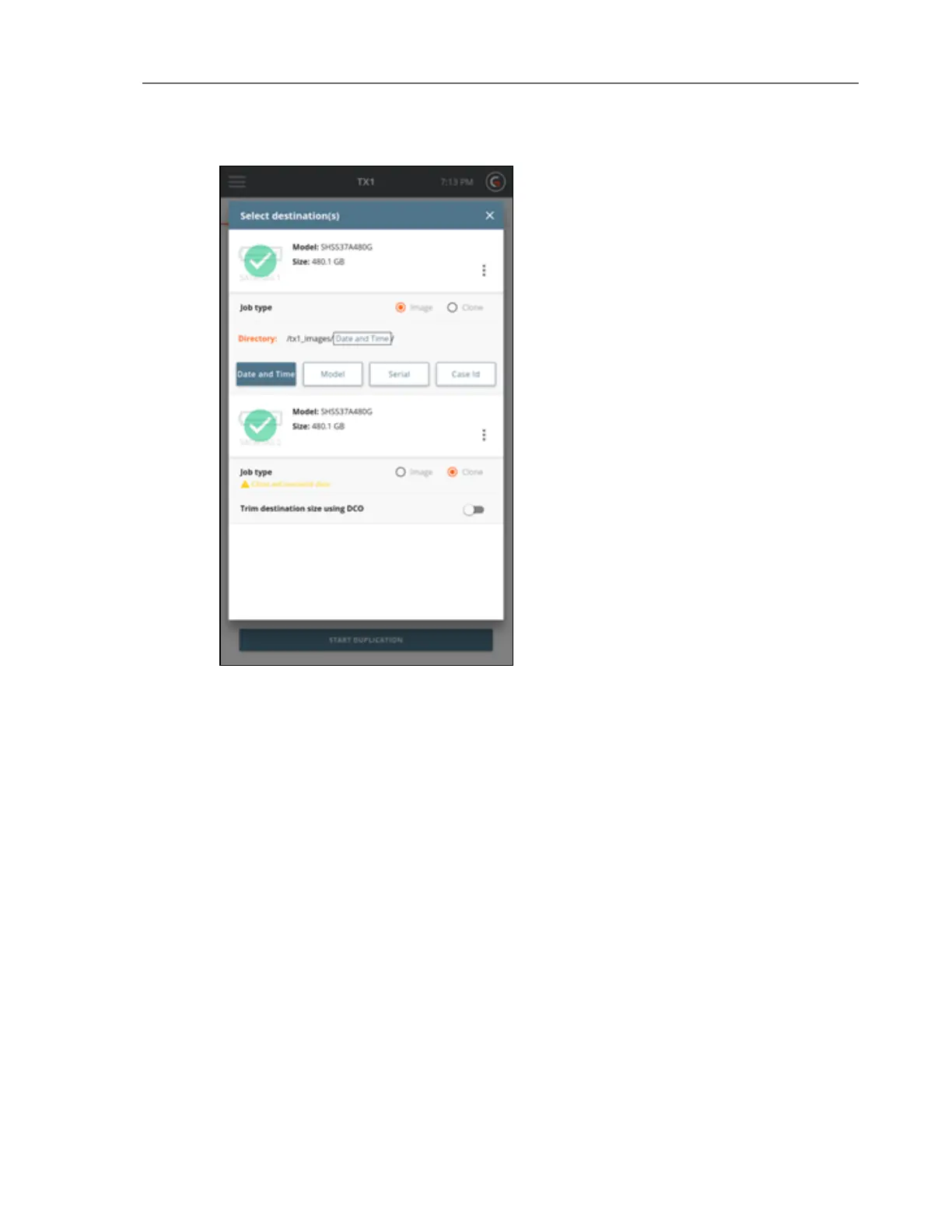
For each selected destination drive, a Job type panel expands below the Drive tile.
Select the Clone radio button to clone to the destination, or select the Image radio
button to image to the destination.
For clones, the option is displayed to trim the destination drive to be the same size as
the source using a DCO.
Note: The trim feature is only available for SATA destinations that support DCO.
For Images, the default destination directory path is displayed. To change the
destination base directory, tap the orange Directory label to enter a Browse modal
where you can select a different destination base directory, create and select a new
directory, or delete a directory. Tap one or more of the four buttons (Date and Time,
Model, Serial, or Case ID) under the directory path to add variables as names for a
destination sub-directory. Each variable can only be selected once. Underscores are
printed as separators between multiple variable names.
The Image option in the Job type panel will be disabled if the destination drive does not
have a recognized filesystem. If an image destination is desired, format the destination
drive by selecting the details option from the additional options menu (three vertical
CHAPTER 4 Using the TX1 41


 To Next Page