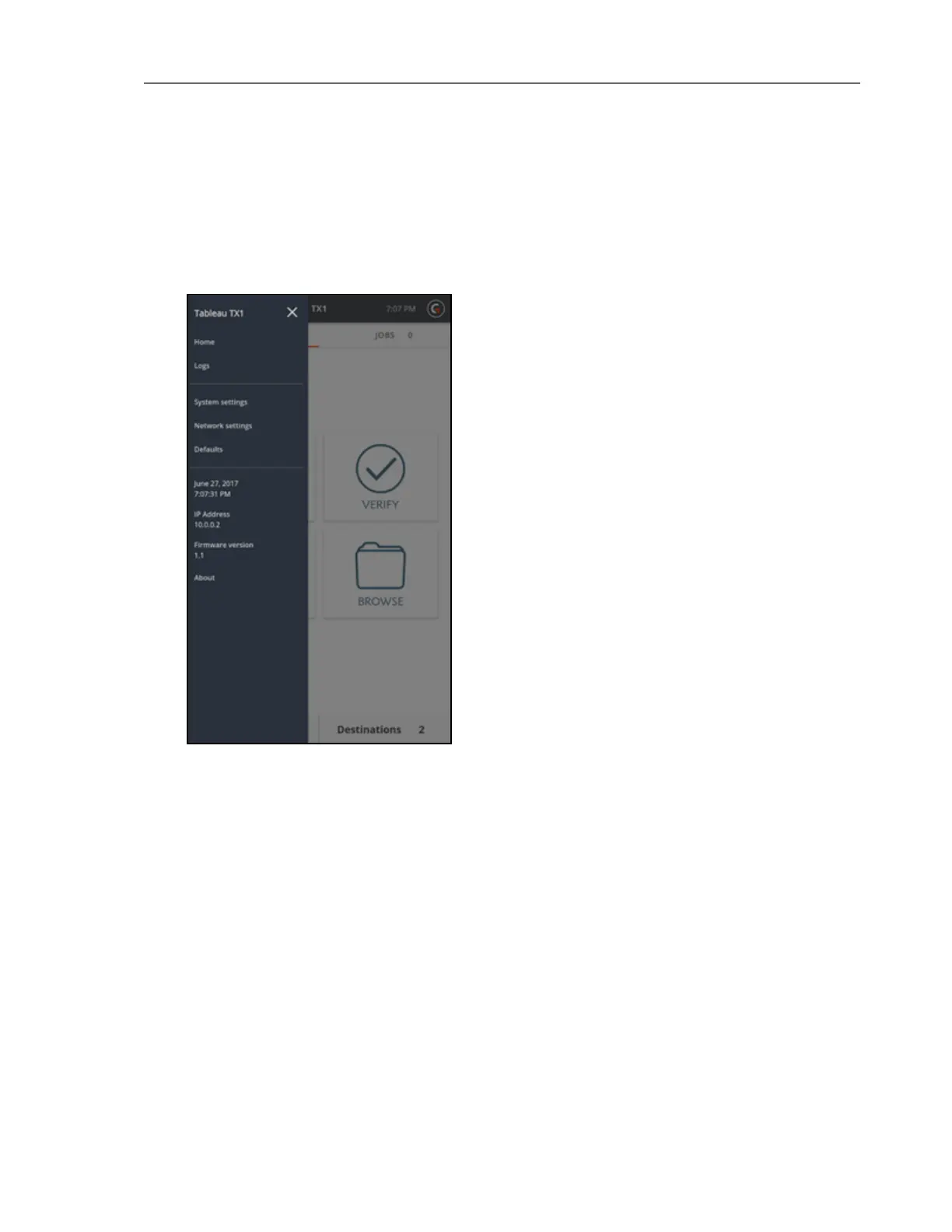
Side Navigation Menu
The menu icon in the upper left corner of the top navigation bar displays a side navigation
panel that provides a menu of additional options and information. For additional information
on the items in this menu, see Configuring the TX1 on page23.
Jobs Tab
The Jobs tab, which is found on the right side of the tab navigation bar, is followed by a
counter. When TX1 is first powered on, the Jobs counter is at 0. Once jobs are underway, each
active or queued job will increment the counter. The Jobs tab is a convenient way to keep
track of queued jobs, active jobs, and recent work done by TX1.
The Jobs screen has three sections: Active Jobs, Queued Jobs, and Recent Jobs. After two
active jobs are running, additional job requests are placed into a queue. Queued jobs start as
soon as one of the two active jobs is complete, or when the source or destination resource the
job is waiting for becomes available. Likewise, as jobs are completed, they are moved to the
Recent section, so that a user can see what has already completed.
16 Tableau TX1 User Guide Version 2.0


 To Next Page