37
If you have clicked [Display the graph after downloading recorded data],
and you make any changes to the data after displaying, make sure to
save those changes if necessary.
■
3 Ways to Save Files.
●
In the [File] Menu, select [Overwrite All Data]
Will save any changes to le without changing File Name and Saving
Location. The same operation can be carried out from [Save] in the Toolbar.
●
In the [File] Menu, select [Save All Data as...]
Save with a new File Name.
●
In the [File] Menu, select [Save Displayed Data]
Save only that data in the current display. This is handy when you wish to
save only the desired data.
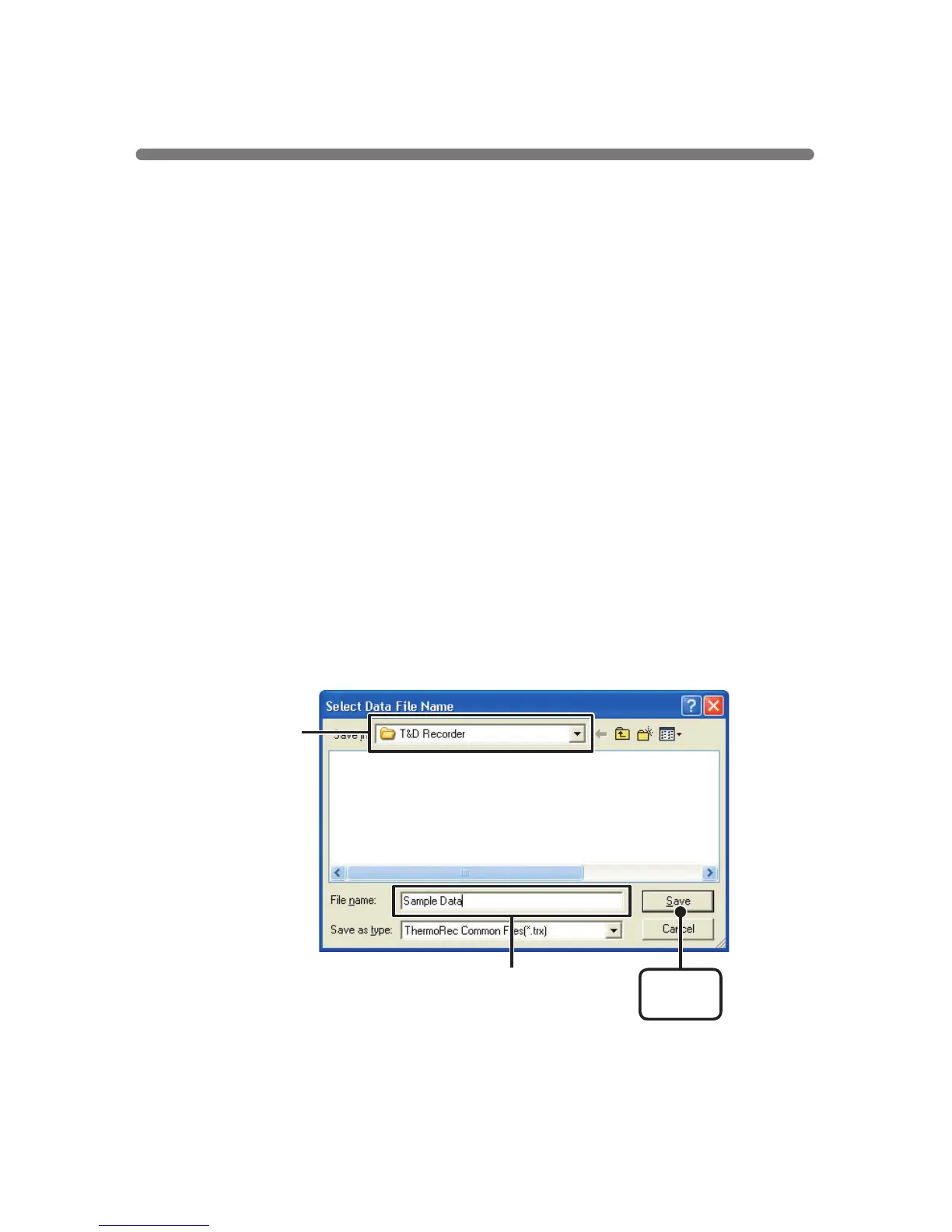
EX: [Save All Data as...]
1.Click [Save All Data as...] in the [File] Menu.
2.Specify the [Location] and enter a [File Name].
3.Click [Save] to complete the saving process.
[
Save
]
button
Specify Location
Enter a File Name
Saving Recorded Data


 To Next Page