◆
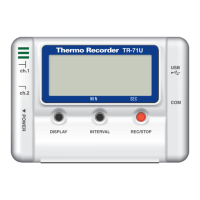
Connect a TR-71U
/
72U unit to your computer so that
communication can occur.
※
Please see p 9 -13 for more information about how to connect.
The rst time you connect it is necessary to install the USB device driver.
For information about how to install the device driver please see the
Hardware User's Manual.
12
[
Start Recording
]
tab
[
Start Recording
]
button
Icon
[
Stop Recording
]
button
[
Receive Settings
]
button
TR-71U
/
72U
:
Starting Recording
◆
Setting the Recording Conditions.
1.In the Main Window, click on the [TR-71U/72U] icon.
2.Click on the icon of the data logger you wish to make settings for.
3.Click the [Start Recording] tab, and make the necessary settings.
●
Recording Start Date
/
Time
<
Selections
:
Programmed Start
/
Immediate Start
>
Programmed Start
:
recording will start on the specied date and time.
Immediate Start
:
recording will start immediately upon completion of
settings.
●
Recording Interval
<
Selections
:
1,2,5,10,15,20,30 seconds and 1,2,5,10,
15,20,30, 60 minutes
>
Click on
▼
and select the desired recording interval from the drop-down list.


 To Next Page