14
◆
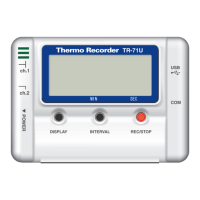
Connect a TR-71U
/
72U unit to your computer so that
communication can occur.
※
Please see p 9-13 for more information about how to connect.
The rst time you connect it is necessary to install the USB device driver.
For information about how to install the device driver please see the
Hardware User's Manual.
[
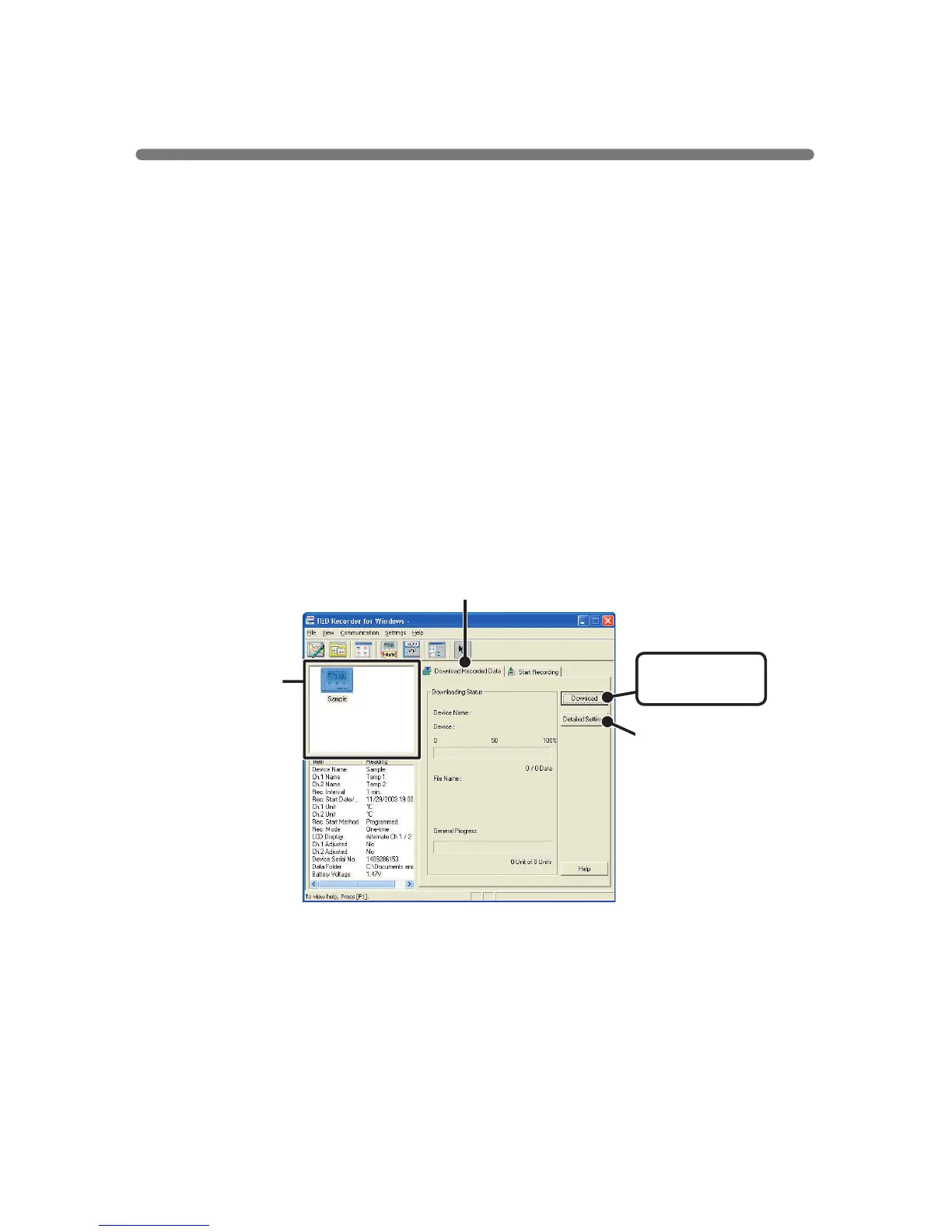
Download Recorded Data
]
tab
[
Download
]
button
Select a data
logger
[
Detailed Settings
]
button
TR-71U
/
72U
:
Downloading Recording Data
◆
Downloading Recorded Data.
1.
In the Main Window, click on the
[
TR-71U/72U
]
icon.
2.
Click on the icon of the data logger you wish to download data from.
3.
Click the
[
Download Recorded Data
]
tab
4.
If you wish to automatically display the graph upon the completion of
downloading, click the [Detailed Settings] button to make such a setting.
※
For more information about Detailed Settings see page 21.
5.
Click the [Download] button to begin downloading data.
6.
After downloading has been completed a graph will be displayed.


 To Next Page