PREPARATION
29
Before Operation (Continued)
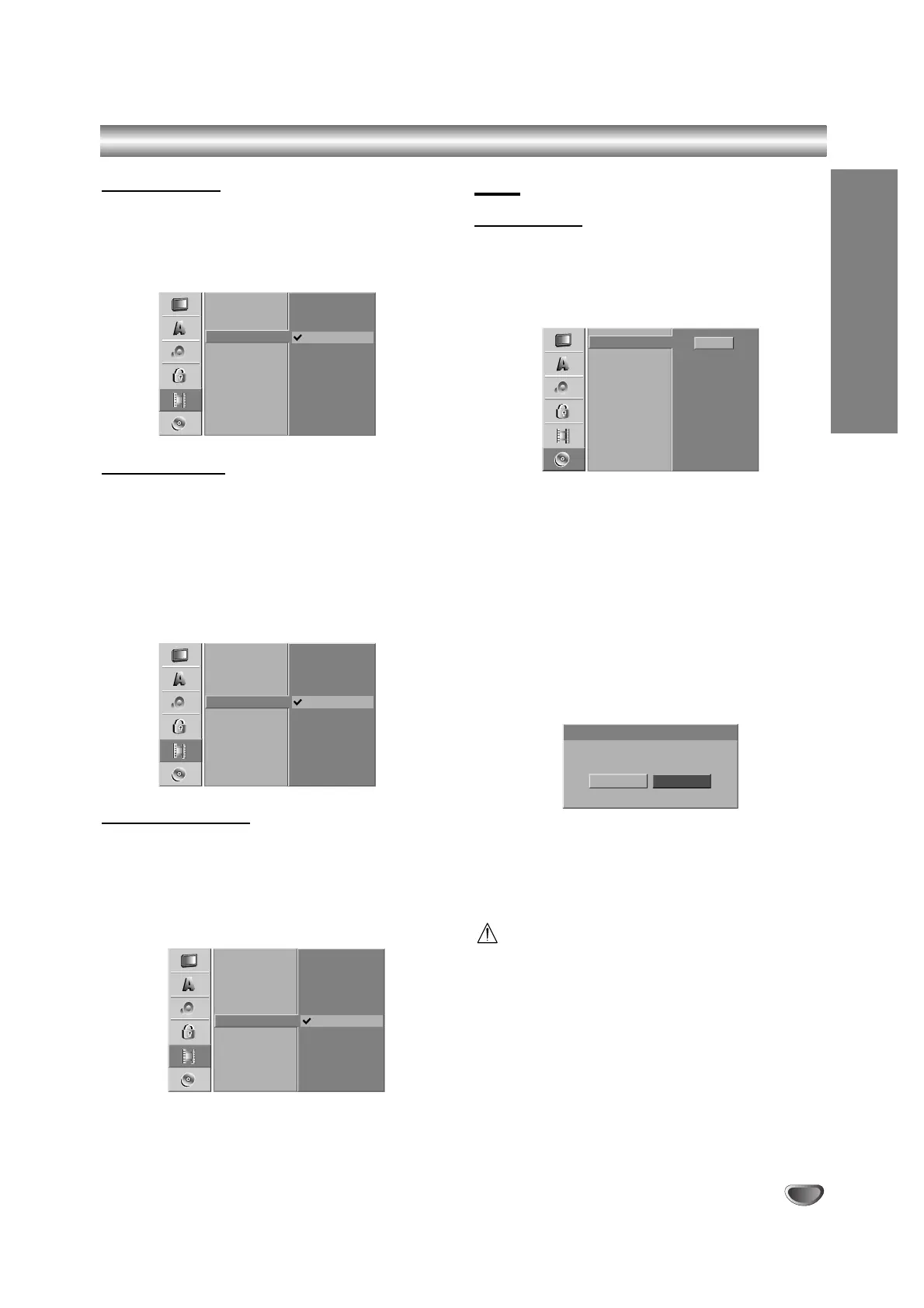
Auto Chapter
When recording in Video mode, chapter markers are
put in specified setting. You can change this interval to
3 minutes, 5 minutes or 10 minutes. If you select None,
switch off automatic chapter marking altogether with the
No Separation setting.
DV Rec Audio
You need to set this if you have a camcorder using
32kHz/12-bit sound connected to the front panel DV IN
jack.
Some digital camcorders have two stereo tracks for
audio. One is recorded at the time of shooting; the other
is for overdubbing after shooting.
On the Audio 1 setting, the sound that was recorded
while shooting is used.
On the Audio 2 setting, the overdubbed sound is used.
Video Rec Audio
When DVD recording in Video mode and if the broad-
cast is bilingual, the recorder records left audio (Main
language) or right audio (Bilingual language). It prevent
to listen to both language simultaneously during play-
back the disc.
Disc
Disc Format
If you’re recording on a DVD-R disc, the recording
mode will always be Video mode.
If you are using a DVD-RW disc, by default it will be VR
mode. You can change this to Video mode from the
Setup menu.
11
Press SETUP.
The Setup menu appears.
22
Use v / V to select the Disc option.
33
While the Disc option is selected, press B to
move to the second level.
44
Use v / V to select the Disc Format option.
55
Press B to move to the third level.
Start icon is highlighted.
66
Press ENTER.
Format Disc menu appears.
77
Use b / B to select a desired Mode
(VR Mode or Video Mode) then press ENTER.
Confirm message will appear.
88
Use b / B to select “OK” then press ENTER.
It takes a few moments to initialize the disc.
Caution
If you want to change the disc format, everything
recorded on the disc will be erased.
99
Press SETUP to exit the menu.



 To Next Page