PLAYBACK
45
JPEG File Operation (Continued)
Moving JPEG files
You can move photo files to another folder or
media. After moving, the files are deleted from the
current location.
11
Press HOME.
The HOME menu appears.
22
Select a media that contains JPEG file then
press ENTER.
33
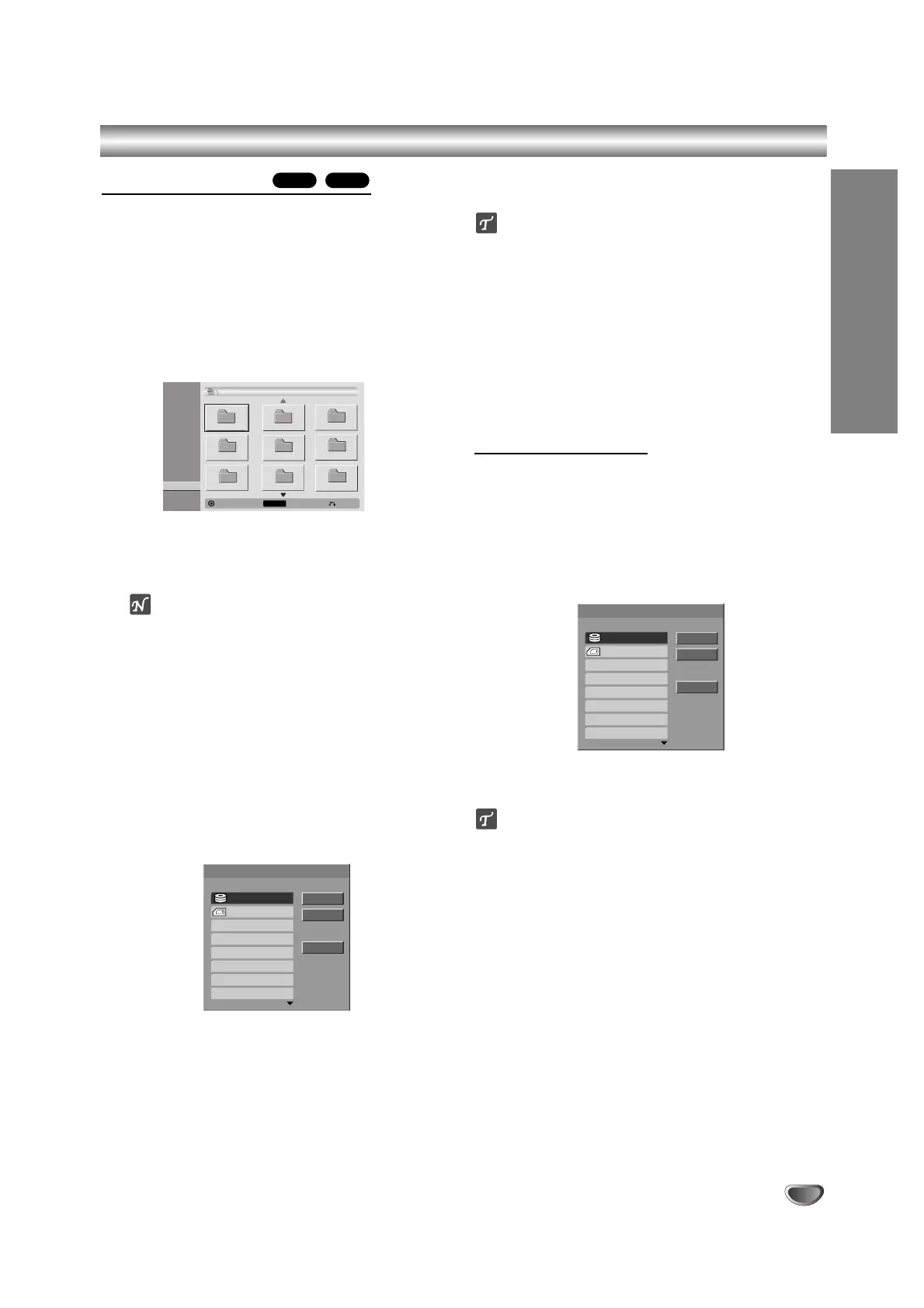
Select ‘PHOTO’ option then press ENTER.
The Photo menu appears on the TV screen.
44
Use v / V to select an JPEG files or albums on
the menu then press MARKER.
A check mark appears on the JPEG file or album.
otes
Use the MARKER button again to cancel the
marked track or folder.
Press and hold V to move quickly to the next
track or folder.
Press and hold v to move quickly to the previous
track or folder.
55
Repeat step 4 to mark additional files or folders.
66
Press ENTER.
The options appear on the left side of the menu.
77
Select ‘Move’ option on the options.
Move menu will appear.
88
Use v / V to select a media then press B .
Move option is highlighted.
ip
You can select a album (folder) to move.
1. After selecting a media then press ENTER.
The album list appears.
2. Select a folder.
You can create new album. Select ‘New Album’
option on the Move menu then press ENTER.
“NONAME##” folder is created.
99
When ‘Move’ option is highlighted, press
ENTER to begin moving.
Copying JPEG files
You can copy photo files to another folder or
media.
11
Follow steps 1-6 as shown left (Moving JPEG
files).
22
Select ‘Copy’ option on the options.
Copy menu will appear.
33
Use v / V to select a media then press B .
Copy option is highlighted.
ip
You can select a album (folder) to copy.
1. After selecting a media then press ENTER.
The album list appears.
2. Select a folder.
You can create new album. Select ‘New Album’
option on the Copy menu then press ENTER.
“NONAME##” folder is created.
44
When ‘Copy’ option is highlighted, press ENTER
to begin copying.
M/CHDD



 To Next Page