37
Step 5: Please wait a few seconds until the status has changed to “connected”. Then
check if the Bluetooth sign appears in the upper right corner of the tablet (white sign
stands for successful Bluetooth connection; gray sign stands for the Bluetooth is open,
but not connected).
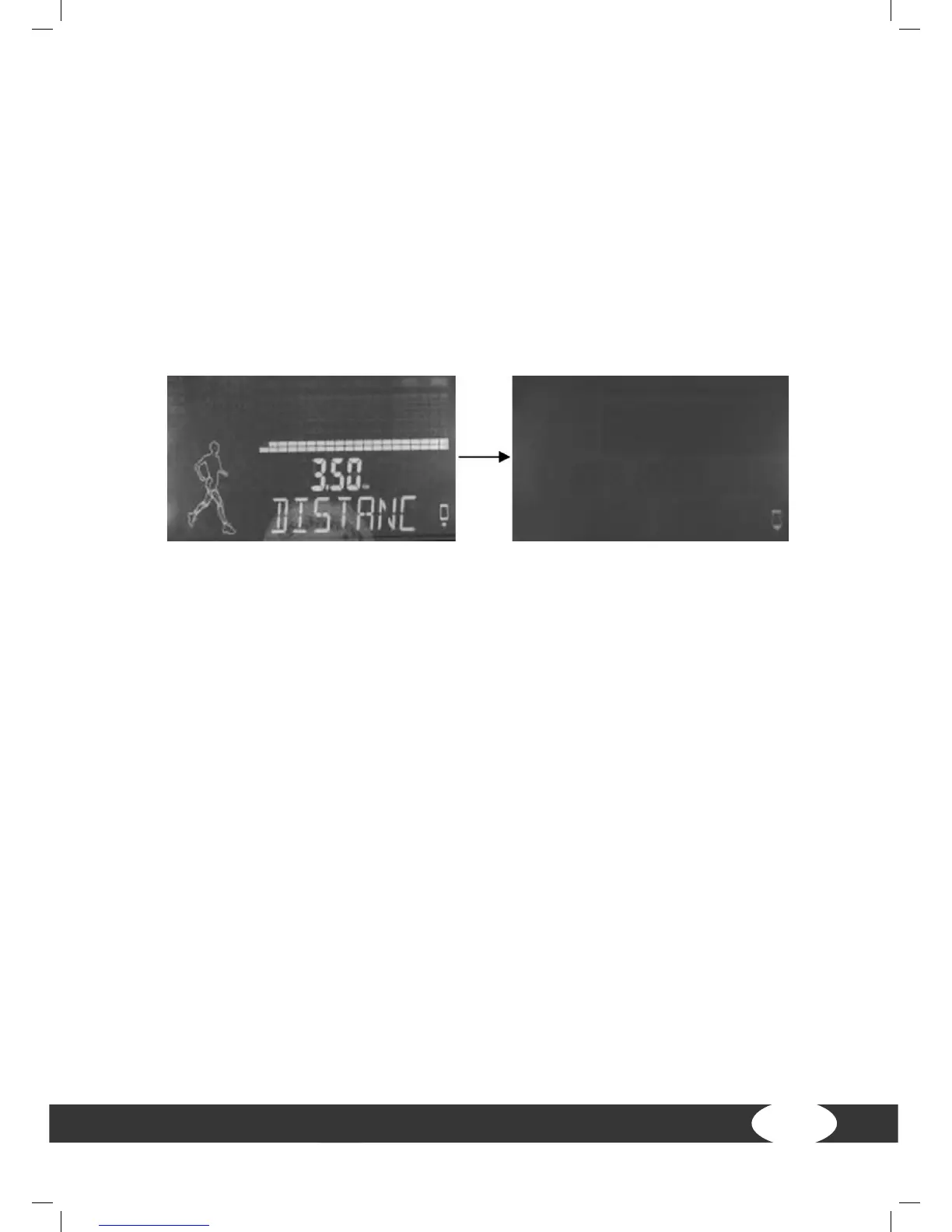
Step 6: As soon as Bluetooth has connected successfully, the APP sign will appear
on the screen. A white background will appear on the LCD display. The sign in the
lower right corner changes from “not connected” to “connected”. This means that the
computer is successfully connected with the tablet. Then you can use any mode in the
APP interface in order to control the treadmill.
Step 7: After each usage, close this APP in the background. Then go back to the
Android tablet setting page in order to close the Bluetooth function. After about 10
seconds, a beep will sound and the screen will return to the regular LCD display.
NOTES
+ The APP function is based on the connection of the treadmill via Bluetooth. Make
sure that the treadmill is equipped with a Bluetooth set.
+ Once the connection was successful, start the treadmill APP within two minutes.
If the APP is not started during this time or the distance between the tablet and
treadmill is more than 2 m, the connection will be disrupted automatically and the
steps above must be executed again.
+ The usage and function of every App are dierent. Please contact your contract
partner or visit the PAFERS website in order to receive instructions and functional
descriptions about the APP.
+ The APP does not change the metric/English unit automatically. If the unit from
the APP is dierent from that of the console, please change the unit in the APP.


 To Next Page