Listening
to
Music Player (Shared Folders)
(Q)o@
For
the
preparations
of
Shared Folders,
see
pages
26
to
27.
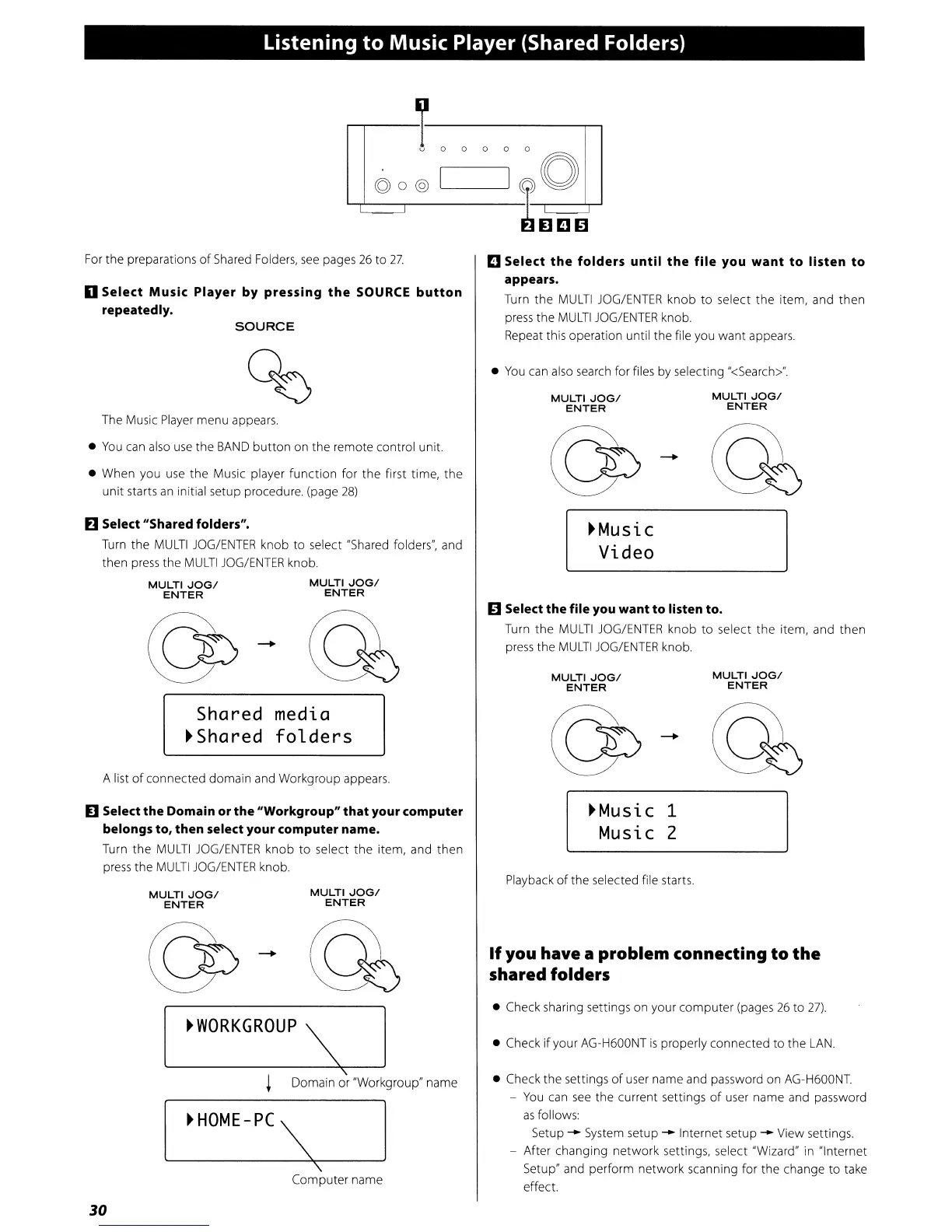
D
Select
Music
Player
by
pressing
the
SOURCE
button
repeatedly.
SOURCE
a Select
the
folders
until
the
file
you
want
to
listen
to
appears.
Turn
the
MULTI
JOG/ENTER
knob
to
select
the
item, and
then
press the
MULTI
JOG/ENTER
knob.
Repeat this operation until the file you want appears
A list
of
connected domain and Workgroup appears.
MULTI
JOG/
ENTER
~
I
MULTI
JOG/
ENTER
~
I
-
-
~Music
1
Music 2
~Music
Video
MULTI
JOG/
ENTER
MULTI
JOG/
ENTER
@
I
@
I
Playback
of
the
selected file starts.
• Check
the
settings
of
user name and password on AG-H600NT.
-
You
can
see
the current settings
of
user name and password
as
follows:
Setup .... System setup .... Internet setup .... View settings.
- After changing
network
settings, select "Wizard" in "Internet
Setup" and perform network scanning for
the
change
to
take
effect.
• Check sharing settings on your
computer
(pages
26
to
27).
• Check
if
your AG-H600NT
is
properly connected
to
the
LAN.
•
You
can also search for files by selecting "<Search>".
If
you have a problem connecting
to
the
shared folders
o Select the file you want to listen to.
Turn
the
MULTI
JOG/ENTER
knob
to
select
the
item, and
then
press
the
MULTI
JOG/ENTER
knob.
MULTI
JOG/
ENTER
~
I
\
Computer name
\
Domain or "Workgroup" name
-
-
~
HOME
-
PC
""
~WORKGROUP
\
MULTI
JOG/
ENTER
@
I
• When you use the Music player
function
for
the
first time,
the
unit
starts
an
initial setup procedure. (page
28)
The Music Player menu appears.
•
You
can also use the
BAND
button
on the remote control unit.
Shared media
~Shared
folders
D Select the Domain or
the
"Workgroup"
that
your computer
belongs to, then select your computer name.
Turn
the
MULTI
JOG/ENTER
knob
to
select
the
item, and then
press
the
MULTI
JOG/ENTER
knob.
D Select "Shared folders".
Turn
the
MULTI
JOG/ENTER
knob
to
select "Shared folders", and
then press
the
MULTI
JOG/ENTER
knob.
MULTI
JOG/
MULTI
JOG/
ENTER ENTER
30


 To Next Page