23
Configuration
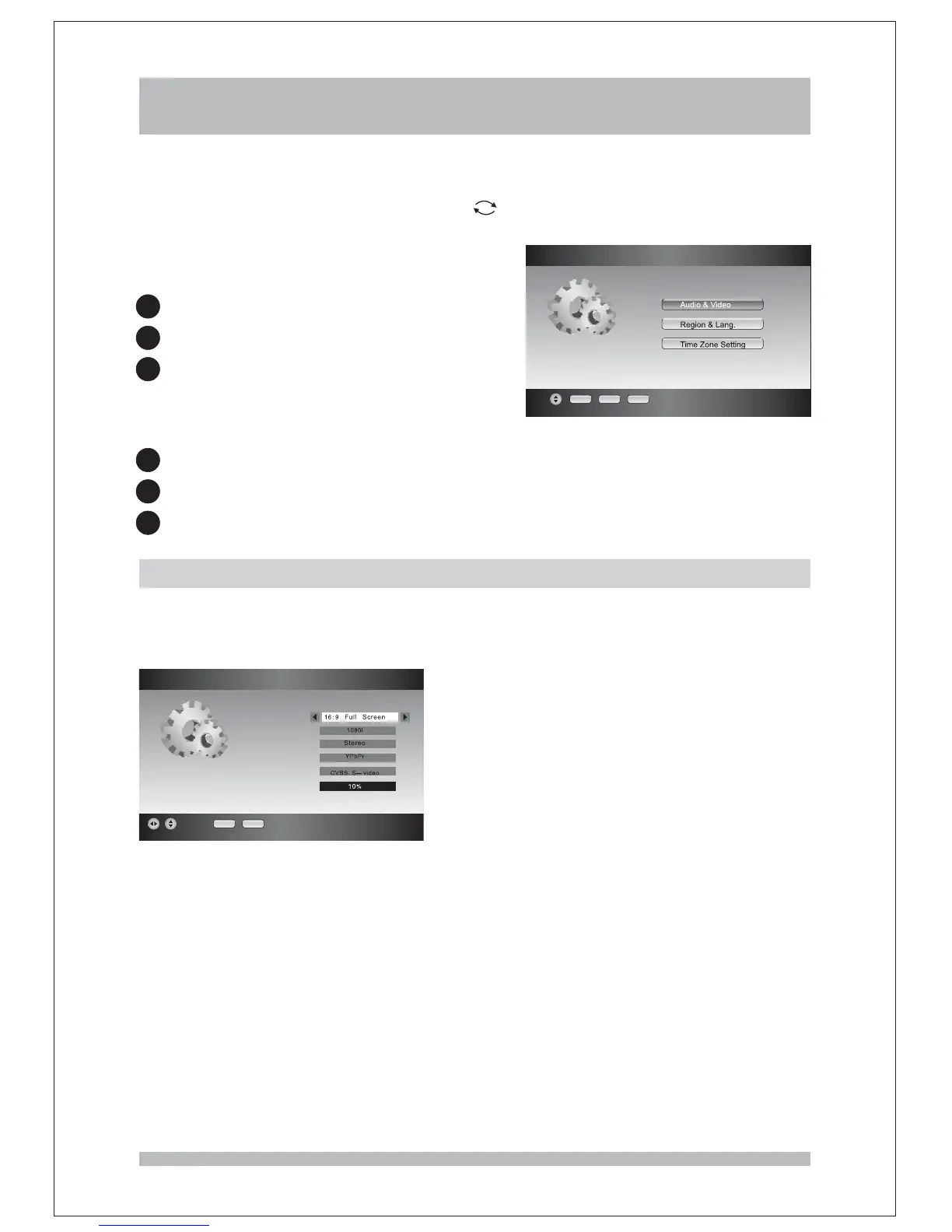
Press the key on the remote control to enter the Main Menu,choose the
Configuration option and press key. Then you can press the keys on the
remote control to select a submenu. Press the key you can return to the Main Menu, or
press the key to leave, and then the changes have been done will be stored. Here is
some information about submenu.
The configuarion function let you choose to:
MENU
OK UP/DOWN
EXIT
1
1
2
2
3
3
Audio & Video
Region & Lang.
Time Zone Setting
How to select the functions listed above in the Installation function page:
Audio Video Setting&
Screen TV format
Screen definition
Audio output
HD Video
S
OSD Transparency
D Video
EXIT RECALL
OK EXIT RECALL
Configuration
Select 'Configuration' in the 'Main Menu'.
Press the keys until the item you want is highlighted.
Press the key.
UP/DOWN
OK
Audio & Video Setting
Enter the submenu. You can see the set information about audio
and video:
Audio & Video Setting
Screen TV format, Screen definition, Audio output, HD video, SD video and
OSD Transparency.
Screen TV type have three options: 4:3 Full Screen, 4:3 Letter Box or 16:9 Full Screen.
You can change the Screen TV type by pressing keys.
HD definition have two options: 720p and 1080i. You can change the definition by pressing
keys.
Audio output have three options: Stereo, Left and Right. You can change the Audio output
channels by pressing keys.
HD video is fixed as YPbPr
SD video output is fixed as CVBS and S-Video.
OSD transparency have six options: 0%, 10%, 20%,30%,40% and 50%, the default is
30% transparent. You can change the TV output signal by pressing keys.
LEFT/RIGHT
LEFT/RIGHT
LEFT/RIGHT
LEFT/RIGHT
.


 To Next Page