C
Copyright Technolog Ltd. 2017. All rights reserved.
Information contained in this document subject to
change without prior notice.
Sheet 19 of 41
Technolog Limited,
Ravenstor Road,
Wirksworth,
DE4 4FY,
United Kingdom
T: +44 (0) 1629 823611
E: technolog@technolog.com
www.technolog.com
DMR No.: 7311
2137PM9001 Rev. A
Installation: Commissioning
- Cello 6 Wizard: Setting the time
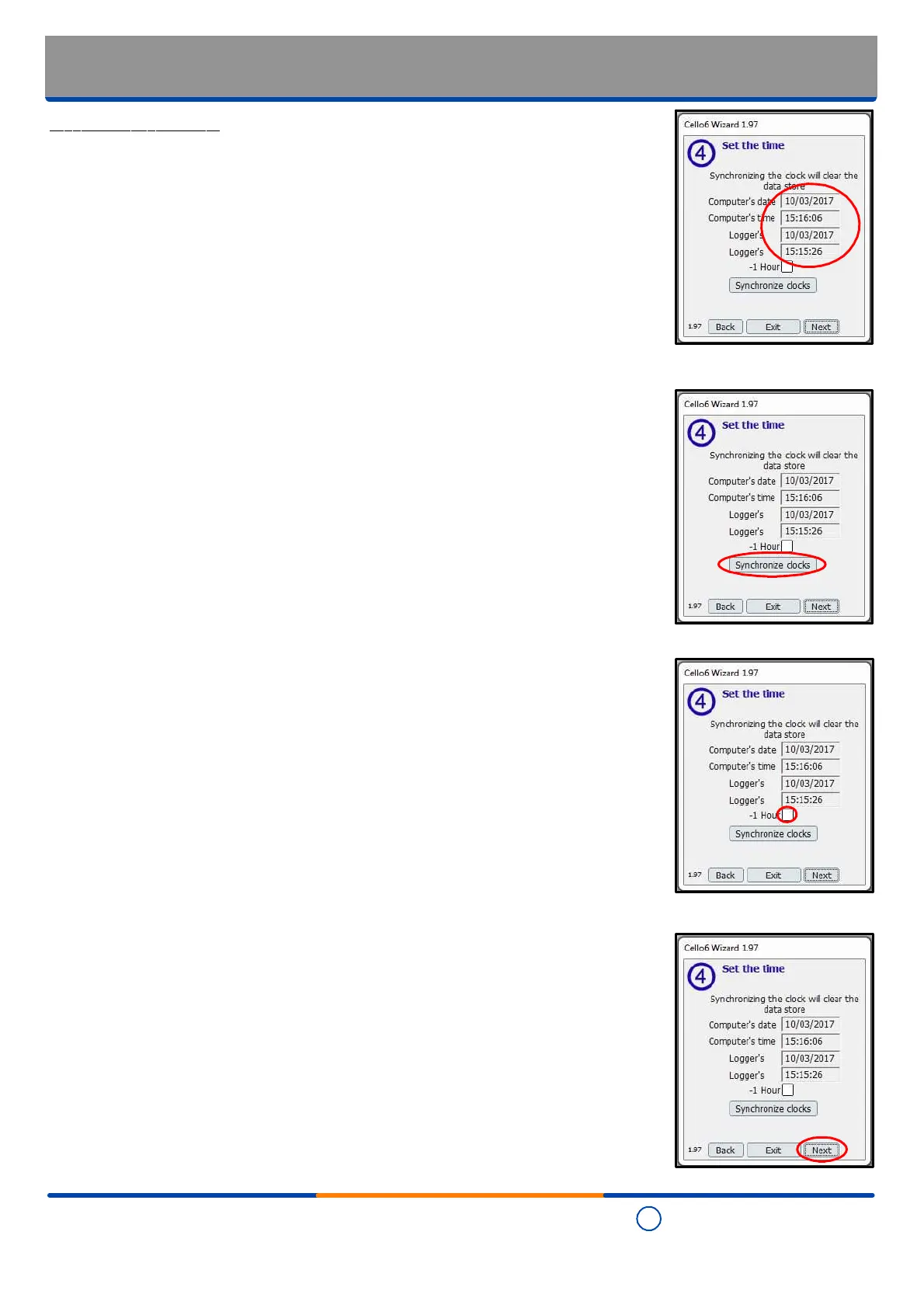
Step 7 - Setting the time.
- The "Set the time" page is now displayed showing the current time and date according
to the PC / laptop / tablet being used to setup the Cello 6S as well as the time and date
and the date and time already setup in the Cello 6S already setup in the Cello 6S itself.
- If the time and / or date of the two clocks are out of synchronisation then select
"Synchronise clocks" to update the Cello 6S clock.
- The Cello 6S clock will, network permitting, automatically adjust over time to
synchronise with the clock of the cellular network.
- For normal operation the '-1 Hour' box is left unticked. It is intended for use in the UK
where the computer / laptop / tablet clock is set to daylight saving time ('DST').
Contact Technolog for further details.
- Review the time settings and when they are are set as required, select "Next".


 To Next Page