Configuring the NC403TS Monitor and NC404TS Master Station
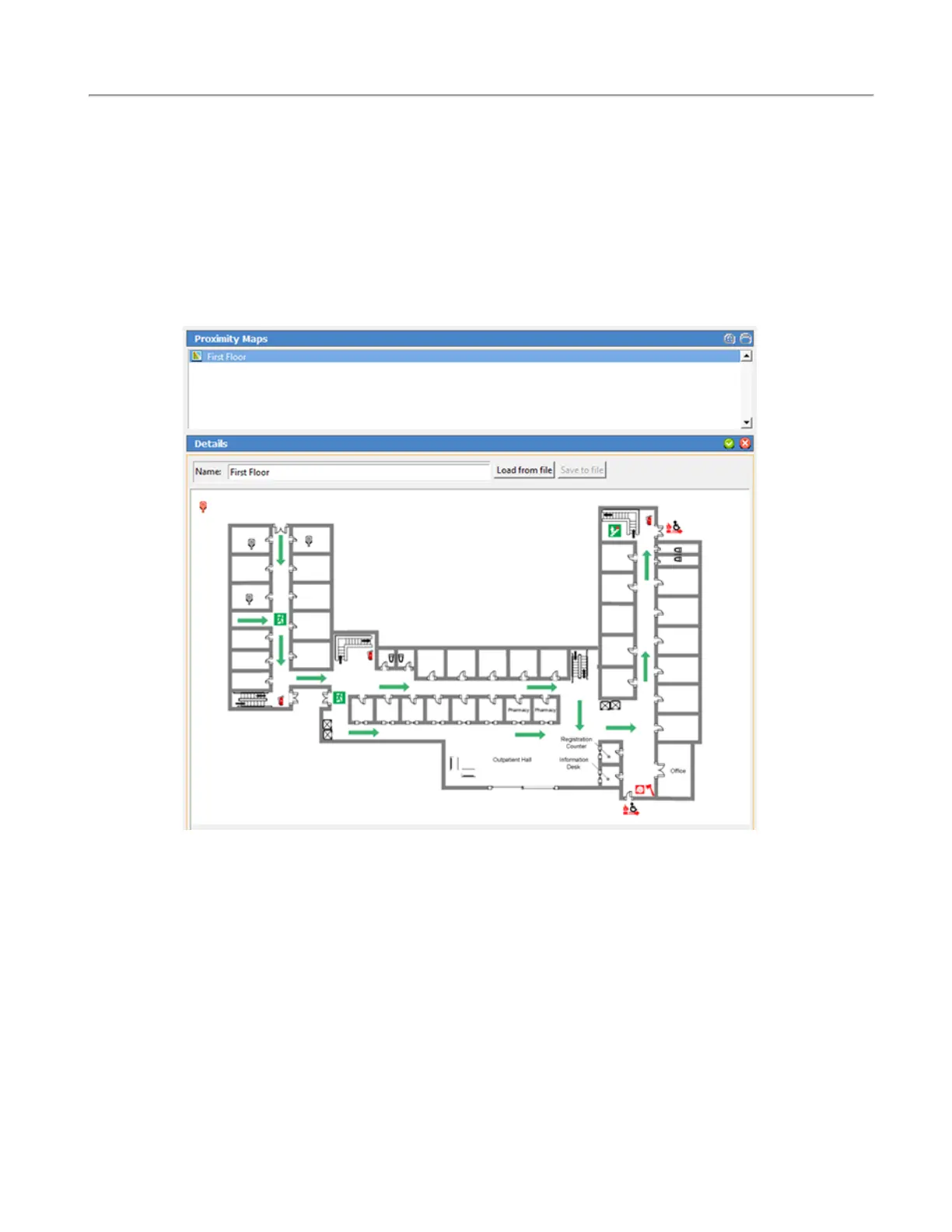
List and Map view will show a map view on the NC404TS Master Station. To upload a map of the
facility, go to Locations>Proximity Maps. Acceptable file formats for proximity maps are .bmp, .gif,
.jpeg, and .png. Click Add under Details and select Load from file to upload a map of the facility.
Click Add under Locations to add stations. Create a name for the station and pick the proximity map
and click Save.
Select Edit under Proximity Maps. Once the Proximity Map has loaded, click Edit for each location
and choose the proximity map in the drop down under Details. Once all of the locations are saved, a red
icon will appear to the left of the proximity map. Click Edit next to the Proximity Map and drag the
red icon to the correct location on the map. Click Save. Once the configuration is committed, the red
icons will display as gray boxes on the NC404TS Master Station in Map view.
The master station can be password protected. Go to the Passwords page. Click Add and create a pass-
word. Select the appropriate settings which will require a password. Refer to IL855 LS450 Config Tool
Manual for more information. Click Apply and save the configuration.
Once the configuration has been completed and committed to the system, the NC404TS Master Station
will show all active calls on the Tek-CARE system, and if desired, can be zoned using the LS450 Con-
fig Tool or the annunciation options in the Settings screen.
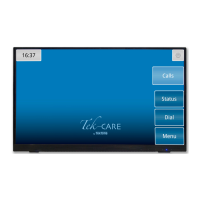
The Calls screen is the home page.
Touch the navigation buttons to interact with the master station. To return to the home screen at any
time, touch the background of the screen or the Calls button.
Depending on how the master station was configured in the LS450 Config tool, a few different versions
of the Calls screen may appear.
10|IL1052 NC403TS and NC404TS Installation Manual
Copyright
©
TekTone Sound and Signal Mfg., Inc. All Rights Reserved


 To Next Page