Next, find the correct network IP address. To find the correct network IP address connected to the Tek-
CARE Network, go to the NC475 Tek-CAREAppliance Server.
NOTE: For more information on setup, updates, and networking, refer to the NC475 Tek-
CAREAppliance Server Installation Manual, IL1012.
Use the arrow keys on the front of the NC475 to scroll to the right. At the Menu screen, scroll down to
Facility IP Setting and scroll down to view the IP address, netmask (if applicable) and gateway (if
applicable).
Note the IP Address assigned to the NC475 Tek-CARE Appliance Server here:
________.________.________.________
Once you have noted the IP address, press the red Exit button to return to the setup menu. Use the arrow
keys to scroll through the Setup menu and select the Exit option. Press the green Okay button. The
NC475 Tek-CAREAppliance Server will reboot and return to the home screen.
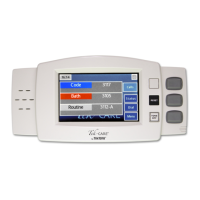
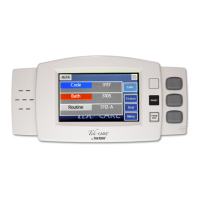
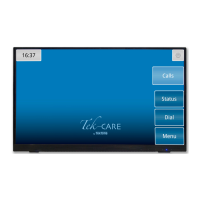
Power up the device. Once the NC403TS Monitor or NC404TS Master Station is turned on for the first
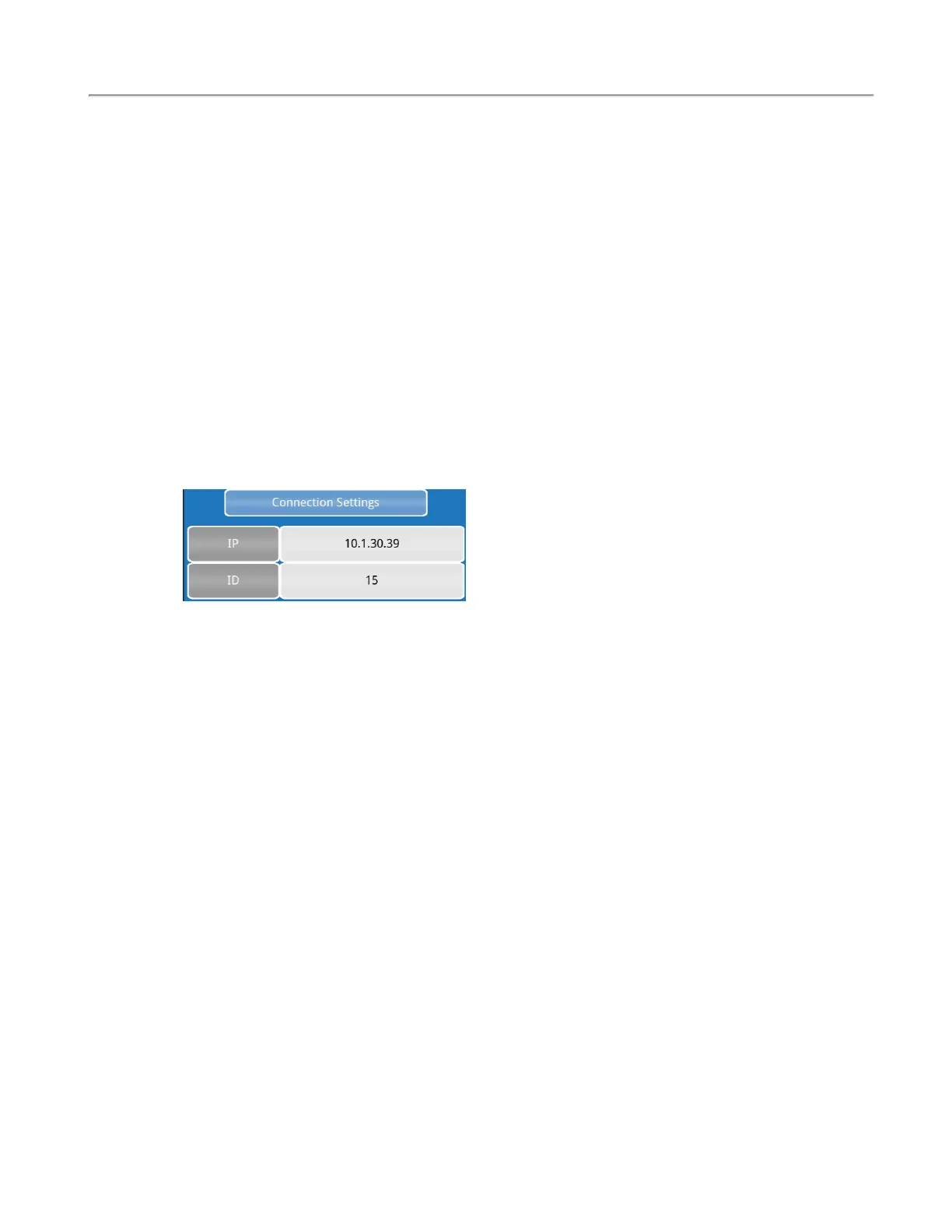
time, enter the IP address as noted above in the Connection Settings screen and choose a unique Device
ID between 1 - 254. Below is an example of an IP address and Device ID entered in the Connection Set-
tings screen.
Note the Device IDs of each NC403TS Monitor and NC404TS Master Station installed on the system.
At the bottom of the Connection Settings screen, click Network Setup.
On the Network Setup screen, DHCP will be automatically defaulted. In most instances, the DHCP
option should be chosen.
NOTE: Only use the Static option when directed by facility IT staff. Theywill have to
provide the appropriate address and subnet information to enter into the Static IP address
and Subnet fields.
If changes were made to the Network Setup screen, click Save. This option will apply the changes and
force the NC403TS Monitor and NC404TS Master Station to reboot.
If there were no changes made to the Network Setup screen, click Cancel which takes you back to the
Connection Settings screen. If you wish to reset the connection settings, touch Reset Connection Set-
tings. This will force the device to reboot and change back to the default settings before any changes
were made.
Click Connect to be redirected to the home page of the NC403TS Monitor and NC404TS Master Sta-
tion.
Copyright
©
TekTone Sound and Signal Mfg., Inc. All Rights Reserved
IL1052 NC403TS and NC404TS Installation Manual | 7
Installing the NC403TS Monitor and NC404TS Master Station


 To Next Page