5
Set up your tablet
The first time you power on the tablet, you should set the following options:
• Touch English (United States) to choose your language, and touch Vision settings to customize accessibility
features. When finished, touch Start on original interface to go on.
• Select mobile data.
• Select an available Wi-Fi network. Or touch Set up offline and Continue.
• Toggle
to allow the tablet to use location, otherwise toggle off .
• Toggle
to allow scanning, otherwise toggle off .
• Toggle
to allow to send usage and diagnostic data, otherwise toggle off .
• Click Accept to continue.
• Set aPIN for screen lock, otherwise touch Skip > Skip anyway on the screen to continue.
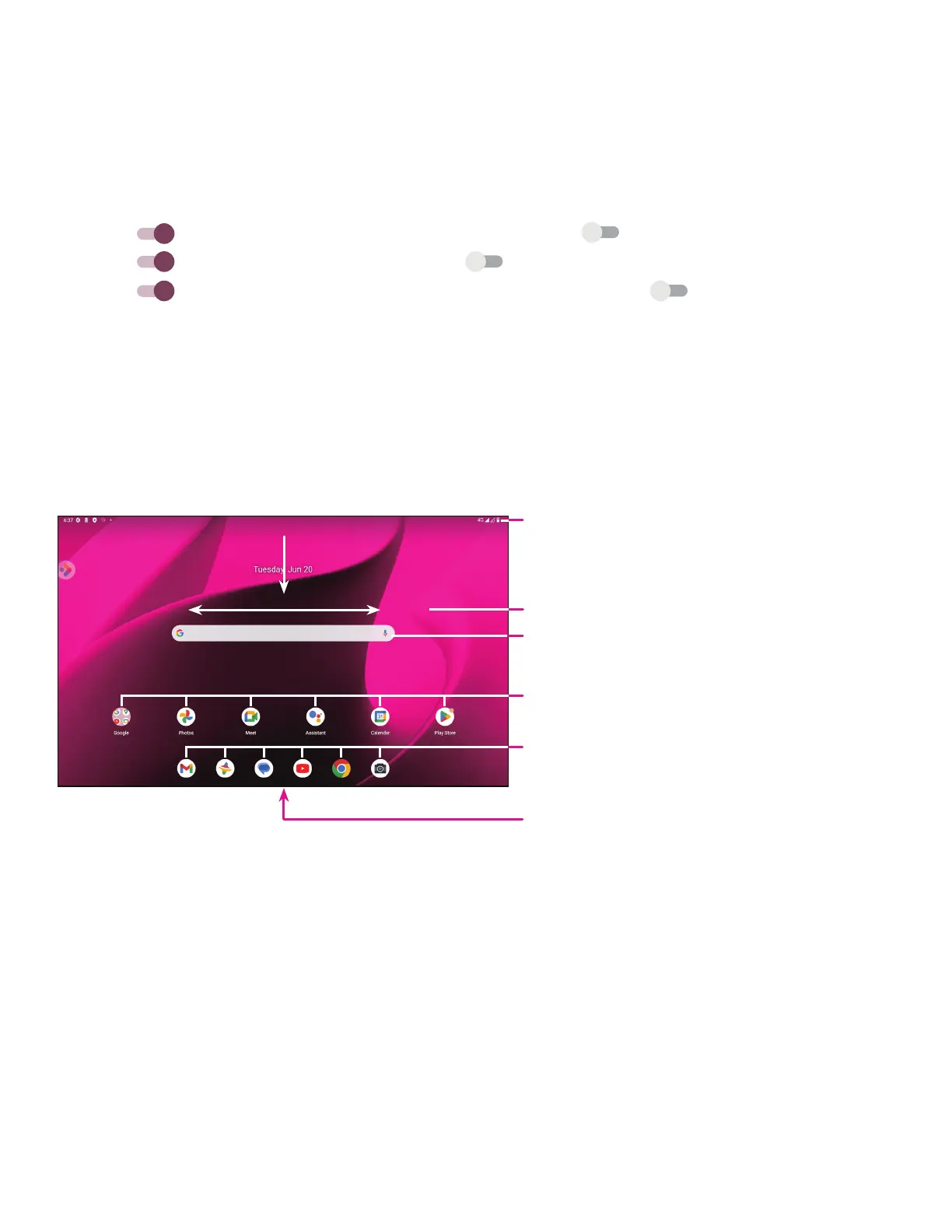
1.3 Home screen
You can bring all of the items that you use most frequently (applications, shortcuts, widgets, folders) to your Home
screen for quick access.
Status bar
• Status/Notification indicators
• Swipe down to view the Notification panel
Swipe left or right to view more screens
Search bar
• Enter text in the search bar
• Click the microphone to initiate asearch by speaking
Touch to open an application or folder
Touch and hold to move or change applications
Favorite apps tray
• Touch to open the application
• Touch and hold to move or change applications
Swipe up on the bottom of the screen to access apps menu


 To Next Page