7
2 About your tablet .....................................................................
2.1 Power on/off
To turn the device on, hold down the Power key until the tablet powers on. Unlock your tablet (using None, Swipe,
Pattern, PIN, Password or Face key) if necessary. Once unlocked, the Home screen is displayed.
If you don’t know your PIN code or if you have forgotten it, contact Customer Care. For safety, please do not store
PIN code in your tablet.
To power the device off, press the Power key and Volume up key until options appear, then select Power off.
Charging
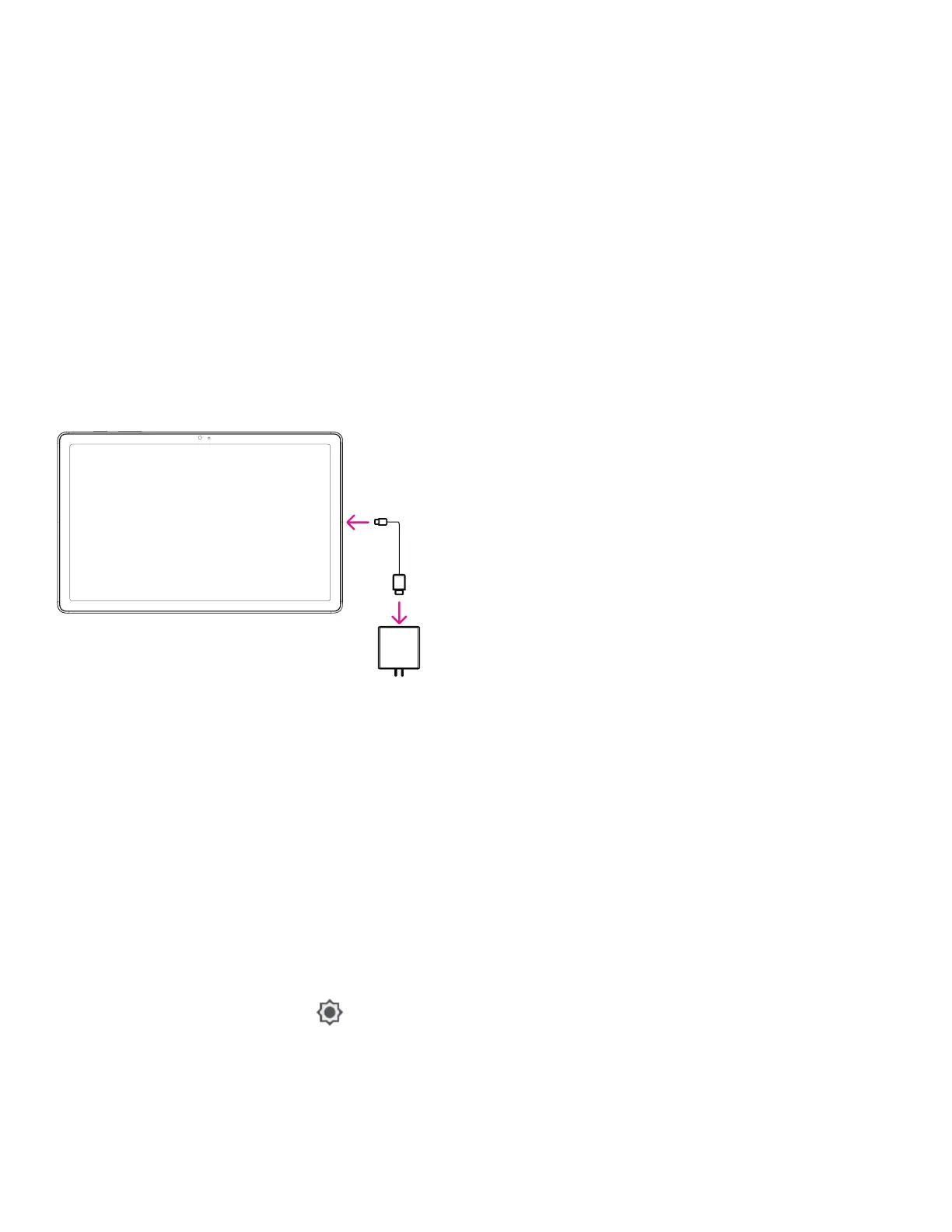
Insert the small end of the charging cable into the charge port and plug the charger into an electrical outlet.
• Insert the USB type-C cable into the charge port as
shown.
• Connect charger to power outlet.
Note: Please use the USB type-C cable included in the box.
Wall charger sold separately. Using the wrong cable and
charger may damage the charging port or reduce battery
performance.
2.2 Battery
Make these adjustments to optimize your battery life.
Turn on power saving mode
• Go to Settings > Battery > Battery Saver.
• Touch Use Battery Saver > TURN ON to activate the battery saving mode.
Note: The Battery Saver mode will not be activated in charging mode.
Lower screen brightness
• Go to Settings > Display > Brightness level.
• Lower the brightness by sliding
to the left.
Screen timeout
• Go to Settings > Display > Screen timeout.
• Select the screen timeout duration.


 To Next Page